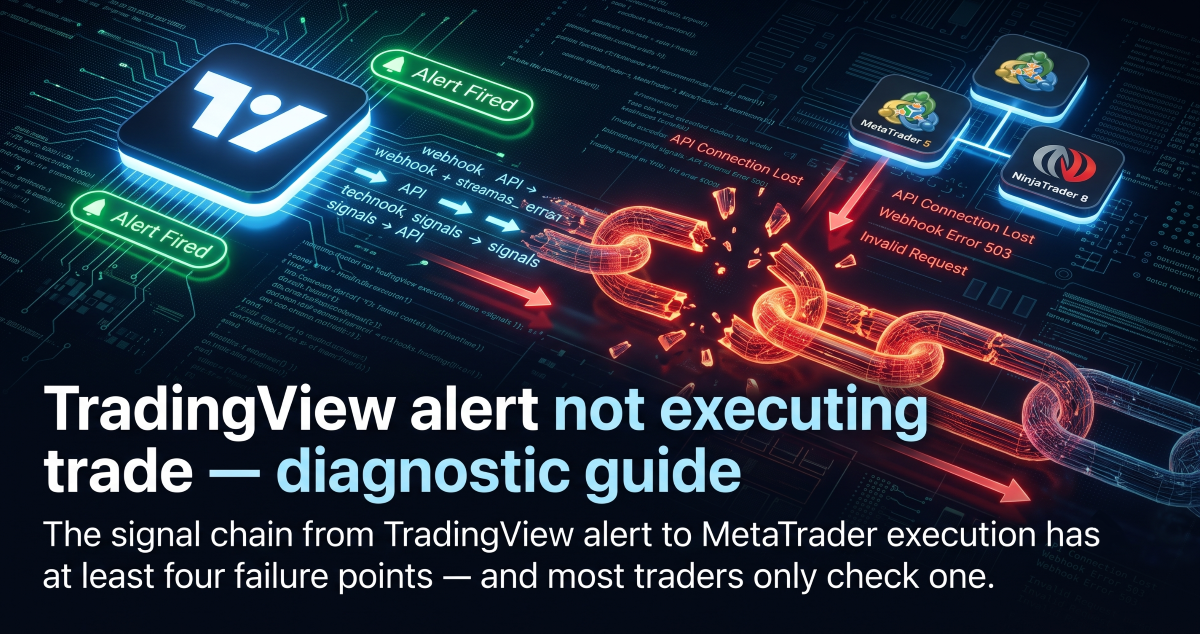
Here is a post from the MQL5 forum, written at a quarter past midnight. You may recognise the feeling. “The signal subscription is active and Realtime copying is enabled, but the VPS continuously shows: Signal server: disconnected.” (maged77, 15 September 2026). New VPS. New signal. Password reset, credentials confirmed, settings migrated. This was the second time it had happened to him. The terminal still said disconnected, and every trade that fired in the meantime was gone.
Your version probably looks a little different. A TradingView alert fired. The log says the webhook went out. MetaTrader shows nothing. There is no error and no notification, just a missed entry, and price is already 40 ticks away by the time you look.
It is the same failure in a different layer. And the reason a second VPS didn’t fix maged77’s problem is the reason most of these forum threads end without an answer. Everyone re-checks the layer they understand, and the trade died in one they didn’t.
In this article, I’ll walk you through the four hops between your chart and a filled order, and the seven places a trade can die along the way. For each one you’ll get the exact place to look and what a failure looks like there. By the end you’ll have a diagnostic table you can run top to bottom in under ten minutes, and you’ll know how to stop doing this every month.
The green checkmark in your alert log is not evidence. It proves the condition fired. It proves nothing about your webhook, your relay, your terminal or your broker. Reinstalling the VPS proves even less.
“The automation” is not one thing. Between the condition on your chart and a filled order there are four hops. Each one fails quietly, in its own way, and each one needs its own check from you.
The condition is met. The alert fires and logs the event.
TradingView sends the message to your URL over HTTPS.
Receives, validates and records the signal. It must answer within 3 seconds.
The EA or Receiver in your terminal places the order. The broker accepts or rejects it.
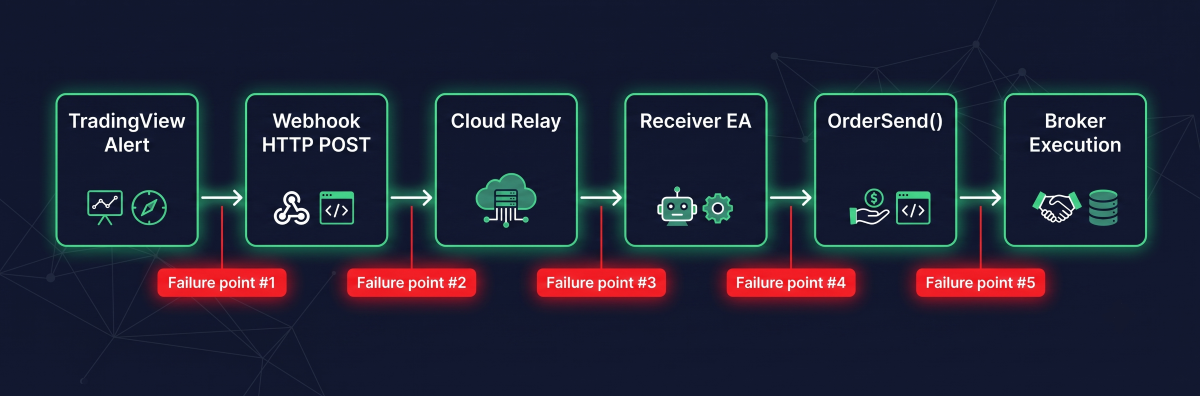
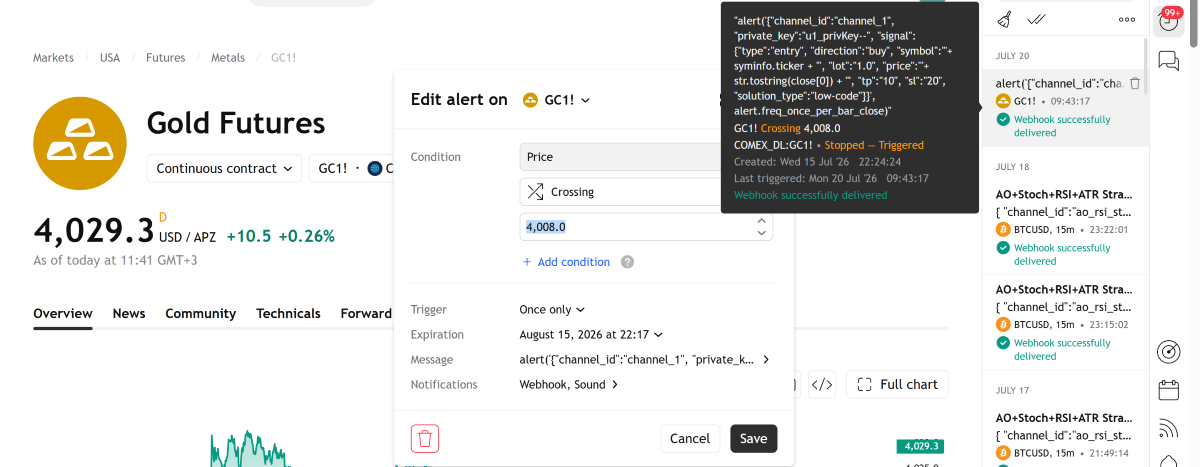
TradingView logs the alert firing and the webhook delivery in separate columns (TradingView Support: How to configure webhook alerts). An alert can show “fired” while the Webhook status column shows an error. And even a clean delivery only proves hop 2. It says nothing about hops 3 and 4. That is why maged77’s checklist was complete and his terminal was still dark. Every item on it lived upstream of the failure.
This catches more people than any technical bug, and the failure is beautifully simple once you see it. You can’t misconfigure an option that doesn’t exist.
On TradingView’s free plan the Webhook URL checkbox isn’t greyed out or hidden behind a paywall warning. It is simply not in the Notifications dialog. The webhook isn’t failing to deliver. It was never there. Webhooks need a paid plan, and the current tiers are at tradingview.com/pricing.
There is a second gate: two-factor authentication. TradingView’s documentation says that “webhook alerts are only allowed when 2-factor authentication is enabled” (source). Without it, the option may appear, but delivery will not work.
How to check: Account settings, confirm a paid plan. Privacy and Security, confirm 2FA is on. If the Webhook URL field doesn’t appear when you create an alert, you have found it.
TradingView doesn’t validate the URL when you save the alert. It accepts anything. The delivery attempt only happens when the alert fires, so you get no warning. So a typo you made in January shows up as an error in March, in the Webhook status column, on the first trade that mattered.
The requirements you have to meet are strict, and they are documented (How to configure webhook alerts; What do errors mean when sending webhooks).
Quick test: Swap your webhook URL for a request-inspection service such as webhook.site and fire a test alert. If the payload arrives there, TradingView’s side works and the problem is your endpoint. If nothing arrives, the problem is your alert configuration.
Joe’s TradingView alert went through a Telegram bot to an EA. The bot’s message and his hand-typed message were identical on screen. The EA traded one and ignored the other. The thread got one reply, “put more screenshoot”, and no answer.
The answer is one you can’t see on screen: two messages that look the same can be different bytes. Bot-generated text carries entity markup, non-printing characters or a different encoding that a strict parser rejects. The same thing happens one hop earlier, inside TradingView itself. If your alert message isn’t valid JSON, TradingView sends it with a text/plain content type instead of application/json (documented here). Some relays only parse application/json. One missing brace, one trailing comma, one unescaped quote, and the alert fires, the webhook delivers, and the relay throws the message away.
There is a second variant: placeholders that never resolved. If you see a literal {{ticker}}, {{close}} or {{strategy.order.action}} in the alert log instead of values, the syntax is wrong or the alert type doesn’t support that placeholder.
How to check: Alert Log, hover the fired alert, expand the full message body. Copy it exactly and paste it into any JSON validator. Then compare the bytes, not the look. Paste the message into a plain text editor with “show all characters” on. Joe’s bug lives there.
If you write your own Pine Script: alertcondition() only takes a constant string. For series values use alert(), or the alert_message parameter of strategy.entry() and strategy.exit().
TradingView’s rule is one sentence. “If a remote server takes longer than three seconds to process a request, the request will be cancelled” (source). Your relay validates the signal, looks up your account, opens a broker connection. If that takes 3.1 seconds, the log shows “timeout exceeded” and the signal is gone.
This is why a setup that passed every quiet-afternoon test you ran fails on the first NFP. The relay that answered in 200 ms on its own now answers in four seconds under a burst of alerts.
Here is what we don’t know, and neither does anyone else outside TradingView: whether a timed-out webhook is ever retried. The two support pages we checked, webhook configuration and webhook errors, describe the timeout and the error categories and say nothing about resends. Some third-party guides claim a retry on 5xx responses. We couldn’t confirm it in TradingView’s own documentation, so we design as if it doesn’t exist. Treat any non-2xx delivery as a lost signal.
How to check: Log the receipt timestamp on your relay and compare it with the alert-log timestamp. Consistent gaps under load mean your relay is too slow. Acknowledge with 200 OK first and do the broker work after. If you run a cloud copier instead of a self-hosted script, this hop is handled for you. On our own infrastructure the Nordman Connector webhook leg completes in about 0.1 to 0.15 seconds, based on our internal measurements.
The webhook arrived. The relay validated it. Nobody picked it up. This is where maged77’s thread lives, and it may be where yours lives too, and it is the most common cause of “everything looks fine and nothing happened.”
His diagnostic was thorough. Password reset, credentials confirmed on the website, subscription active, Realtime copying enabled, settings migrated to a fresh VPS. Every step tested a layer above the terminal. None of them tested whether the terminal process itself was alive, connected and allowed to trade at 00:15 when the signal came in. Here is the uncomfortable part. Reinstalling the VPS is not a test. It is the same unknown on new hardware.
A VPS keeps your terminal running through your laptop’s sleep mode. It doesn’t keep it running through its own reboot, and nobody tells you when that happens. Here are the four ways your terminal goes dark while your VPS stays green.
And here is the part nobody in maged77’s thread said out loud. Signals that arrive while the terminal is offline are not replayed. For Nordman Connector this is documented behaviour. The Receiver processes signals in real time, and an alert that fired during an outage is not executed later when the connection comes back. Most webhook copiers work the same way. The most expensive latency isn’t 50 ms. It is infinite.
Do this now, before you read on. Open your terminal’s Experts tab and scroll back 24 hours. Is there a gap between log entries longer than the interval between your strategy’s signals? If yes, that gap is where your trade went, and nothing upstream of it needed fixing.
How to check: Experts tab shows every action, connection and error the EA took, with timestamps. A gap means offline. The Journal tab shows connection messages. The chart icon tells you the rest: a smiley means active and permitted, a sad face or red X means AutoTrading is off or a permission is missing. If the terminal was closed at the time, the log files are still there. Press Ctrl+Shift+D in MT5, then MQL5, then Logs, and open the file for that date. The setup steps that prevent most of this are in our guide on how to install and run an Expert Advisor in MetaTrader 4.
The signal arrived. Your EA received it. It tried to place the order, and your broker rejected it. MetaTrader put the rejection in the Experts tab as a number, not a popup. If you aren’t reading that tab, the EA looks idle when it actually tried and failed.
| Error Code | Description | Common Cause | Severity |
|---|---|---|---|
| Error 133 | Trade is disabled | Outside market hours, holiday halt, account type doesn’t allow EAs | Critical |
| Error 134 | Not enough money | Free margin insufficient for the requested lot size | Critical |
| Error 131 | Invalid trade volume | Lot below broker minimum or off the lot step | High |
| Error 130 | Invalid stops | SL or TP inside the broker’s minimum stop distance | High |
| Error 138 | Requote / Off quotes | Price moved beyond max slippage before the fill | Moderate |
One more that isn’t an error code, and one you should check first: the symbol name. TradingView says EURUSD. Your broker says EURUSD.ecn or EURUSDm. On futures, NQ1! has to become MNQ JUN26. No match means no order, and often no error either. That is a separate article: What Is Symbol Mapping (and Why EURUSD Isn’t Always EURUSD).
How to check: View, then Experts. Search for “error”. Each code maps to a precise cause in the MQL4 documentation. Also check three things: demo versus live login, investor (read-only) password, and whether your broker restricts EA trading on your account type.
One good trade, then silence, while your strategy printed five more setups the same session. The alert is still in your panel, and you never touched it. It just never fires again, because its Trigger setting was Once Only.
How to check: Alerts panel, open the alert, look at Trigger. “Once Only” with an ongoing strategy is the problem, so switch to “Once Per Bar Close”. “Stopped” next to the trigger means it already spent its one shot.
Start at layer 1 and go down. The first layer where you can’t find evidence is your root cause. Don’t skip to the layer you understand best. That is how a second VPS gets bought.
| Layer | Where to Check | Symptom | Fix |
|---|---|---|---|
| 1 — TradingView Alert | Alerts panel, alert status | “Stopped”, or the alert isn’t there | Trigger setting. Re-create if “Once Only” |
| 2 — Webhook Delivery | Alert Log, Webhook status column | Error text in the column | URL, HTTPS, port, 2FA, plan tier |
| 3 — Payload | Alert Log, message body | Literal {{…}}, a 400 from the relay, “looks right” but rejected | Validate the JSON. Compare bytes, not looks |
| 4 — Relay / Bridge | Relay dashboard or server logs | No signal recorded, or “timeout exceeded” in TradingView | Answer in under 3 s. Ack first, process after |
| 5 — Terminal | Experts tab gaps, chart icon | Gap in the log, sad face, red AutoTrading | Restart the terminal, enable AutoTrading, check EA properties. Not a new VPS |
| 6 — Broker | Experts tab, error codes | 130, 131, 133, 134, 138, or a symbol mismatch | Lot size, margin, stops, account type, symbol mapping |
The table works after the fact, and you will use it more than once. maged77 was on his second round of it. The question worth more than any single fix is why the same trader ends up here twice, and the answer is architecture, not diligence. A TradingView alert, a self-hosted script, a MetaTrader on a VPS you administer, a broker. Four tools from four vendors, and none of them can see the others. Every junction is a failure point with no witness.
Three things change that for you. Monitoring, so the relay tells you when a signal arrived and when it didn’t. A fast relay, one that answers TradingView inside 3 seconds by design and not by luck. And a terminal that reports its own absence, because hop 4 is the one failure you can’t see from TradingView’s side.
This is the job Nordman Connector was built for. The cloud server receives the webhook, validates it and records it in the dashboard. The Receiver in your terminal keeps a persistent connection to that server and executes locally. If the Receiver drops, whether from a VPS reboot, AutoTrading switched off or a closed terminal, you get a Telegram notification within seconds instead of a forum thread the next morning.
If you want to see the full execution flow, it is in this walkthrough: TradingView to NinjaTrader in ~0.5 Second — Auto Trade Copier. The same infrastructure handles MT4, MT5 and NinjaTrader 8: Can You Connect TradingView to MT4, MT5, and NinjaTrader 8? And for when the 0.5 seconds actually matters and when it doesn’t: When ~0.5s Execution Actually Matters in Automated Trading.
Need something custom built? We develop automation to order → Forex EA Programming Services
Nordman Algorithms provides software infrastructure for trade automation and does not offer financial advice, trading signals, or managed trading services. This article is for informational and educational purposes only. Forum quotations are reproduced verbatim from public threads for illustration and do not constitute endorsement. Trading leveraged instruments such as Forex and CFDs carries a high level of risk and may not be suitable for all investors. Only risk capital should be used. Full Risk Disclosure: https://www.nordman-algorithms.com/risk-disclosure/