TradingView to MT5 Trade Copier
The TradingView to MT5 Trade Copier is a cloud-based connector that executes TradingView alerts in MetaTrader 5 across manual trading, strategy automation, and indicator automation workflows, with Low-Code and No-Code setup methods. It supports TP/SL from the alert or your own, flexible lot sizing, reversal and pyramiding control, prop trading limits, and a centralized admin panel.
Already a subscriber or have purchased a product?
How the TradingView to MT5 Trade Copier Works
The TradingView to MT5 Trade Copier is a cloud-based software utility for sending user-configured TradingView alerts to MetaTrader 5 for automated trade execution — across manual trading, strategy automation, and indicator automation workflows, with no symbol mapping required.
Connect your Receivers on several platforms and symbols to the same channel, and one alert is executed on all of them. Receivers for every platform are included in the same subscription; each MT5 account requires its own license, which covers one demo and one live account.
Choose Your Trading Workflow
Use the copier for manual trading, strategy automation, or indicator-based automation. Compare the five workflows, then open the one that matches how you send trades from TradingView.
| Workflow | Alerts you create | Pine Script editing | Protected scripts | Best for |
|---|---|---|---|---|
| Manual Trading | 4 alerts — Entry Buy, Entry Sell, Exit Buy, Exit Sell — started by hand | Not needed | — | Discretionary traders |
| StrategyWith Script Access (Low-Code) | 1 strategy alert; alert messages added inside the strategy code | Required | Source code needed | Strategies you or your developer can edit |
| StrategyNo-Code Configuration | 1 strategy alert with a ready-to-use webhook message; the signal type is detected automatically | Not needed | Supported | Any TradingView strategy |
| IndicatorWith Script Access (Low-Code) | One alert condition per signal action | Required | Source code needed | Indicators with clear entry and exit conditions |
| IndicatorNo-Code Configuration | Up to 4 alerts with ready-to-use webhook messages | Not needed | When alerts are available | Existing and protected indicators |
Manual Trade Triggering from TradingView
Use TradingView alerts as manual trade triggers for Entry Buy, Entry Sell, Exit Buy and Exit Sell. When you identify a setup on the chart, activate the corresponding alert from the TradingView interface. The webhook signal is sent to the cloud server, and the trade is executed on the MT5 receiver side.
This workflow is designed for discretionary traders who prefer making trading decisions manually, while still using TradingView alerts to execute trades through an external MetaTrader 5 terminal.
Automatic Strategy Alerts · With Script Access (Low-Code)
Use this workflow when you have access to the Pine Script strategy code and want to configure alert messages directly inside the strategy. The strategy generates automated trade signals, and TradingView forwards them to the copier through the webhook connection.
- Open the Pine Script strategy source code.
- Insert the provided alert message logic into the strategy.
- Create a TradingView strategy alert and configure the webhook URL.
- The strategy sends automated trade signals to the MT5 Receiver terminal.
Automatic Strategy Alerts · No-Code Configuration
Use this workflow when you do not have access to the strategy source code or prefer not to edit Pine Script. Copy and paste the ready-to-use webhook message provided in the client area into the TradingView alert settings.
No Pine Script editing or custom message formatting is required, and you do not need separate alert messages for each trade action — the system determines the signal type when the strategy order is triggered.
Automatic Indicator Alerts · With Script Access (Low-Code)
Use this workflow when you have access to the Pine Script indicator code and can configure alert conditions for specific signal events. It is useful when the indicator contains clearly defined bullish, bearish, or exit conditions and you want to control how each signal is forwarded to the MT5 Receiver terminal.
Each signal condition — Entry Buy, Entry Sell, Exit Buy, Exit Sell — can be linked to the corresponding Receiver-side trade action.
Automatic Indicator Alerts · No-Code Configuration
Use this workflow when the indicator source code is not available or when you prefer not to edit Pine Script. Configure the TradingView alert using the available indicator alert conditions and insert the ready-to-use webhook message provided in the client area into the alert settings.
This workflow connects existing TradingView indicators to the MT5 Receiver terminal without modifying the indicator source code.
TradingView to MT5 Trade Copier — Key Features
How the MT5 Receiver EA executes TradingView alerts, how you scale the setup across your own MT5 accounts, and how you monitor every signal.
Execution
MT5 Receiver EAMarket Orders with Optional TP & SL
Trades are executed as market orders in MT5 based on TradingView alerts. Take Profit and Stop Loss levels can either be passed from the TradingView signal or overridden with fixed values in points inside the MT5 Receiver EA settings. Take Profit and Stop Loss can each be switched off.
Flexible Lot Sizing & Risk Models
Use the lot size from the TradingView signal, scale it with a multiplier (for example, 0.5 or 2.0), or replace it with your own sizing method based on your MT5 account:
Reversal & Pyramiding Behavior
Control what the Receiver does when a new entry alert arrives while a position is already open.
- Close all on reversal (default): opposite trades are closed before the new trade opens.
- Open a hedge: the existing trade stays open and a trade in the opposite direction is added. Available on MT5 hedging accounts only.
- Pyramiding off (default): new same-direction entries are blocked while a Receiver-managed position in that direction is open.
- Pyramiding on: the Receiver adds to the existing position.
Execution Time Control
Define when trades are allowed to be executed based on the MetaTrader chart (broker server) time. Restrict execution to a selected session — including sessions that cross midnight — or allow execution at any time.
Scale
Channels, accounts and ReceiversOne Channel, Several Platforms
A TradingView alert channel can be connected to Receivers on MetaTrader 5, MetaTrader 4, NinjaTrader 8 and cTrader at the same time, so one alert is executed on all of your connected terminals. Receivers for every platform are included in the same subscription.
Demo & Live Account Support
One license covers both a Demo and a Live MT5 account running at the same time. You can validate your strategy on demo while the live account runs in parallel — no additional license needed for the pair.
Multiple Receivers Support
Connect several of your own MT5 Receiver terminals to the same signal source. There is no limit on the number of connected terminals. Each connected MT5 account requires its own active license.
Independent Multi-Strategy Execution
Run multiple TradingView strategies or symbols in the same MT5 terminal. Each Receiver EA listens to its own Channel ID and manages its positions by its own Magic Number, so separate workflows — and your other Expert Advisors on the account — do not interfere with each other.
No Symbol Mapping Required
Trades are executed on the MT5 chart where the Receiver EA is attached, avoiding symbol-mapping issues between platforms.
Monitoring
Admin panel, chart and notificationsCentralized Admin Panel
Monitor incoming alerts, trade executions, connected Receivers, and completed executions through a centralized admin panel. Every alert and executed trade is logged with a timestamp and a unique signal ID for traceability.
Connection Status on the Chart
The Receiver EA shows its connection status to the cloud server directly on the MT5 chart, so a lost connection is visible at a glance.
Telegram Notifications
Receive Telegram connectivity notifications if the MT5 Receiver EA loses connection to the cloud server.
Prop Trading Limits
Optional limits on the Receiver — trading days, daily profit and loss, maximum spread, maximum open trades, maximum open lots, and closing positions after a lost connection. Details are in the Prop Firm Controls tab.
Prop Trading Limits on the MT5 Receiver EA
Optional risk controls for evaluation and funded accounts, configured in the Prop Trading Limits section of the MT5 Receiver EA. Each limit can be enabled independently, and every incoming entry alert is checked against all enabled limits before it is executed.
Limits apply to new entries only. Exit signals for positions that are already open are still processed.
The limits count the Receiver’s own trades. Daily profit and loss, open trades and open lots are calculated for the symbol of the chart and the Magic Number of the Receiver EA — not for the whole MT5 account. Daily results use closed trades only, including commission and swap; open-position profit or loss is not included.
Trading Days
Allow or disable trading for each day of the week, Monday to Sunday, based on the chart time.
Daily Profit Limit
Stops new trading for the day once the closed-trade profit of the Receiver reaches your target.
Daily Loss Limit
Stops new trading for the day once the closed-trade loss of the Receiver reaches your limit.
Maximum Spread (points)
Checks the current spread of the symbol before every new entry.
Maximum Opened Trades
Caps the number of Buy and Sell positions the Receiver keeps open on the symbol at the same time.
Maximum Opened Lots
Caps the combined Buy and Sell volume the Receiver keeps open on the symbol.
Close All Trades on Disconnect
Optional · off by defaultA safety net for the cloud connection. When enabled, the Receiver records the moment it loses its connection to the server and waits for the configured timeout. If the connection is still unavailable, it closes the positions it manages — those with its Magic Number on the current symbol.
Requirements & Setup
What you need to run the TradingView to MT5 Trade Copier, how the subscription and license work, and the steps from subscription to the first copied trade.
Requirements
- TradingView
- A TradingView account with webhook alerts — webhook alerts are available on paid TradingView plans
- Target platform
- MetaTrader 5 (Desktop), updated to the latest available version — MT5 Receiver EA
- Broker & account
- Any MetaTrader 5 broker, netting or hedging account
- Connection
- MetaTrader 5 running and connected to the internet while alerts are expected; a VPS is optional
- MT5 settings
- Algo Trading enabled, DLL imports allowed for the Receiver EA, and WebRequest allowed for the Nordman servers
- Admin panel
- Access to nordman-connector.com, sent by email after registration
Live signals only. Alerts that arrive while MetaTrader 5 is closed or disconnected are not queued or executed later.
Subscription & License
- All-Access Subscription
- This product is available on a monthly subscription basis. Access to all Nordman Algorithms indicators and trade copiers, billed monthly, renews automatically.
- Free trial
- 5 days. No charges apply during the trial period. If not cancelled within 5 days, the subscription starts automatically.
- Cancellation
- Cancel at any time. If you need help cancelling, contact us and we will assist you.
- One license = one Demo + one Live account
- Each license allows one demo and one live MT5 account to be connected at the same time. Every MT5 account that receives and executes signals needs its own license.
- Other platforms
- Receivers for MetaTrader 4, NinjaTrader 8 and cTrader are included in the same subscription.
Setup
- Start the free trial or subscribe
Start the 5-day free trial or subscribe on this page. After registration, you will receive an email with your login credentials for the admin panel at nordman-connector.com.
- Download and install the Receiver EA
The Receiver EA is available through . Enter the email address used for your subscription, and the download will begin automatically once verified. In MetaTrader 5, go to
File → Open Data Folder, openMQL5 → Expertsand copy the .ex5 file there, then restart MetaTrader 5 or refresh the Navigator.Before installation: make sure your MT5 terminal is updated to the latest available version.
- Allow the connection in MetaTrader 5
Go to
Tools → Options → Expert Advisors, enable Algo Trading, tick Allow WebRequest for listed URL, and add these addresses:https://nordman-connector.comhttps://nordman-core.comWhen you attach the Receiver EA to a chart, allow DLL imports in its Common tab — the EA uses them to verify your license.
- Configure your TradingView alerts
In the admin panel, choose your workflow — Manual Trading, Strategy or Indicator, With Script Access (Low-Code) or No-Code Configuration — and set up the TradingView alerts with the webhook URL and the message provided for that workflow.
- Connect the Receiver EA
Attach the Receiver EA to the MT5 chart of the symbol you want to trade and enter your license email, your Public Key and the Channel ID used in your TradingView alerts. When you run several Receivers in one terminal, give each its own Magic Number. All Receiver settings are described in the Instructions tab.
- Test on a demo account
We strongly recommend testing the system on a demo account before using it on a live account. Make sure you fully understand how the system works and how it behaves under different market conditions.
Live accounts: only proceed after you are confident in its operation.
Step-by-step guide: detailed setup instructions for every workflow, with ready-to-use webhook messages, are available in the Help Center of the admin panel.
Questions, errors or issues while using the system? Contact support, Monday to Friday.
Setup Order & Receiver Settings
How the copier is configured, from the admin panel to the MetaTrader 5 chart, and what every setting of the MT5 Receiver EA does. Detailed step-by-step instructions with ready-to-use webhook messages are available in the Help Center of the admin panel at nordman-connector.com.
- Keys
Find your Private Key and Public Key in the admin panel.
- Channel
Choose a Channel ID for each strategy or symbol you want to copy.
- Alerts
Create TradingView alerts with the webhook URL and the message for your workflow.
- Receiver
Attach the Receiver EA to the MT5 chart and enter your email, Public Key and Channel ID.
- Telegram
Optionally, connect @NordmanConnectorbot and enter your Chat ID for connectivity notifications.
Step-by-step guide in the admin panel. Webhook URLs, ready-to-use alert messages and setup examples for every workflow are in the Help Center at nordman-connector.com. They are personal to your account and are not published on this page.
Open nordman-connector.com →MT5 Receiver EA Settings
All settings of the Receiver EA, grouped as they appear in MetaTrader 5, with their default values.
Connection Settings
| Parameter | Default | Description |
|---|---|---|
| Your license email | — | The email address you used when subscribing to the service. It is used to verify your active license. |
| The public key of the sender | — | Your Public Key from the admin panel. It connects the Receiver to the alert channels of your account. |
| Unique ID of the alert channel | channel_1 | The channel from which entry alerts are copied. It must match the Channel ID configured in TradingView. Use a different Channel ID for each strategy or symbol so that alerts from different sources are processed independently. |
Trade Settings
| Parameter | Default | Description |
|---|---|---|
| What the EA should do upon a reversal signal? | Close all trades | What the Receiver does when a new entry alert arrives while a trade in the opposite direction is open: close all opposite trades before opening the new one, or open a hedge trade and keep the existing one. Open hedge is not available on MT5 netting accounts. |
| Allow pyramiding | Off | When enabled, the Receiver adds to an existing position if a new entry alert in the same direction arrives. When disabled, same-direction entries are blocked while a Receiver-managed position in that direction is open. |
| Allow trading within this time (broker-based) | 00:00/00:00 | The time window during which incoming entry alerts are executed, based on the MetaTrader chart (broker server) time. Sessions that cross midnight are supported. 00:00/00:00 disables the restriction. |
Lot Size Settings
| Parameter | Default | Description |
|---|---|---|
| Which lot size to use in each trade? | Signal lot size | Use the lot size from the TradingView alert, or your own sizing method below. |
| Alert signal lot size multiplier | 1.0 | Scales the lot size from the alert: 1.0 keeps the original size, 2.0 doubles it, 0.5 halves it. |
| My own lot size type | Risk-based | The sizing method used when your own lot size is selected: Fixed, Risk-based or Balance-based. |
| Fixed lot size | 0.1 | The lot size for every trade in Fixed mode. |
| Risk for risk-based lot size (% of account balance) | 1 | The percentage of the account balance used to calculate the lot size from the Stop Loss distance. A non-zero Stop Loss is required — from the alert or from the Receiver’s own TP/SL settings. |
| Use this lot size / Per each this $ amount | 1 / 10,000 | Balance-based sizing: the lot size used per amount of account balance. Example: 0.01 lots per $1,000 with a balance of $15,000 gives 0.15 lots. |
Take Profit / Stop Loss Settings
| Parameter | Default | Description |
|---|---|---|
| Which take profit and stop loss to use in each trade? | From the alert signal | Use the TP and SL values from the TradingView alert, or your own values set in the Receiver. |
| Add take profit to each trade | On | Enables or disables Take Profit. |
| My own take profit (ticks) | 100 | Your Take Profit distance in points when the Receiver’s own TP/SL settings are selected. |
| Add stop loss to each trade | On | Enables or disables Stop Loss. |
| My own stop loss (ticks) | 100 | Your Stop Loss distance in points when the Receiver’s own TP/SL settings are selected. |
Prop Trading Limits
| Parameter | Default | Description |
|---|---|---|
| Enable trading days filter / Enable Monday–Sunday | Off / all days on | Allows or disables new trades for each day of the week. |
| Enable daily profit limit / Max daily profit | Off / 500 | Blocks new entry alerts when the day’s closed-trade result for the current symbol and Magic Number reaches the maximum profit. Commission and swap are included; open positions are not. |
| Enable daily loss limit / Max daily loss | Off / 500 | Blocks new entry alerts when the same daily closed-trade result reaches the loss limit. |
| Enable maximum spread filter / Max spread ticks (points) | Off / 20 | Blocks a new entry while the current spread is at or above the set value. |
| Enable maximum opened trades filter / Maximum opened trades | Off / 5 | Blocks new entry alerts while the number of open Buy and Sell positions for the current symbol and Magic Number is at or above the limit. |
| Enable maximum opened lots filter / Maximum opened lots | Off / 10 | Blocks new entry alerts while the combined open Buy and Sell volume for the current symbol and Magic Number reaches the limit. |
| Close all trades on disconnect / Disconnection timeout (seconds) | Off / 20 | Closes the positions with the Receiver’s Magic Number on the current symbol if the connection to the cloud server is not restored within the timeout. |
EA General Settings
| Parameter | Default | Description |
|---|---|---|
| Unique magic number | Set automatically | The number the Receiver uses to identify its own positions and closed trades for trade management and the Prop Trading Limits. Give each Receiver in a terminal its own Magic Number. |
| Enable extended logging | Off | Prints additional diagnostic information to the MetaTrader log. Our support team may ask you to enable it when investigating an issue. |
Frequently Asked Questions
Workflows & Setup
Yes. The copier supports manual trade triggering directly from TradingView using alerts configured for Entry Buy, Entry Sell, Exit Buy, and Exit Sell actions. When you identify a setup on the chart, activate the corresponding alert from the TradingView interface, and the trade will be executed automatically by the MT5 Receiver EA.
With Script Access (Low-Code) workflows are designed for users who can edit Pine Script strategies or indicators directly and configure custom alert logic inside the source code. No-Code Configuration workflows are designed for users who do not want to modify Pine Script or do not have access to the source code.
Yes. Protected and closed-source TradingView indicators can be used as long as the indicator exposes alert conditions that can be configured through the TradingView alert interface.
No. The system supports both With Script Access (Low-Code) and No-Code Configuration workflows. You can use the copier without writing or modifying Pine Script code by configuring TradingView alerts directly through the TradingView interface.
Yes. The copier supports automated TradingView strategy alerts and can process strategy-generated trade events through the webhook connection.
Yes. TradingView indicator alerts are supported and can be connected to the MT5 Receiver terminal using either With Script Access (Low-Code) or No-Code Configuration workflows.
It depends on the workflow you choose. With Script Access (Low-Code) workflows can use separate alert logic for Entry Buy, Entry Sell, Exit Buy, and Exit Sell conditions. No-Code Configuration can simplify the setup process when the TradingView alert already contains the required execution information.
The copier receives signals through TradingView webhook alerts. Webhook alerts are available on paid TradingView plans, so a plan that supports them is required.
Both keys are shown in your admin panel. The Private Key is used only in TradingView alert settings to send signals to your channel — do not share it with anyone. The Public Key is entered in the Receiver on each of your terminals so it can receive the signals from your channel.
Execution
Signal processing and trade execution typically occur within approximately one second. Actual speed may vary depending on internet connection quality, broker server response times, VPS performance, and TradingView webhook delivery speed.
Yes. The MetaTrader 5 terminal and Receiver EA must remain active and connected to the internet to receive and execute incoming trade signals.
If the MetaTrader 5 terminal or Receiver EA is offline when the alert is triggered, the trade will not be executed. The system processes signals in real time and does not queue missed executions for later processing.
By default, positions stay open. You can enable Close all trades on disconnect in the Receiver settings: if the connection to the cloud server is not restored within the set timeout (20 seconds by default), the Receiver closes the positions it manages on the current symbol. The connection status is also shown on the MT5 chart, and you can receive a Telegram notification when the Receiver loses its connection.
A VPS is not required, but many traders use one to keep the MetaTrader 5 terminal running continuously and improve connection stability for automated execution workflows.
Yes. TP and SL levels can either be passed from TradingView alerts or overridden directly inside the MT5 Receiver EA settings.
It depends on the reversal setting. By default, the Receiver closes all opposite trades before opening the new one. On MT5 hedging accounts, you can instead open a hedge trade and keep the existing one. Same-direction signals are blocked while a position in that direction is open, unless pyramiding is enabled.
Yes. The Receiver EA supports fixed lot sizing, balance-based sizing, risk-based sizing, and lot multipliers that can override or scale incoming trade signals.
The system avoids symbol-mapping issues by design. Attach the Receiver EA to the MT5 chart of the symbol you want to trade. Trades will be executed on that symbol regardless of how it is named on TradingView.
Platforms & Licensing
Yes. Several of your own MT5 Receiver terminals can be connected to the same channel and execute the same alert. There is no limit on the number of connected terminals. Each MT5 account requires its own active license.
Yes. One TradingView alert channel can be connected to Receivers on MetaTrader 5, MetaTrader 4, NinjaTrader 8 and cTrader at the same time. Receivers for every platform are included in the same subscription.
Each license allows one demo and one live MT5 account to be connected at the same time, so you can test on demo while the live account runs. Every MT5 account that receives and executes signals requires its own active license.
Yes. The Receiver EA manages only the positions with its own Magic Number, so copied trades are kept apart from trades placed by other Expert Advisors on the same MT5 account. When you run several Receivers in one terminal, give each its own Magic Number.
Yes. The copier works with any MetaTrader 5 broker, on netting and hedging accounts. The Open hedge reversal option is available on hedging accounts only.
It depends on the firm, and firms change their rules, so check your firm’s current terms before you connect a funded account. The Receiver runs under your own MT5 login, and its optional prop trading limits help you avoid breaking a rule by accident. They don’t make automated execution allowed where a firm bans it. More in Automated Trading on Prop Firm Accounts.
Yes. A 5-day free trial is available so you can test the copier before continuing with a paid subscription.
Yes. Your subscription provides access to all products available on the Nordman Algorithms website. You can use other Nordman Algorithms tools under the same subscription without purchasing additional licenses.
Related Products
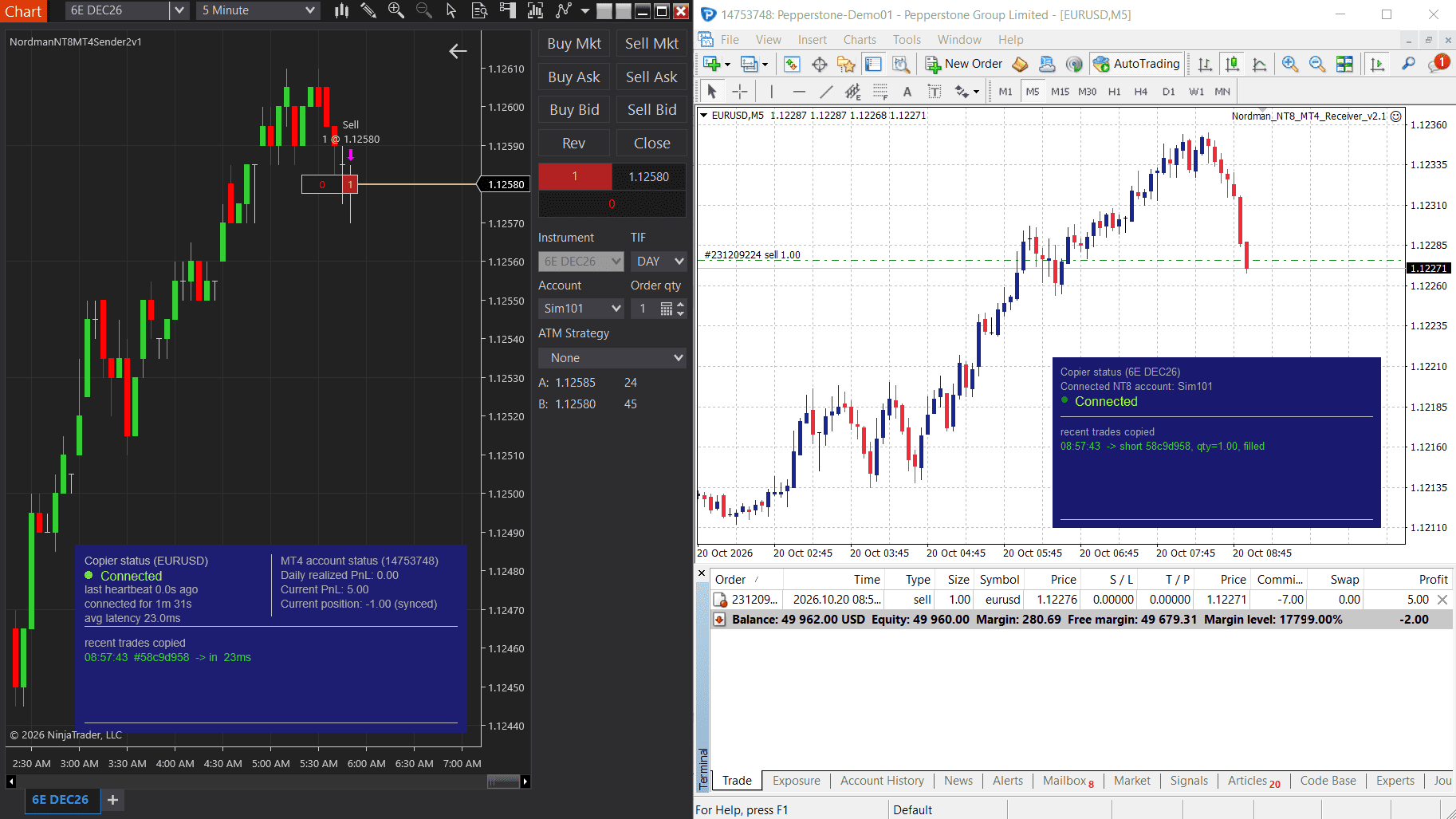
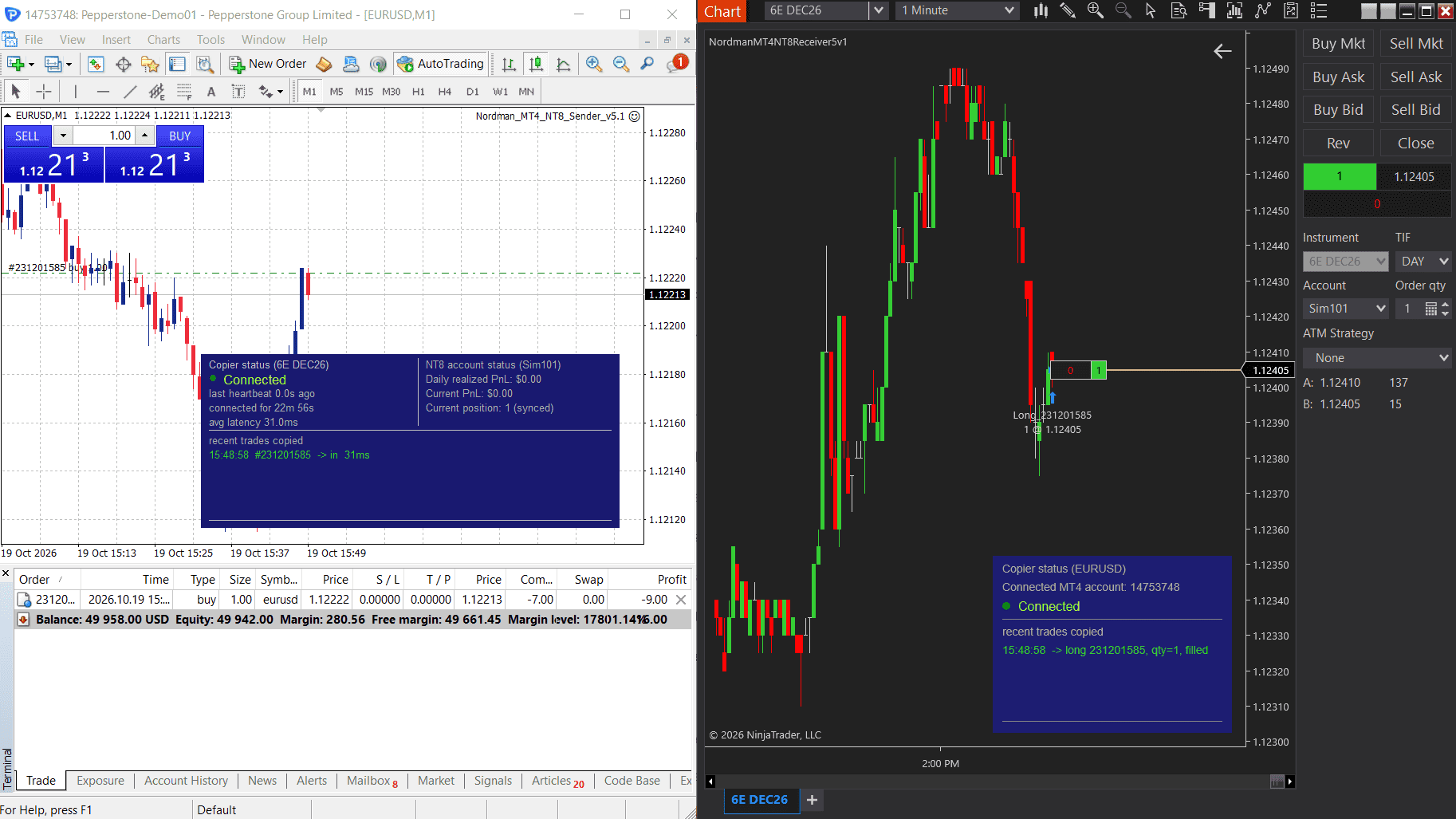
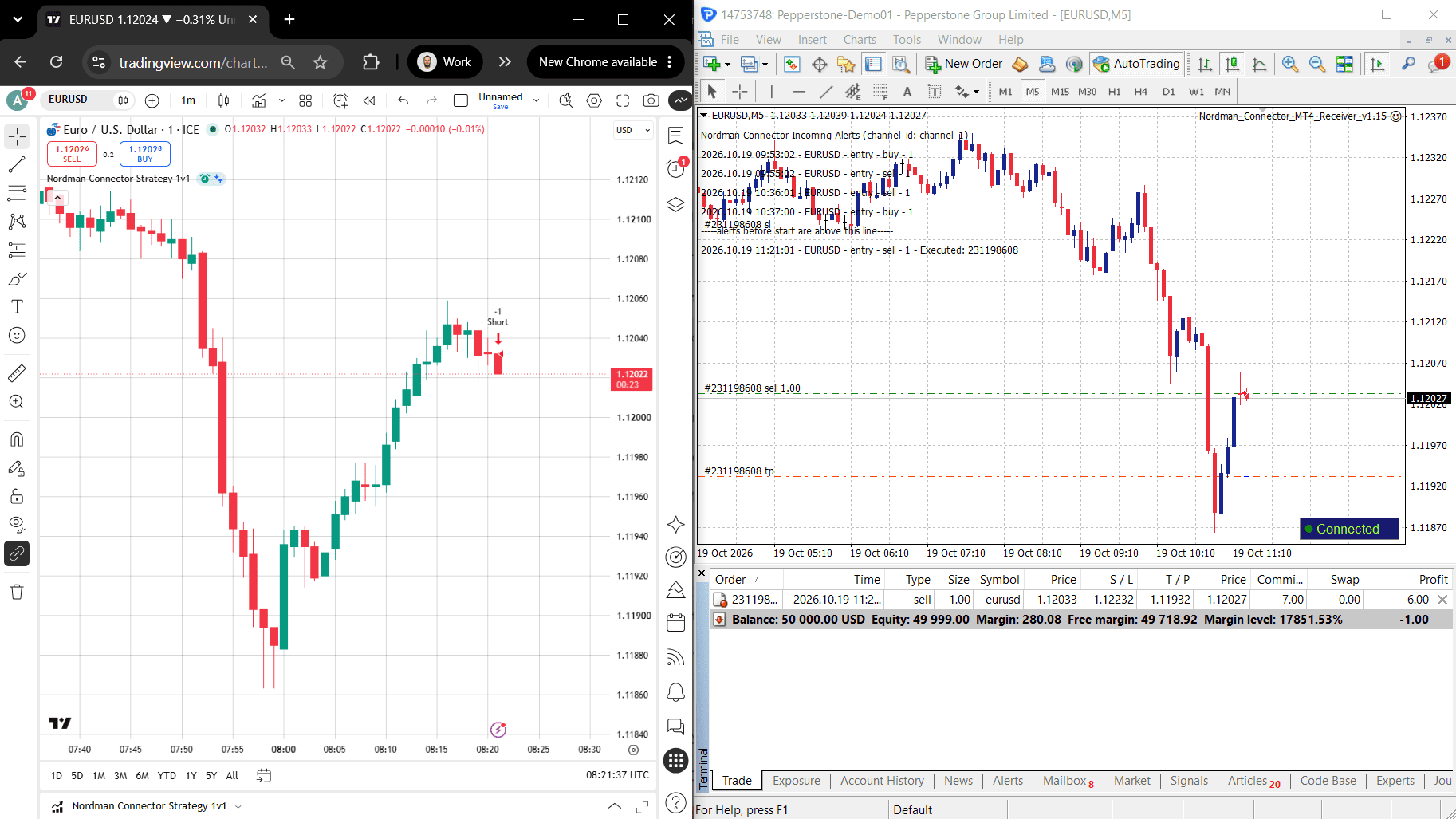
"Best Seller" and "Trending" reflect Nordman Algorithms sales and usage data, January–September 2026.
Disclaimer — Software Use & Risk Disclosure
Nordman Algorithms is a trade name of Nordman Algorithms OÜ (Reg. No. 14435535), registered in Tallinn, Estonia.
Software Use
Software Nature & User Responsibility — Nordman Algorithms provides software tools only and is not liable for risks associated with trading activities conducted using the software. All trading actions, configurations, and trade copying processes are initiated and controlled solely by the user.
No Financial Advice or Regulated Services — Nordman Algorithms does not provide financial advice, trading signals, investment recommendations, managed copy trading services, or any other regulated financial products or services.
Software Function & Signal Execution — The software is a technical utility that automates the execution or replication of user-defined trading signals between supported platforms and trading accounts. Signals may originate from user-configured alerts, trading algorithms, indicators, strategies, expert advisors, or other automated systems defined by the user. The software solely transmits or executes these user-originated signals and does not generate, modify, analyze, or manage trading decisions independently.
Accuracy & Performance Disclaimer — Nordman Algorithms does not guarantee the accuracy, completeness, reliability, or trading performance of any software outputs, signals, or execution results.
Third-Party Platforms & Connectivity — Nordman Algorithms is not responsible for failures or delays caused by third-party platforms, user-side hardware or terminal availability, broker execution conditions, server availability, or external services used in conjunction with the software. Execution prices, spreads, slippage, and order fills may differ from the originating signal due to broker-specific market conditions and liquidity.
Read the full Terms of Service →Risk Disclosure
Trading Risk Warning — Futures, Forex, and options trading involve significant risk. An investor could potentially lose all or more than the initial amount committed. Risk capital is money that can be lost without jeopardizing financial security. Only risk capital should be used for trading. Past performance is not indicative of future results.
ESMA Risk Warning — Financial instruments, especially those involving leverage such as CFDs and Forex, are complex and carry a high risk of rapid financial loss. Our software provides technical automation based on user-defined conditions and does not mitigate or reduce inherent market risks. You should carefully consider whether you understand how leveraged financial instruments work and whether you can afford the high risk of losing your capital.
CFTC Rule 4.41 — Hypothetical or simulated performance results have inherent limitations. Unlike actual performance records, simulated results do not represent real trading. Because trades have not actually been executed, these results may under- or over-compensate for the impact of market factors such as liquidity. Simulated results are also subject to the benefit of hindsight. No representation is being made that any account will achieve profits or losses similar to those shown.
Read the full Risk Disclosure →Trademark Notice — MetaTrader 5 and MT5 are trademarks of MetaQuotes Ltd. Nordman Algorithms is an independent software developer and is not affiliated with, sponsored by, or endorsed by MetaQuotes Ltd. References to MetaTrader 5 identify software compatibility. TradingView is a trademark of its respective owner; Nordman Algorithms is not affiliated with or endorsed by TradingView.
Need a different setup?
If the standard TradingView to MT5 Trade Copier does not fully meet your requirements, we can customize and extend it to fit your trading workflow. Share the features you would like to add or improve, and our developers will propose a suitable technical solution.
Need alert logic in your script? We can add the alert conditions and messages your Pine Script strategy or indicator needs to work with the copier.