MT4 to NinjaTrader Trade Copier
The MT4 to NinjaTrader Trade Copier is a local trade copier that replicates manual and Expert Advisor trades from MetaTrader 4 to NinjaTrader 8 in real time, with both platforms running on the same computer or VPS. It converts MT4 hedging orders into one NinjaTrader net position, copies stops and targets as OCO orders, works with ATM strategies, and includes prop firm trading limits with a news filter. The copier runs as an MT4 Expert Advisor (Sender) and a NinjaTrader indicator (Receiver).
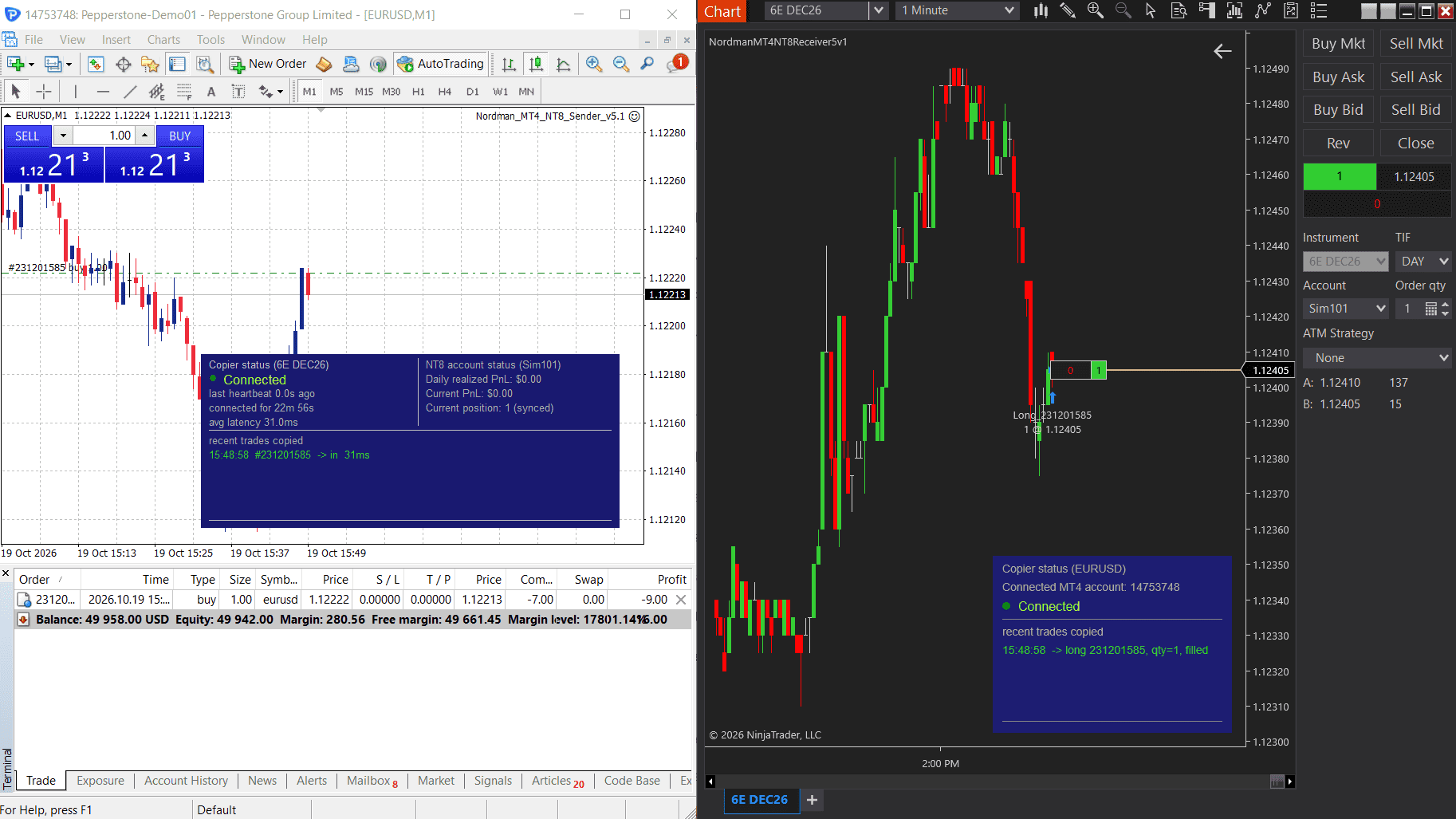
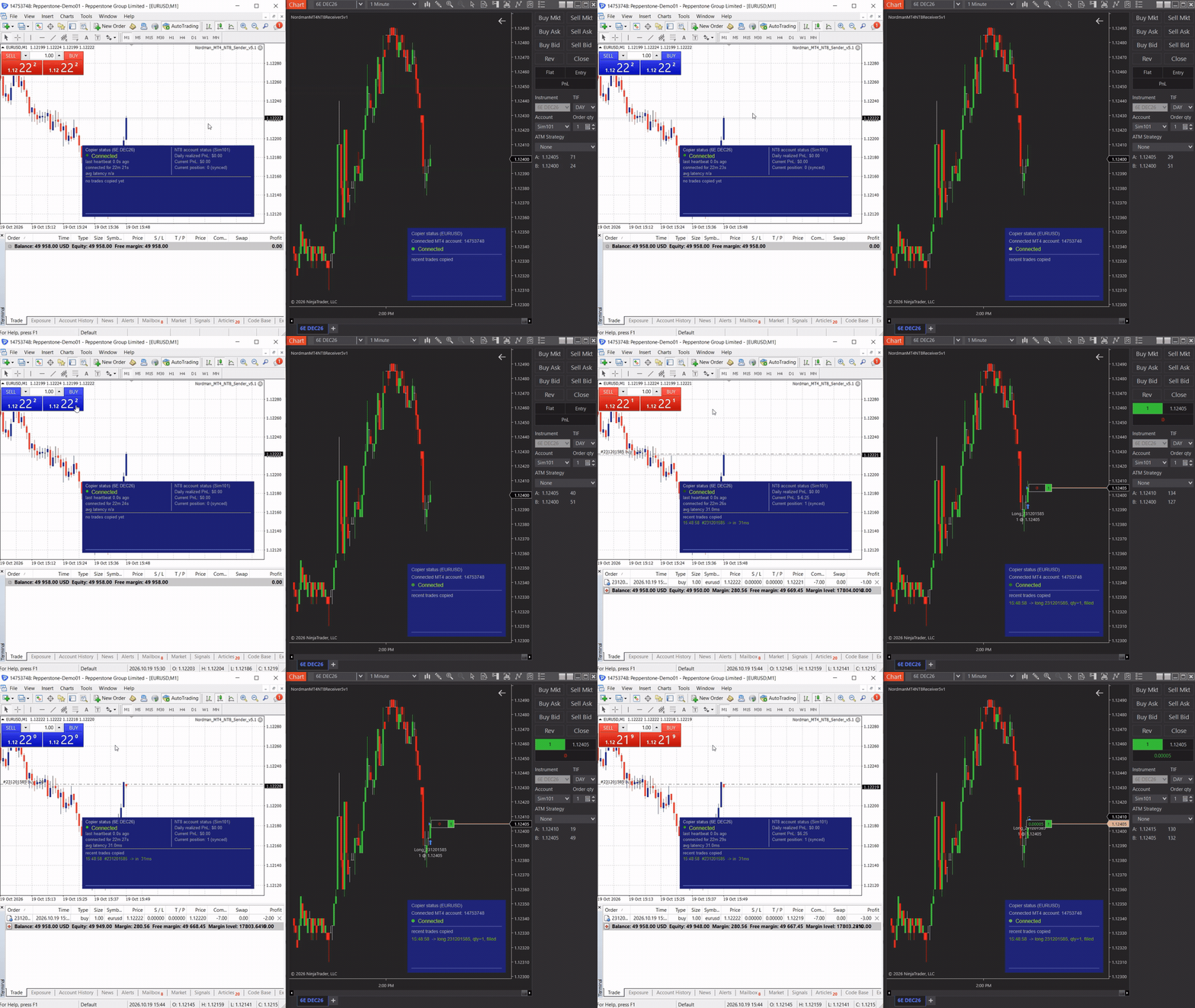
Already a subscriber or have purchased a product?
How the MT4 to NinjaTrader Trade Copier Works
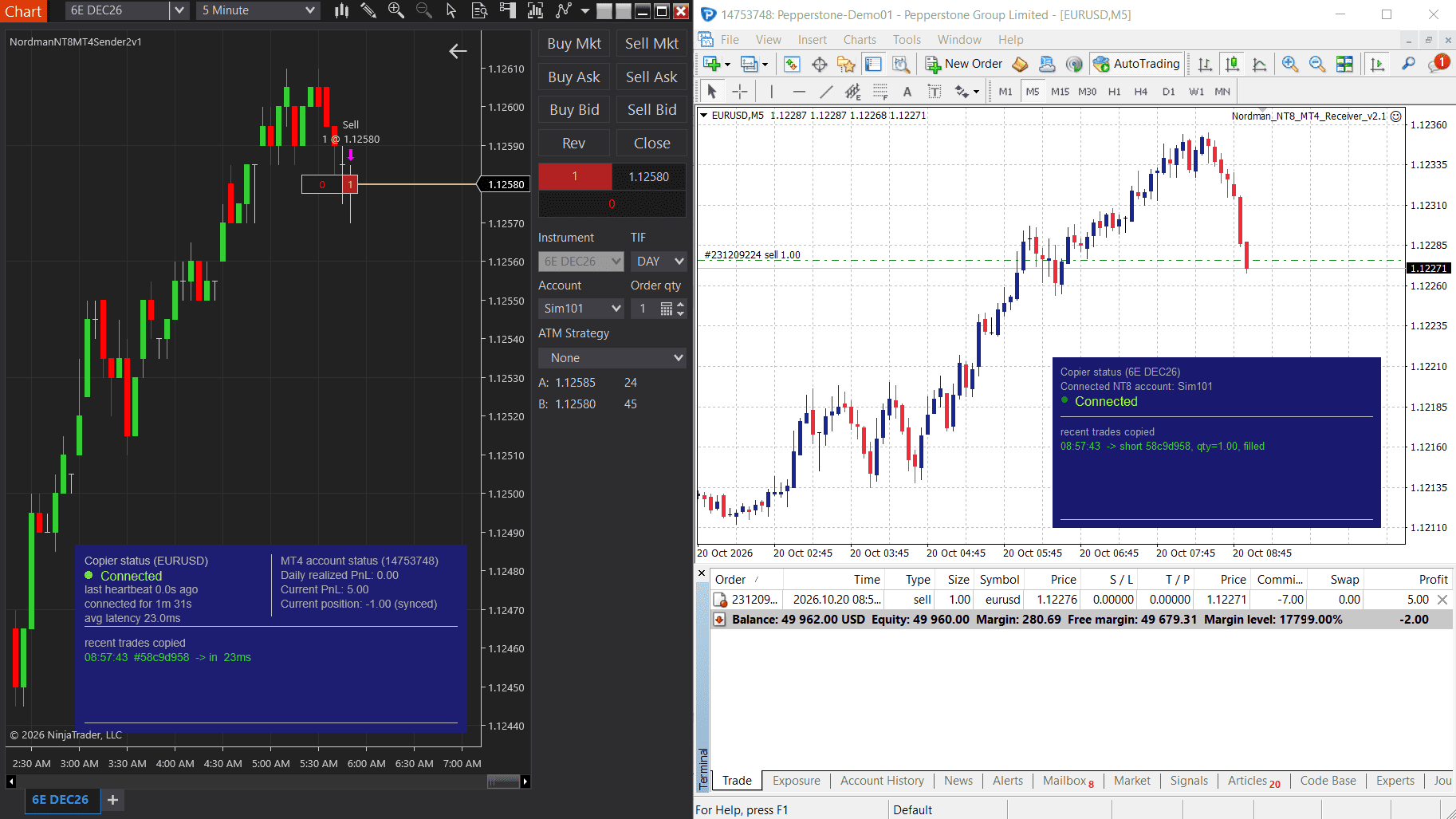
The MT4 to NinjaTrader Trade Copier is a local trade copying solution that replicates trades from MetaTrader 4 to NinjaTrader 8 in real time. It runs as an Expert Advisor in MetaTrader 4 (Sender) and an indicator in NinjaTrader 8 (Receiver) on the same computer. Two components work together — then follow one trade through the four stages.
MT4 Expert Advisor (Sender)
Installed on MetaTrader 4, this Expert Advisor monitors all trade activity on the instrument to which it is attached — whether placed manually or generated by another Expert Advisor. Each executed order is captured and transmitted locally to the NinjaTrader side in real time.
NinjaTrader Indicator (Receiver)
Running as an indicator inside NinjaTrader 8, the Receiver listens for incoming signals from the MT4 side and executes the corresponding trades in your NinjaTrader terminal automatically. Trades it opens can be closed manually on the chart at any time without interrupting the copier.
Full descriptions are in the Key Features and Prop Firm Controls tabs.
MT4 to NinjaTrader Trade Copier — Key Features
Every feature of the copier, grouped by the stage of the trade where it works: capture in MetaTrader 4, translation between platforms, execution in NinjaTrader 8, and monitoring on both sides.
What the Copier Translates Between MT4 and NinjaTrader 8
MetaTrader 4 and NinjaTrader 8 handle positions and orders differently. A copier that only forwards “buy 1” drifts out of sync the first time an EA hedges, a pending order triggers on one side only, or a stop has to exist on a platform that does not attach stops to positions. This is what the copier translates.
| Object | In MetaTrader 4 | In NinjaTrader 8 | What the copier does |
|---|---|---|---|
| Position | Hedging. Every trade is a separate order, and a long and a short can be open on one symbol. | Netting only. One instrument, one net position. | Keeps the NinjaTrader position matched to your MT4 net. A close in MT4 never opens a position in NinjaTrader. |
| Stop loss, take profit | Attached to the order. | Two separate orders linked as OCO. | Placed in NT8 as OCO orders, by distance, percent or price. Change them in MT4 and NT8 follows. SL/TP Sync is currently in beta. |
| Pending order | Waits on your broker’s quote. | Would wait on the futures quote, which does not move tick for tick with the MT4 quote. | Not copied when placed. Copied as a market order the moment it triggers in MT4, so both sides agree on whether a trade is open. |
| Size and symbol | Lots, by the broker’s specification — for example, GER40. | Contracts of a futures instrument — for example, FDAX. | Lot Multiplier on the Receiver. Charts are paired by Sender ID, so there is no symbol map to maintain. |
| Out of sync | A position closed by hand on one side, NinjaTrader restarted mid-trade, or the connection dropped for a few seconds. | The MT4 panel shows in sync, out of sync or synced in reverse, and corrects a drift in two clicks — the second to confirm — without flattening what is already right. | |
Capture
MT4 Expert Advisor (Sender)Support for All Trade Types
The MT4 side monitors all trade activity on the instrument it’s attached to — whether placed manually or generated by another Expert Advisor — and replicates every executed trade to NinjaTrader. An optional Magic Number filter can also be used to copy trades from a specific EA only, or manual trades only, rather than all activity on the instrument.
Works Alongside Your Own EA
The Sender runs as an Expert Advisor, so it occupies its own chart. Run your trading EA on another chart of the same symbol — the Sender still sees and copies its trades, and the Magic Number filter can limit copying to that EA.
Multi-Symbol Support
No manual ticker mapping between brokers is required. Since different brokers label the same instrument differently, simply attach the Sender and Receiver to the corresponding charts in each platform using the same Sender ID — the copier handles the rest, including running multiple instrument pairs in parallel.
Multi-Account Support
Multiple MT4 accounts running on the same computer can connect to the same NinjaTrader 8 instance simultaneously. Each additional MT4 account does not require a separate NT8 receiver license. This is managed through separate Sender IDs and corresponding Receiver instances in NinjaTrader.
Translate
Between platformsHedging-to-Net Conversion
MetaTrader 4 operates on a hedging model, while NinjaTrader always uses a netting model. The copier converts MT4 orders into NinjaTrader’s netting model — multiple MT4 orders on the same symbol become one net position in NT8. A close in MT4 never opens a position in NinjaTrader; if the NT8 position is already flat, the close is logged as “already closed”.
Pending Orders
Pending orders are not copied at the moment they are placed. In MetaTrader 4 a pending order waits on your broker’s quote, while in NinjaTrader it would wait on the futures quote, which does not move tick for tick with it. The copier therefore replicates a pending order as a market order the moment it triggers in MT4, so both sides agree on whether a trade is open.
Customizable Lot Scaling
Use the Lot Multiplier parameter on the NinjaTrader side to scale position size independently of the original MT4 trade size. Set it to 1.0 for identical sizing, or adjust it when lot specifications differ between brokers.
Reverse Direction Copying
Optionally mirror trades in the opposite direction between platforms — a Buy opened in MT4 can automatically open a Sell in NinjaTrader, and vice versa, with no additional configuration beyond enabling the setting.
Execute
NinjaTrader Indicator (Receiver)Copy Latency on Every Trade
The copier measures its own delay: the MT4 panel logs how long each copied trade took to reach the NinjaTrader side, together with the average of the last five. Trades are transferred locally between MetaTrader 4 and NinjaTrader 8 without any external servers. During your trial the panel shows the figure for your own machine.
SL/TP Sync from MT4 to NT8 (Beta)
Stop Loss and Take Profit levels set on an MT4 order are copied to NinjaTrader 8 as OCO orders. When you modify or remove SL/TP in MT4, the change is reflected on the NT8 side. Three copy modes are available: Distance (the default), Percent, and Price (for identical instruments and brokers). SL/TP Sync is enabled in the NT8 settings, is currently in beta, and cannot be combined with ATM strategies.
ATM Strategy Integration
Attach a NinjaTrader ATM strategy to receiver-opened trades directly through Chart Trader — select the ATM strategy you want to use, and it’s applied automatically to every trade the copier opens. In this mode, only entries are copied from MT4; exits, including Stop Loss and Take Profit, are managed by the selected ATM strategy.
Uninterrupted Copying
The receiver runs as a NinjaTrader indicator, not a strategy. A trade opened by the copier can be closed manually directly on the chart at any time without interrupting the copier — it keeps running and continues copying every subsequent trade.
Custom Order Names
Optionally set your own names for the entry, exit, stop and target orders the Receiver places. When left empty, trades opened by the copier appear in the NinjaTrader trade log without any name tag.
Prop Trading Risk Limits & News Filter
An optional risk control module on the NinjaTrader Receiver — daily loss, daily profit, maximum position size, minimum account balance, allowed trading hours, and a news filter. Limits block new entries only; exits from MT4 are always copied. Details are in the Prop Firm Controls tab.
Monitor
Both platformsPosition Sync with Two-Click Correction
The MT4 panel shows whether MT4 and NinjaTrader positions are currently in sync, out of sync, or synced in reverse — for example after a position was closed by hand on one side, NinjaTrader restarted mid-trade, or the connection dropped. When a mismatch is detected, a sync action becomes available directly on the panel. The first click arms it and the second confirms it, so it never fires by accident. The copier calculates the position difference, adjusts NT8 with a single order, and resubmits any missing SL/TP orders — without flattening existing correct positions.
MT4 Expert Advisor Panel
Shows the connection status with NinjaTrader — turning red with a warning if the link drops — together with the last copied trades with per-trade latency and their average, the connected NinjaTrader account, its daily realized and current PnL, and current position. When MT4 and NinjaTrader positions are out of sync, a sync button appears, and a confirmation click brings NinjaTrader back in line.
NinjaTrader Chart Overlay & Transaction Log
Shows the connection status and the connected MT4 account, followed by a transaction log of the last copied trades. Each trade shows its outcome — filled, blocked with the limit that blocked it, rejected, timed out or already closed. When prop trading limits are enabled, the status of each active limit is displayed as well.
Execution Timeout
If NinjaTrader does not confirm a copied trade within the configured time window, the trade is flagged as timed out and a notification is shown — instead of the copier waiting silently. The timeout is set on the NinjaTrader receiver (5 seconds by default).
Connection-Loss Detection
The MT4 Expert Advisor alerts you if the link to NinjaTrader drops after a stable connection — the connection status turns red and a warning is displayed, so a broken connection never goes unnoticed while you trade.
Prop Trading Limits & News Filter on the NinjaTrader Receiver
An optional risk control module that protects the NinjaTrader account. All enabled limits must agree for an entry to pass. The master toggle (Enable Prop Limits, off by default) activates the module; individual limits can be enabled or disabled independently. Limits block new entries only — exits from MT4 are always copied.
| Limit | Blocks entries when | Flatten |
|---|---|---|
| Daily loss | Realized plus unrealized daily loss of the NinjaTrader account reaches the configured threshold. | Optional |
| Daily profit | Realized plus unrealized daily profit of the NinjaTrader account reaches the configured threshold. | Optional |
| Max position | The NinjaTrader position on the instrument reaches or exceeds the configured number of contracts. | No — blocks only |
| Min balance | Account balance including unrealized P/L drops below the configured floor. | Optional |
| Trading hours | The current local time is outside the allowed window. | Optional |
| News | The time is inside the blackout window around a scheduled economic event. | Optional |
Flatten Upon Breach
Limits with flatten enabled close the NinjaTrader position on the instrument when breached. Flatten fires once per breach and resets when all limits return to normal.
For trading hours, flatten closes open positions when the window ends; for the news filter, when a news window opens.
News Filter
Blocks entries inside a configurable blackout window around scheduled economic events. The economic calendar is fetched automatically.
Configurable per currency (USD, EUR, GBP, JPY, CHF, AUD, CAD, NZD), impact level (high, medium or low), and minutes before and after the event. The filter takes effect once the calendar has loaded.
System Requirements & Installation
What you need to run the trade copier, how the subscription works, and how to install the MT4 Expert Advisor (Sender) and the NinjaTrader Indicator (Receiver).
System Requirements
- Source platform
- MetaTrader 4 (Desktop), updated to the latest available version — MT4 Expert Advisor (Sender)
- Target platform
- NinjaTrader 8 (Desktop) — NinjaTrader Indicator (Receiver)
- Environment
- Both platforms running on the same computer or VPS, Windows 10 or Windows 11
- MT4 broker & account
- Any MetaTrader 4 broker; Forex, CFDs, Futures and other instruments
- MT4 settings
- DLL imports allowed for the Sender Expert Advisor
Local version. Copying between different machines requires the server-based version, available on request.
Subscription Terms
- All-Access Subscription
- This product is available on a monthly subscription basis. Access to all Nordman Algorithms indicators and trade copiers, billed monthly, renews automatically.
- Free trial
- 5 days. No charges apply during the trial period. If not cancelled within 5 days, the subscription starts automatically.
- Cancellation
- Cancel at any time. If you need help cancelling, contact us and we will assist you.
- Multiple MT4 accounts
- Each additional MT4 account connected to the same NinjaTrader 8 instance does not require a separate NT8 receiver license.
- Server-based version
- Not available via subscription — provided on request.
Installation
- Subscribe
Start the 5-day free trial or subscribe on this page. The subscription renews automatically each month and can be cancelled at any time.
- Download the product
The copier is not sent by email. Open (top right of this page), enter the email address used for your subscription, and click Download. A .zip archive downloads to your computer.
- Unpack the download
Extract the downloaded archive. It contains two separate files — one for each platform:
Downloaded archive (.zip)MT4 Expert Advisor (Sender) — .ex4 file for MetaTrader 4NinjaTrader Indicator (Receiver) — .zip archive for NinjaTrader 8 - Install the MT4 Expert Advisor
In MetaTrader 4, go to
File → Open Data Folder, openMQL4 → Expertsand copy the .ex4 file there. Restart MetaTrader 4 or refresh the Navigator, then attach the Expert Advisor to the chart of the instrument you want to copy and allow DLL imports in its Common tab. If you run your own EA on that symbol, attach it to another chart of the same symbol.Before installation: make sure your MT4 terminal is updated to the latest available version.
- Import the NinjaTrader Indicator
In the NinjaTrader 8 Control Center, go to
Tools → Import → NinjaScript Add-Onand select the NinjaTrader .zip archive from inside the unpacked folder. Do not unzip it.Import only the NinjaTrader archive. Importing the downloaded archive that also contains the MT4 file causes an import error in NinjaTrader 8.
- Set up the copier
Attach the Receiver to the corresponding NinjaTrader chart, select the NinjaTrader account, use the same Sender ID on both sides, and follow the step-by-step setup in the Instructions tab, including all settings and features.
- Test on a demo account
Before using the copier on a live account, thoroughly test all features on a demo account to make sure you fully understand its behavior under different market conditions.
Live accounts: only proceed after you are fully confident in its operation and limitations.
Updating: When a new version is released, download it again through , unpack the archive, replace the existing .ex4 file in MetaTrader 4, and import the new NinjaTrader .zip archive the same way as during installation.
Questions, errors or issues while using the system? Contact support, Monday to Friday.
Setup and Settings Guide
Step-by-step installation of the MT4 Expert Advisor (Sender) and the NinjaTrader Indicator (Receiver), how the two are paired and connected, how MT4 orders are carried over to NinjaTrader, every setting with its default value, and where to find the logs if something goes wrong. Requirements and subscription details are in the Getting Started tab.
- Sender first
Install the Sender EA in MetaTrader 4 and attach it to the chart of the symbol you want to copy.
- Receiver second
Import the Receiver into NinjaTrader 8 and add it to the chart of the matching instrument.
- Same Sender ID
Enter the same Sender ID on both sides and select the NinjaTrader account to trade on.
- Check the status
Both charts show “Connected” when the pair is linked and ready to copy.
- Test on demo
Copy a few trades on a demo or Sim account before going live.
1. Install the MT4 Sender
The downloaded archive contains the Sender for MetaTrader 4 (an .ex4 file) and the Receiver for NinjaTrader 8 (its own .zip archive). Unpack the downloaded archive first.
- Copy the Sender to the Experts folder
In MetaTrader 4, click
File → Open Data Folder, openMQL4 → Expertsand paste theNordman_MT4_NT8_Sender.ex4 file there.
File → Open Data Folder. Click to enlarge. - Refresh the Navigator
Open the Navigator (
Ctrl + N), right-click Expert Advisors and choose Refresh. The Sender appears in the list.
Opening the Navigator. Click to enlarge. 
Expert Advisors → Refresh. Click to enlarge. - Allow automated trading and DLL imports
Go to
Tools → Options → Expert Advisorsand enable Allow automated trading and Allow DLL imports. Make sure the AutoTrading button in the toolbar is on (green).
Tools → Options. Click to enlarge. 
Expert Advisors tab. Click to enlarge. 
AutoTrading button on. Click to enlarge. - Attach the Sender to the chart
Drag the Sender onto the chart of the symbol you want to copy, or right-click it and choose Attach to a Chart. On the Common tab, enable Allow live trading and Allow DLL imports — the Sender uses DLL imports to verify your license. On the Inputs tab, enter your license email and a Sender ID (see the Sender settings below).

Common tab of the EA settings. Click to enlarge. MetaTrader 4 runs one Expert Advisor per chart. If an EA trades the symbol, open a second chart of the same symbol and attach the Sender there — it still copies that EA’s trades. Manual trades can be placed from any chart, including the Sender’s.
Before installation: make sure your MT4 terminal is updated to the latest available version.
2. Install the NinjaTrader Receiver
The Receiver is a NinjaTrader 8 indicator, not a strategy. It becomes active as soon as it is added to the chart — there is no separate Enable step, and it does not appear on the Strategies tab of the Control Center.
- Import the Receiver archive
In the NinjaTrader 8 Control Center, go to
Tools → Import → NinjaScript Add-Onand select theNordmanMT4NT8Receiver.zip archive from the unpacked folder. Do not unzip it. NinjaTrader confirms with “NinjaTrader successfully imported all scripts contained in the NinjaScript Archive File.”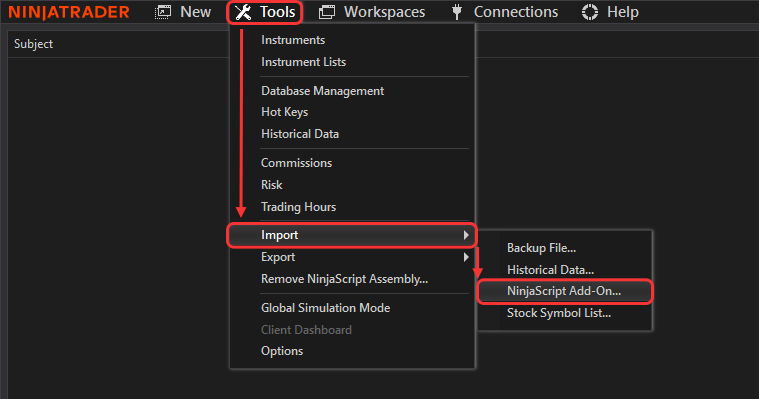
Tools → Import → NinjaScript Add-On. Click to enlarge. Import only the NinjaTrader archive. Importing the downloaded archive as a whole causes an import error, because it also contains the MT4 file.
- Add the Receiver to the chart
Right-click the chart of the matching instrument, choose Indicators, select NordmanMT4NT8Receiver and click Add.
- Set the account and the Sender ID
At minimum, enter your license email, choose the NinjaTrader account in Account Name, and enter the same Sender ID as on the MT4 side. Click OK — the Receiver starts working right away.
3. How Sender ID Pairs the Charts
Each Sender watches one symbol in MT4 and sends its order changes over a local connection to the Receiver with the same Sender ID. Only one Sender can use a given ID at a time; use letters and numbers only.
One symbol per Sender. A Sender on AUDCAD does not copy EURUSD trades. If several AUDCAD charts are open, a Sender on one of them tracks orders on all of them. To copy several symbols, run one Sender–Receiver pair per symbol, each with its own Sender ID.
Several MT4 accounts. Several MT4 accounts on the same computer can copy into one NinjaTrader 8 instance. Each account’s Sender uses its own Sender ID, and a matching Receiver in NinjaTrader handles that account’s trades.
| Symbol to copy | Pair | Sender ID in MT4 | Sender ID in NinjaTrader |
|---|---|---|---|
| EURUSD | Sender #1 → Receiver #1 | EURUSD01 | EURUSD01 |
| GBPUSD | Sender #2 → Receiver #2 | Nordman001 | Nordman001 |
4. Check the Connection
Attach the Sender first. It shows “Disconnected” until the Receiver with the same Sender ID is added in NinjaTrader — that is expected.
- the Sender ID does not match on the two sides;
- another copier is already running with the same Sender ID.
5. How MT4 Orders Are Copied
The Sender compares the open market orders on the symbol with the previous state and reports each change: a new order is an entry, a closed order is an exit, and a partial close is an exit of the closed part. This is what happens on the NinjaTrader side.
Market orders
Copied as soon as they appear in MT4. Copying runs locally on your computer, so the speed depends on system load; the MT4 panel shows the copy latency of every trade.
Pending (limit and stop) orders
Placing, modifying or cancelling a pending order in MT4 is not copied. When the order triggers and becomes a market order, it is copied to NinjaTrader as a market order.
Why: Bid/Ask prices differ between platforms and brokers, so a limit order could trigger on one side but not on the other and leave the two positions out of sync. Copying on execution keeps both sides in agreement on whether a trade is open.
Partial closes
In MT4 a partial close closes the order and reopens the remainder under a new ticket. The copier recognizes the remainder as the same position and copies only the closed part: the NinjaTrader position is reduced by the closed volume, multiplied by the Lot Multiplier.
Changes to Stop Loss and Take Profit of an open order are not executions; they are copied only when SL/TP Sync is enabled.
MT4 hedging and NinjaTrader netting
MetaTrader 4 keeps every trade as a separate order, and a long and a short can be open on one symbol at the same time; NinjaTrader 8 always nets all trades on an instrument into one position.
The copier follows the net of all MT4 orders on the symbol, multiplied by the Lot Multiplier. New entries move NinjaTrader to the new net position, including a reversal. A close in MT4 never opens a position in NinjaTrader: if closing an order moves the MT4 net through zero, NinjaTrader is closed to flat but not reversed.
#2 Long 1.0 lot
#3 Long 2.0 lotsNinjaTrader: Long 4
Net: 4.0 long − 5.0 short = Short 1.0NinjaTrader: Short 1
The close crosses zeroNinjaTrader: Flat — out of sync
Example with Lot Multiplier = 1.0. Closing an order that does not cross zero — for example #1 in the first step — simply reduces the NinjaTrader position. When the positions are out of sync, the MT4 panel shows it and offers a two-click position sync that brings NinjaTrader to the MT4 net position.
Orders open before the copier starts
Orders that are already open in MT4 when the Sender starts are not copied. Start with no open trades on the symbol, or align the two sides with the position sync on the MT4 panel. Because the sync opens trades at the current price, the NinjaTrader entry price can differ from the original MT4 entry.
6. Settings Reference
All settings of the Sender and the Receiver, grouped as they appear in each platform, with their default values.
MT4 Sender
Expert Advisor inputs| Parameter | Default | Description |
|---|---|---|
| License Email | — | The email address used for your subscription. Required — the copier does not work without it. |
| Sender ID | 1234 | Identifies the Sender–Receiver pair on this computer. Enter the same value on the NinjaTrader side. Only one Sender can use a given ID at a time; use letters and numbers only. |
| Magic Number | −1 | Which MT4 trades are copied: −1 — all market trades on the symbol; 0 — manually opened trades only; > 0 — only trades with this Magic Number, for example from one Expert Advisor. |
| Enable Connection Loss Alert | On | Shows a warning when the connection to NinjaTrader drops. |
| Stable Connection Duration (seconds) | 60 | How long the connection must be stable before a later drop triggers the alert, so a brief reconnect right after start-up does not raise one. |
| Enable Debug Logging | Off | Writes detailed activity to the log. Enable it when our support team asks you to. |
NinjaTrader Receiver
Copying| Parameter | Default | Description |
|---|---|---|
| License Email | — | The email address used for your subscription. Required — the copier does not work without it. |
| Account Name | First connected account | The NinjaTrader account this Receiver trades on, chosen from the list of connected accounts. |
| Sender ID | 1234 | Must match the Sender ID set in MetaTrader 4. |
| Lot Multiplier | 1.0 | Scales the copied size: MT4 lots × Lot Multiplier. Use it when the lot specifications differ between brokers — for example, if 1 lot is 10 units at the sending broker and 1 unit at the receiving one, set 10; in the opposite case, set 0.1. |
| Use Custom Entry/Exit Order Name | Off | When enabled, shows four fields — Entry Long, Entry Short, Exit Long and Exit Short Order Name — to replace the default order names. A field left empty submits that order type without a name. |
| Assign ATM To Entries | Off | Applies the ATM strategy selected in Chart Trader to every trade the Receiver opens. Only entries are then copied from MT4; exits, including Stop Loss and Take Profit, are managed by the ATM strategy. |
| Reverse Trades | Off | Copies in the opposite direction: a Buy in MT4 opens a Sell in NinjaTrader, and vice versa. |
| Execution Timeout (seconds) | 5 | How long the Receiver waits for NinjaTrader to confirm a copied trade. If the position does not reach the expected state in time, the trade is shown as timed out in red in the chart log and a notification appears. |
| Enable Debug Log | Off | Logs all trading events to the Receiver’s log file. Enable it when our support team asks you to. |
SL/TP Sync
Receiver| Parameter | Default | Description |
|---|---|---|
| Enable SL/TP Sync | Off | Copies Stop Loss and Take Profit from MT4 orders to NinjaTrader as OCO orders and follows every change or removal in MT4. Labelled beta in the settings — test it on a demo account first. Cannot be combined with Assign ATM To Entries. |
| SL/TP Copy Mode | Distance | How the MT4 levels are placed in NinjaTrader: Distance — the same distance in ticks from the current market price, for instruments with the same tick size (recommended for most setups); Percent — the same percentage distance, when tick sizes differ; Price — the exact MT4 price, only when both sides quote the identical instrument at the same price scale. |
| Use Custom SL/TP Order Names / SL Order Name / TP Order Name | Off / empty | Replaces the default names of the stop and target OCO orders. An empty field submits that order without a name. |
Prop Trading Account Limits
Receiver| Parameter | Default | Description |
|---|---|---|
| Enable Prop Limits | Off | Master switch for all limits below. While it is off, no limit is active, whatever its own setting. |
| Enable Daily Loss Limit / Daily Loss Limit / Flatten Upon Breach | On / 1500 / On | Blocks new entries once the account’s realized plus unrealized daily loss reaches the amount. With Flatten Upon Breach, the position on the instrument is also closed. |
| Enable Daily Profit Limit / Daily Profit Limit / Flatten Upon Breach | On / 3000 / Off | Blocks new entries once the account’s realized plus unrealized daily profit reaches the amount. Flatten Upon Breach works as for the loss limit. |
| Enable Max Position Limit / Max Position Limit | On / 5 | Blocks new entries once the NinjaTrader position on the instrument reaches this number of contracts. Blocks only — it never closes positions. |
| Enable Min Account Balance Limit / Min Account Balance Limit / Flatten Upon Breach | On / 10000 / On | Blocks new entries once the account balance, including unrealized P/L, drops below the floor. With Flatten Upon Breach, the position on the instrument is also closed. |
| Enable Trading Hours Limit / Trading Hours Limit / Flatten Upon Breach | On / 09:30/15:55 / On | Allows new entries only inside the start/stop window, based on your computer’s local time. With Flatten Upon Breach, the open position is closed when the window ends. |
The individual limits are pre-set as shown but stay inactive until Enable Prop Limits is switched on. Limits block new entries only — exits from MT4 are always copied. A flatten fires once per breach and resets when all limits are back to normal.
News Filter
Receiver| Parameter | Default | Description |
|---|---|---|
| Enable News Limit / News Flatten Upon Breach | On / Off | Blocks new entries around scheduled economic events from the automatically downloaded calendar. With News Flatten Upon Breach, the position on the instrument is closed when a news window begins. |
| News Currency USD / EUR / GBP / JPY / CHF / AUD / CAD / NZD | USD only | Which currencies’ events trigger the filter. |
| News Blackout Before (min) / After (min) | 5 / 5 | How many minutes before and after an event new entries are blocked. |
| News Impact High / Medium / Low | High only | Which impact levels trigger the filter; each can be enabled separately. |
The news filter is part of the prop limits block, so it also requires Enable Prop Limits.
7. Logs and Support
Both components keep detailed logs. If something does not work as expected, send us the relevant log files together with a screenshot of the chart.
| Platform | Where to find the logs and how to save them |
|---|---|
| MetaTrader 4 | Logs are in the Experts tab of the Terminal panel. Right-click the log, choose Open, and save the files. |
| NinjaTrader 8 | Logs are in the Log tab of the Control Center. Right-click the log and choose Export. Log files are also stored in Documents\NinjaTrader 8\log and in the Receiver’s own folder under Documents\NinjaTrader 8\_LogCust. |
Frequently Asked Questions
How It Works
No. NinjaTrader 8 has no built-in way to receive trades from MetaTrader. Copying needs an add-on. This copier runs as an indicator on the NinjaTrader chart.
Trade copying occurs locally on your machine, typically in less than 0.1 seconds. The MT4 panel shows the copy latency of each trade and the average of the last five, so during the trial you see the figure for your own machine.
That is copy latency: the time from the trade in MT4 to the NinjaTrader side acting on it. On a live account the exchange adds its own fill time.
Yes. This version of the Trade Copier operates within a single local environment. Both MetaTrader 4 and NinjaTrader 8 must be running on the same computer or VPS for the local copying to function correctly. If you need to copy trades between machines on different networks, please contact us about the server-based version.
Yes. Running both MetaTrader 4 and NinjaTrader 8 on a VPS is a common and recommended setup for continuous uptime. Both platforms simply need to be running on the same VPS instance.
The local version copies trades between MT4 and NinjaTrader running on the same computer or VPS. The server-based version enables copying between platforms on different machines. The server-based version is available on request — please contact us for details.
No. This solution is designed for one-way copying from MetaTrader 4 to NinjaTrader 8 only. If you need the reverse direction, please visit the NinjaTrader to MT4 Trade Copier product page.
Yes. The copier works with any MetaTrader 4 broker. Simply install the Sender EA in your MT4 terminal, attach it to the chart of the instrument you want to copy, and configure the connection. No broker-specific configuration is required.
Yes. The MT4 Expert Advisor (Sender) can be attached to any chart in MetaTrader 4, regardless of the asset class — Forex, CFDs, Futures, or other instruments. The NinjaTrader Indicator (Receiver) will execute trades on the corresponding chart where it is placed.
Positions & Orders
MetaTrader 4 operates on a hedging model, while NinjaTrader always uses a netting model. The copier calculates the net of all MT4 orders on the symbol and mirrors that net as a single NinjaTrader position — multiple MT4 orders become one net position in NT8. A close in MT4 never opens a position in NinjaTrader.
Pending orders are not copied at the moment they are placed. Instead, they are replicated as market orders the moment they are triggered and executed in MetaTrader 4. In MT4 a pending order waits on your broker’s quote, while in NinjaTrader it would wait on the futures quote, which does not move tick for tick with it. Copying on trigger keeps both accounts in agreement on whether a trade is open.
Use the Lot Multiplier parameter on the NinjaTrader Indicator (Receiver) side. This multiplies the original MT4 lot size by the value you specify. Set it to 1.0 for identical sizing, or adjust it (e.g., 0.5 or 2.0) when lot specifications differ between brokers.
Yes. When SL/TP Sync is enabled on the NT8 receiver, Stop Loss and Take Profit levels set on an MT4 order are copied to NinjaTrader as OCO orders. If you modify or remove SL/TP in MT4, the change is reflected in NT8. Three copy modes are available: Distance (the default), Percent, and Price. SL/TP Sync is currently in beta, so test it on a demo account first.
No. When an ATM strategy is attached to copied trades, its own stops and targets manage the position and the copier’s SL/TP sync is bypassed. Choose one or the other.
When the MT4 panel detects that MT4 and NT8 positions are out of sync, a sync action appears on the panel. The first click arms it and the second confirms it, so it never fires by accident. The copier calculates the difference between current MT4 and NT8 positions, adjusts NT8 with a single order, and resubmits any missing SL/TP OCO orders — without flattening positions that are already correctly sized.
Yes. Enable the Assign ATM To Entries setting on the receiver, then select the desired ATM strategy in Chart Trader — it will be applied automatically to every trade the copier opens. In this mode, only entries are copied from MT4; exits, including Stop Loss and Take Profit, are managed by the selected ATM strategy instead.
The receiver runs as an indicator, so closing a copier-opened trade manually on the chart does not stop or disconnect the copier. It continues running normally and keeps copying subsequent trades from MT4.
Trading Setup
It fully supports both. The MT4 Expert Advisor (Sender) monitors all trade activity on the instrument to which it is attached, meaning it will replicate orders placed manually or generated automatically by any Expert Advisor running on the same symbol. An optional Magic Number filter can also be used to copy trades from one specific EA only.
Yes. The Sender runs as an Expert Advisor, so it occupies its own chart. Attach your trading EA to another chart of the same symbol — the Sender copies its trades, and the Magic Number filter can limit copying to that EA.
Yes. Multiple MT4 accounts running on the same computer can connect to the same NinjaTrader 8 instance simultaneously. Each additional MT4 account does not require a separate NT8 receiver license. Each MT4 Sender uses its own Sender ID, and a corresponding Receiver instance in NinjaTrader handles that account’s trades independently.
It depends on the firm, and firms change their rules, so check your firm’s current terms before you copy onto a funded account. Copying your own MT4 setups onto your own account is usually treated differently from following someone else’s signals. The copier runs locally under your own NinjaTrader login, and its prop limits help you avoid breaking a rule by accident. They don’t make copying allowed where a firm bans it. More in Automated Trading on Prop Firm Accounts.
The Sender and Receiver display a connection status indicator on their respective charts, and the MT4 Expert Advisor can alert you when the link drops. If the status shows “Disconnected”, the most common causes are a mismatched Sender ID or multiple copiers running with the same Sender ID. Check that both components share the same Sender ID value. If the issue persists, the log files generated by both components will contain detailed diagnostic information to help identify the problem.
The product downloads as one .zip archive that contains two separate files: the MT4 Expert Advisor (.ex4) for MetaTrader 4 and the NinjaTrader Indicator as its own .zip archive for NinjaTrader 8. Unpack the downloaded archive first, then import only the NinjaTrader .zip in the NinjaTrader 8 Control Center via Tools → Import → NinjaScript Add-On.
Importing the downloaded archive as a whole causes an import error, because it also contains the MT4 file. The .ex4 file is copied separately to the MQL4 → Experts folder in MetaTrader 4.
Trial & Subscription
Yes, a 5-day free trial is available. You can test the full functionality of the MT4 to NinjaTrader Trade Copier on a demo account to ensure it meets your requirements before a paid subscription begins.
€25 a month, one subscription. The first 5 days are free, and you can cancel whenever you like. No separate license per MT4 account.
Yes. Your subscription provides access to all products available on the Nordman Algorithms website. You can use other Nordman Algorithms tools under the same subscription without purchasing additional licenses.
Related Products
Disclaimer — Software Use & Risk Disclosure
Nordman Algorithms is a trade name of Nordman Algorithms OÜ (Reg. No. 14435535), registered in Tallinn, Estonia.
Software Use
Software Nature & User Responsibility — Nordman Algorithms provides software tools only and is not liable for risks associated with trading activities conducted using the software. All trading actions, configurations, and trade copying processes are initiated and controlled solely by the user.
No Financial Advice or Regulated Services — Nordman Algorithms does not provide financial advice, trading signals, investment recommendations, or managed copy trading services, or any other regulated financial products or services.
Software Function & Signal Execution — The Trade Copier software is a technical utility that automates the mechanical replication of user-defined trading actions between accounts on supported platforms. Trading actions may be initiated manually by the user or automatically by user-configured algorithms, expert advisors, or trading strategies. The software solely replicates these user-originated trades and does not generate, modify, or manage trading decisions independently.
Accuracy & Performance Disclaimer — Nordman Algorithms does not guarantee the accuracy, completeness, or trading performance of any software outputs or execution results.
Read the full Terms of Service →Risk Disclosure
Trading Risk Warning — Futures, foreign currency, and options trading contain substantial risk and are not suitable for every investor. An investor could potentially lose all or more than the initial investment. Risk capital is money that can be lost without jeopardizing one’s financial security or lifestyle. Only risk capital should be used for trading, and only individuals with sufficient risk capital should consider trading. Past performance is not necessarily indicative of future results.
ESMA Risk Warning — Financial instruments, especially those involving leverage such as CFDs and Forex, are complex and carry a high risk of rapid financial loss. Our software replicates user-defined trading actions and does not mitigate or reduce inherent market risks. You should carefully consider whether you understand how leveraged financial instruments work and whether you can afford the high risk of losing your capital.
CFTC Rule 4.41 — Hypothetical or simulated performance results have inherent limitations. Unlike actual performance records, simulated results do not represent real trading. Because trades have not actually been executed, these results may under- or over-compensate for the impact of market factors such as liquidity. Simulated results are also subject to the benefit of hindsight. No representation is being made that any account will achieve profits or losses similar to those shown.
Read the full Risk Disclosure →Trademark Notice — NinjaTrader® is a registered trademark of NinjaTrader Group, LLC. No NinjaTrader company has any affiliation with the owner, developer, or provider of the products or services described herein, or any interest, ownership or otherwise, in any such product or service, or endorses, recommends or approves any such product or service.
MetaTrader 4 and MT4 are trademarks of MetaQuotes Ltd. Nordman Algorithms is an independent software developer and is not affiliated with, sponsored by, or endorsed by MetaQuotes Ltd. References to MetaTrader 4 identify software compatibility.
Need a different setup?
If the standard MT4 to NinjaTrader Trade Copier does not fully meet your requirements, we can customize and extend it to fit your trading workflow. Share the features you would like to add or improve, and our developers will propose a suitable technical solution.
Looking for remote trade copying? This version copies trades locally on one computer. For platforms on different machines, we offer a server-based version that runs via a secure dedicated server. It is not available via subscription — contact us for a tailored solution.