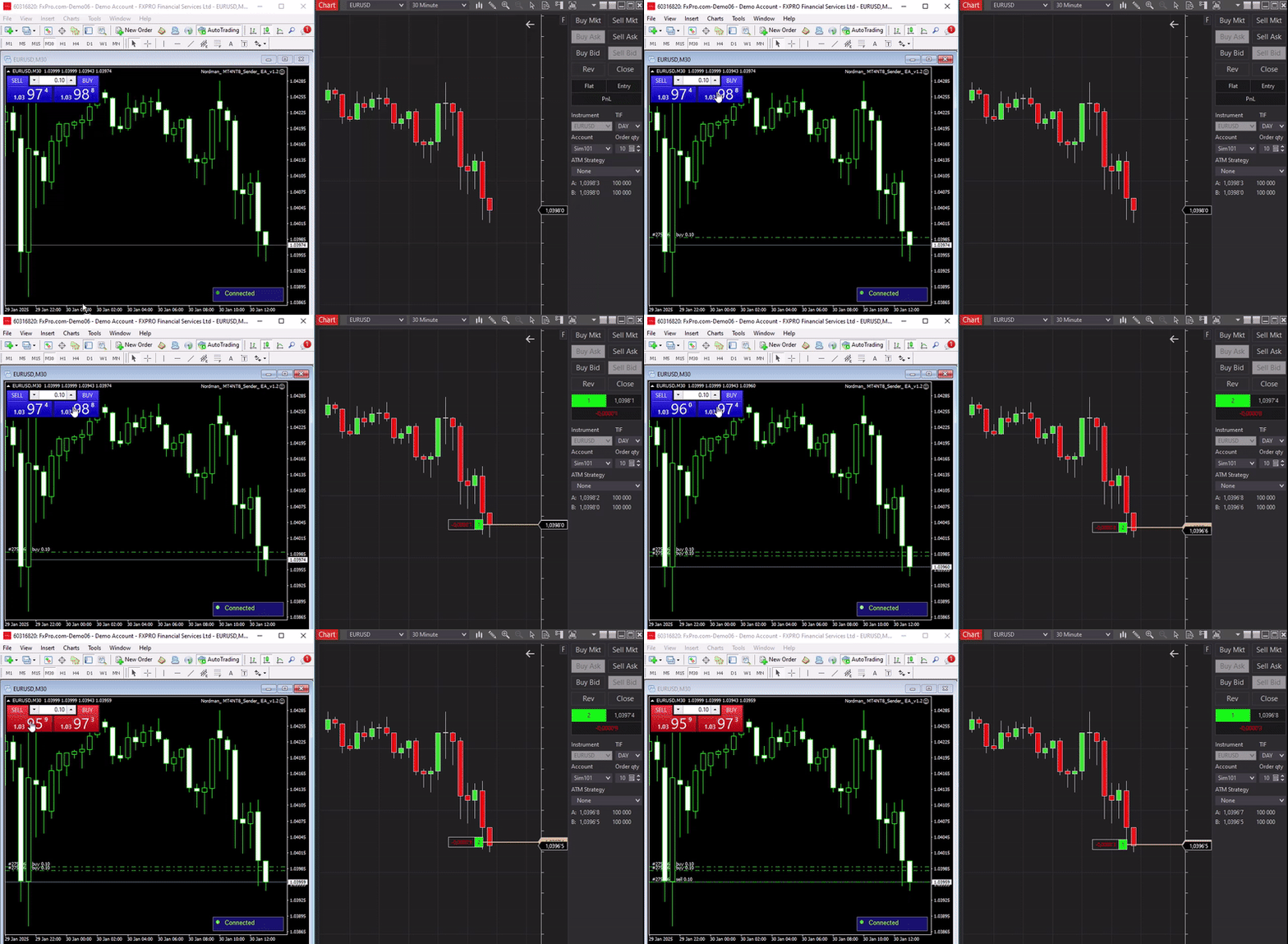
The MT4 to NinjaTrader Trade Copier operates as an integrated solution that connects MetaTrader 4 with NinjaTrader 8 through two core components working together on the same machine — an MT4 Expert Advisor (Sender) and a NinjaTrader Indicator (Receiver).
Installed on MetaTrader 4, this Expert Advisor monitors all trade activity on the instrument to which it is attached — whether placed manually or generated by another Expert Advisor. Each executed order is captured and transmitted locally to the NinjaTrader side in real time.
Running as an indicator inside NinjaTrader 8, the Receiver listens for incoming signals from the MT4 side and executes the corresponding trades in your NinjaTrader terminal automatically. Trades it opens can be closed manually on the chart at any time without interrupting the copier.
This version of the copier is designed for local operation, meaning both MT4 and NinjaTrader must be running on the same computer or VPS. All trade replication takes place locally without the use of external servers. Several MT4 accounts on the same computer can be connected to one NinjaTrader 8 instance, each through its own Sender ID.
Copying trades is only possible in one direction: from MetaTrader 4 to NinjaTrader 8. Due to technical limitations of the platforms, simultaneous two-way trade copying is not supported. If you need to copy trades from NinjaTrader to MT4, please visit the NinjaTrader to MT4 Trade Copier product page.
Trade copying occurs locally at a speed of less than 0.1 seconds, for rapid synchronization between platforms. The MT4 panel shows the copy latency of each trade and the average of the last five.
Works with both manually placed trades and those generated by automated Expert Advisors, making it suitable for a wide range of trading approaches. An optional Magic Number filter copies trades from one specific EA only, or manual trades only.
MT4 operates on a hedging model, while NinjaTrader uses a netting model. The Trade Copier mirrors the net of all MT4 orders on the symbol as one NinjaTrader position. A close in MT4 never opens a position in NinjaTrader.
Pending orders are not copied at the moment they are placed. They are replicated as market orders only when triggered in MT4, so both platforms agree on whether a trade is open.
Stop Loss and Take Profit levels set on an MT4 order are copied to NinjaTrader 8 as OCO orders, and changes in MT4 are reflected in NT8. Three copy modes are available: Distance, Percent and Price. SL/TP Sync is enabled on the Receiver and is currently in beta.
Attach a NinjaTrader ATM strategy to every trade the copier opens through Chart Trader. In this mode, only entries are copied from MT4; exits, including Stop Loss and Take Profit, are managed by the selected ATM strategy.
The Receiver runs as a NinjaTrader indicator, not a strategy. A trade opened by the copier can be closed manually on the chart at any time without interrupting the copier — it keeps copying every subsequent trade.
Use the Lot Multiplier on the NinjaTrader side to scale position size independently of the original MT4 trade size — 1.0 for identical sizing, or another value when lot specifications differ between brokers.
Optionally mirror trades in the opposite direction — a Buy opened in MT4 opens a Sell in NinjaTrader, and vice versa — by enabling a single setting on the Receiver.
No manual ticker mapping is required. Attach the Sender and Receiver to the corresponding charts using the same Sender ID, and run several instrument pairs in parallel, each with its own Sender ID.
Several MT4 accounts on the same computer can connect to one NinjaTrader 8 instance at the same time, each through its own Sender ID and Receiver instance. Additional MT4 accounts do not require a separate NT8 receiver license.
The MT4 panel shows whether MT4 and NinjaTrader positions are in sync, out of sync or synced in reverse. When they drift apart, a sync action appears: the first click arms it, the second confirms it. The copier adjusts NT8 with a single order and resubmits missing SL/TP orders.
An optional risk control module on the NinjaTrader Receiver — daily loss, daily profit, maximum position size, minimum account balance and allowed trading hours. Limits block new entries only; exits from MT4 are always copied.
Blocks entries and optionally flattens the NinjaTrader position around scheduled economic events. Configurable per currency (USD, EUR, GBP, JPY, CHF, AUD, CAD, NZD), impact level and minutes before and after the event. The economic calendar is fetched automatically.
If NinjaTrader does not confirm a copied trade within the configured time window (5 seconds by default), the trade is flagged as timed out and a notification is shown — instead of the copier waiting silently.
The MT4 Expert Advisor alerts you if the link to NinjaTrader drops — the connection status turns red and a warning is displayed, so a broken connection never goes unnoticed while you trade.
An optional risk control module that protects the NinjaTrader account. All enabled limits must agree for an entry to pass. The master toggle (Enable Prop Limits, off by default) activates the module; individual limits can be enabled or disabled independently. Limits block new entries only — exits from MT4 are always copied.
Stops new entries once realized plus unrealized daily loss of the NinjaTrader account reaches the configured threshold. Optionally flattens the position on the instrument when breached.
Stops new entries once realized plus unrealized daily profit of the NinjaTrader account reaches the configured threshold. Optionally flattens the position on the instrument when breached.
Blocks new entries once the NinjaTrader position on the instrument reaches or exceeds the configured number of contracts. Does not flatten existing positions — blocks only.
Stops new entries once account balance including unrealized P/L drops below the configured floor. Optionally flattens the position on the instrument when breached.
Restricts entries to a defined time window based on your computer’s local time. Outside the window, new entries are blocked. Optionally flattens open positions when the window ends.
Blocks entries inside a configurable blackout window around scheduled economic events. Configurable per currency, impact level, and minutes before and after the event. Optionally flattens positions when a news window opens.
Limits don’t make copying allowed. The limits help you avoid breaking a rule by accident. They don’t make copying itself allowed: prop firms treat trade copying differently. Check your firm’s current rules first. More in Automated Trading on Prop Firm Accounts.
Both platforms show what the copier is doing — connection state, recent trades and the status of each prop limit.
Shows the connection status with NinjaTrader — turning red with a warning if the link drops — the last copied trades with per-trade latency and their average, the connected NinjaTrader account with its daily realized and current PnL, and the current position with its sync state. When the positions are out of sync, the sync button appears here.
Shows the connection status and the connected MT4 account, followed by a transaction log of the last copied trades. Each trade shows its outcome — filled, blocked with the limit that blocked it, rejected, timed out or already closed. When prop trading limits are enabled, the status of each active limit is displayed as well.
Read the guides: What Is a Trade Copier and How Does It Work? · What Is Symbol Mapping (and Why EURUSD Isn’t Always EURUSD)
This product is available on a monthly subscription basis. The subscription renews automatically each month and can be cancelled at any time. Click the “Get Access” button at the top of the page to subscribe.
After subscribing, click “Get Access”, enter the email address used for your subscription, and click Download. Your download will begin automatically.
Install the MT4 Expert Advisor in the MQL4 → Experts folder and allow DLL imports in its Common tab, then import the NinjaTrader Indicator and follow the step-by-step setup instructions. If you run your own EA on the same symbol, attach it to another chart. For full details on all settings and features, visit the instructions page.
Before using the copier on a live account, thoroughly test all features on a demo account to make sure you fully understand its behavior under different market conditions.
A 5-day free trial is available, allowing you to test the trade copier before continuing with a paid subscription. No charges apply during the trial period. If not cancelled within 5 days, the subscription will renew automatically.
You can cancel at any time through your PayPal account. If you cannot cancel yourself, please contact us and we will assist you. How to cancel a PayPal subscription →
Your subscription provides access to all products available on the Nordman Algorithms website. You can use other Nordman Algorithms tools under the same subscription without purchasing additional licenses.
If you have questions, encounter errors, or experience any issues while using the system, please contact our support team.
We are committed to the ongoing improvement of our MT4 to NinjaTrader Trade Copier. If you encounter an issue, feel that an important feature is missing, or have suggestions that could make the copier more efficient or user-friendly, please send us a message. Your feedback helps us refine the tool and better serve the traders who use it.
If our standard MT4 to NinjaTrader Trade Copier does not fully meet your specific requirements, we can customize and extend its functionality to better align with your trading workflow. Share the features you would like to add or improve, and our developers will analyze your requirements and deliver the most suitable technical solution for your needs.
Looking for remote trade copying? By default, this solution copies trades locally between platforms running on the same computer. If you need to copy trades between platforms on different machines, we offer a dedicated server-based version of the MT4 to NinjaTrader Trade Copier.
This solution operates via a secure dedicated server, enabling trade replication across remote computers. The server-based version is not available via subscription — please contact us directly, and we will provide a tailored solution to meet your specific requirements.
Nordman Algorithms is a trade name of Nordman Algorithms OÜ (Reg. No. 14435535), registered in Tallinn, Estonia.
Software Nature & User Responsibility — Nordman Algorithms provides software tools only and is not liable for risks associated with trading activities conducted using the software. All trading actions, configurations, and trade copying processes are initiated and controlled solely by the user.
No Financial Advice or Regulated Services — Nordman Algorithms does not provide financial advice, trading signals, investment recommendations, or managed copy trading services, or any other regulated financial products or services.
Software Function & Signal Execution — The Trade Copier software is a technical utility that automates the mechanical replication of user-defined trading actions between accounts on supported platforms. Trading actions may be initiated manually by the user or automatically by user-configured algorithms, expert advisors, or trading strategies. The software solely replicates these user-originated trades and does not generate, modify, or manage trading decisions independently.
Accuracy & Performance Disclaimer — Nordman Algorithms does not guarantee the accuracy, completeness, or trading performance of any software outputs or execution results.
Trading Risk Warning — Futures, foreign currency, and options trading contain substantial risk and are not suitable for every investor. An investor could potentially lose all or more than the initial investment. Risk capital is money that can be lost without jeopardizing one’s financial security or lifestyle. Only risk capital should be used for trading, and only individuals with sufficient risk capital should consider trading. Past performance is not necessarily indicative of future results. View Full Risk Disclosure here.
ESMA Risk Warning — Financial instruments, especially those involving leverage such as CFDs and Forex, are complex and carry a high risk of rapid financial loss. Our software replicates user-defined trading actions and does not mitigate or reduce inherent market risks. You should carefully consider whether you understand how leveraged financial instruments work and whether you can afford the high risk of losing your capital.
CFTC Rule 4.41 — Hypothetical or simulated performance results have inherent limitations. Unlike actual performance records, simulated results do not represent real trading. Because trades have not actually been executed, these results may under- or over-compensate for the impact of market factors such as liquidity. No representation is being made that any account will achieve profits or losses similar to those shown.
Trademark Notice — NinjaTrader® is a registered trademark of NinjaTrader Group, LLC. No NinjaTrader company has any affiliation with the owner, developer, or provider of the products or services described herein, or any interest, ownership or otherwise, in any such product or service, or endorses, recommends or approves any such product or service.