cTrader Kill Zones Indicator
cTrader Kill Zones Indicator is a session-based market structure tool for ICT (Inner Circle Trader) and SMC traders that marks Asia, London, New York, and Custom session windows directly on the chart. It includes session pivot levels with close-based breakout confirmation, pivot extension logic, up to 10 custom time-based pivots, and configurable alerts for structured intraday session analysis in cTrader.
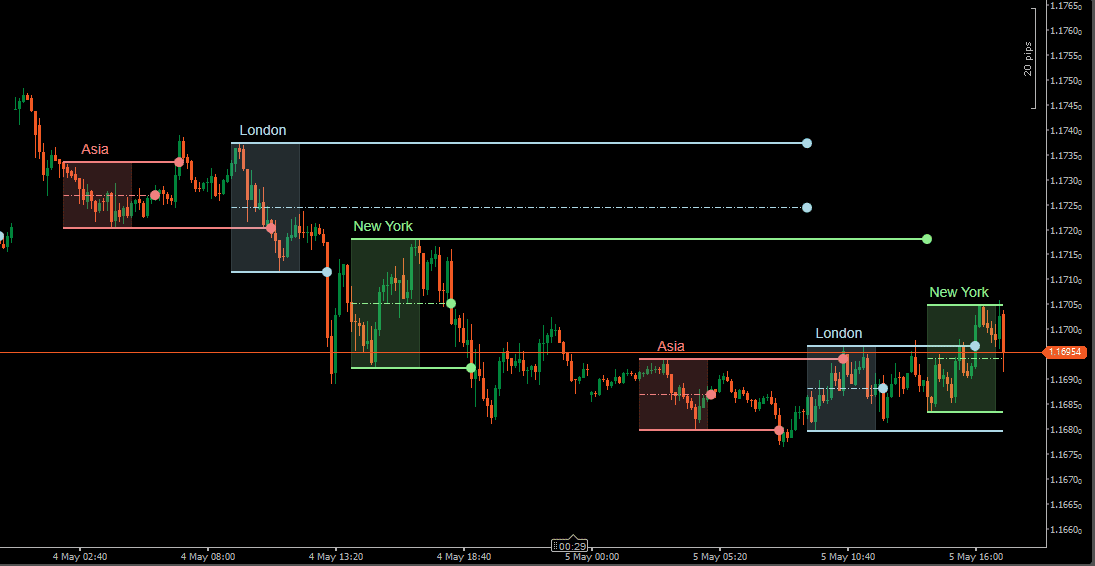
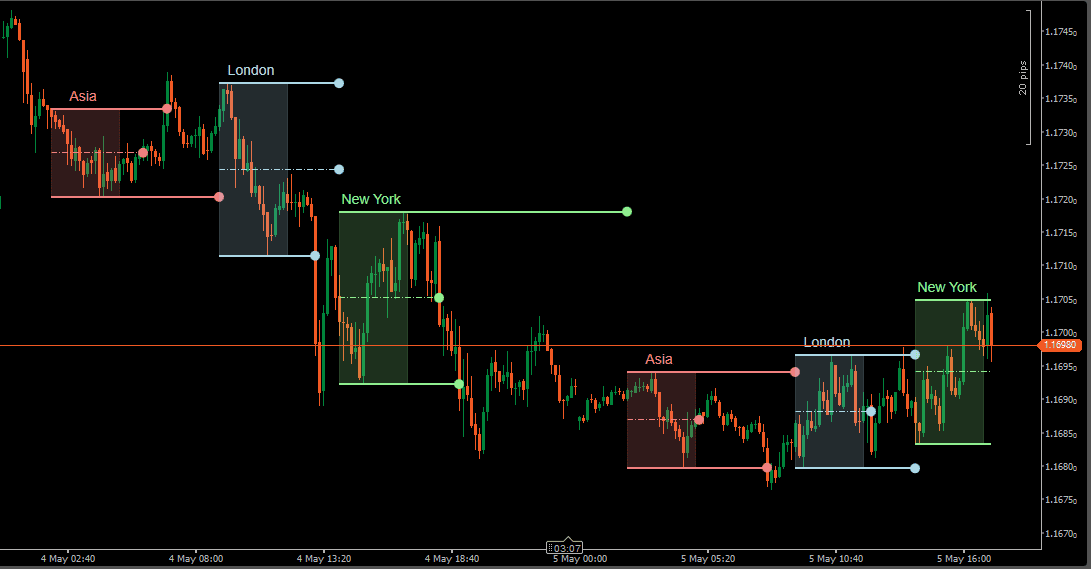
Already a subscriber or have purchased a product?
Kill Zones Concept Explained
Kill Zones are fixed time windows used in ICT (Inner Circle Trader) and Smart Money Concepts (SMC) methodologies to separate high-activity trading periods from quieter hours. Rather than treating all chart time equally, Kill Zones help focus attention on sessions where traders often monitor directional movement, liquidity sweeps, or range expansion.
The most commonly watched windows are the London open and the New York open — periods where session transitions often bring increased participation and volatility. The Asia session is frequently used as a reference range, with traders monitoring whether London or New York expands beyond or respects those earlier boundaries.
Session highs and lows are not just visual markers. They become reference levels that price may return to later in the day — sometimes acting as support/resistance reference areas, sometimes breaking and continuing. The midpoint of a session range adds another internal reference that can be useful when evaluating price acceptance within the zone.
This indicator automates the entire framework: marking session windows on the chart, projecting pivot levels from completed zones, and maintaining custom time-based reference prices throughout the trading day.
Kill Zones Indicator — Key Features
Multi-Session Kill Zones
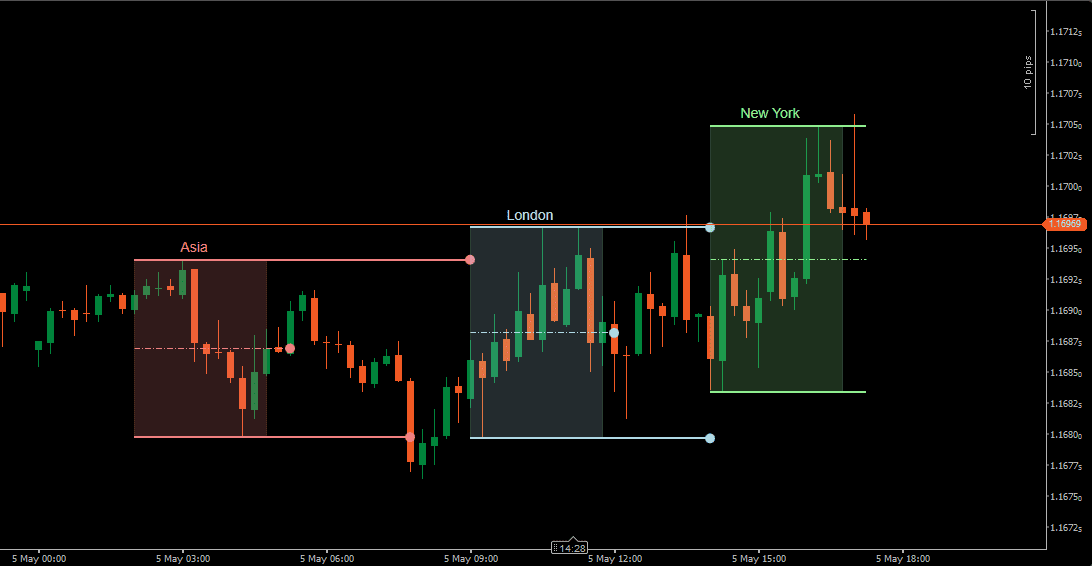
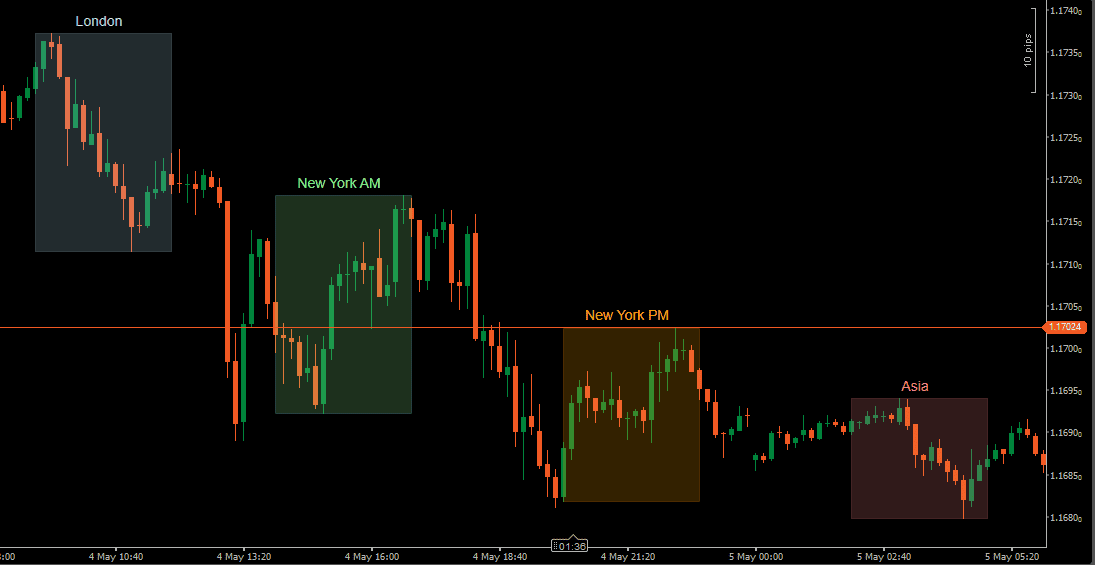
The indicator supports four independent session zones: Asia, London, New York, and a fully Custom Session.
Each zone is drawn directly on the chart using configurable start and end times in EST, allowing the layout to match different broker feeds, instruments, or personal session preferences.
Every session can be enabled or disabled individually, renamed, and styled with its own color and opacity. This means the chart can show all four zones at once, or only the sessions that matter to a given workflow — without changing the setup of the other sessions.
Kill Zone Pivot Levels & Extension Logic
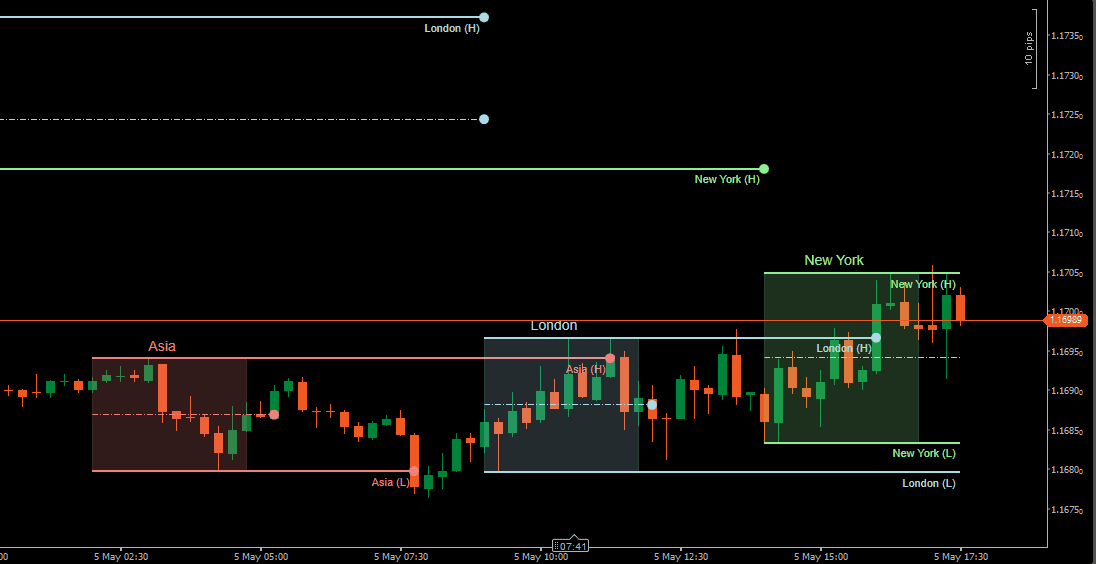
Once a session closes, the indicator can project three horizontal reference levels from the completed zone.
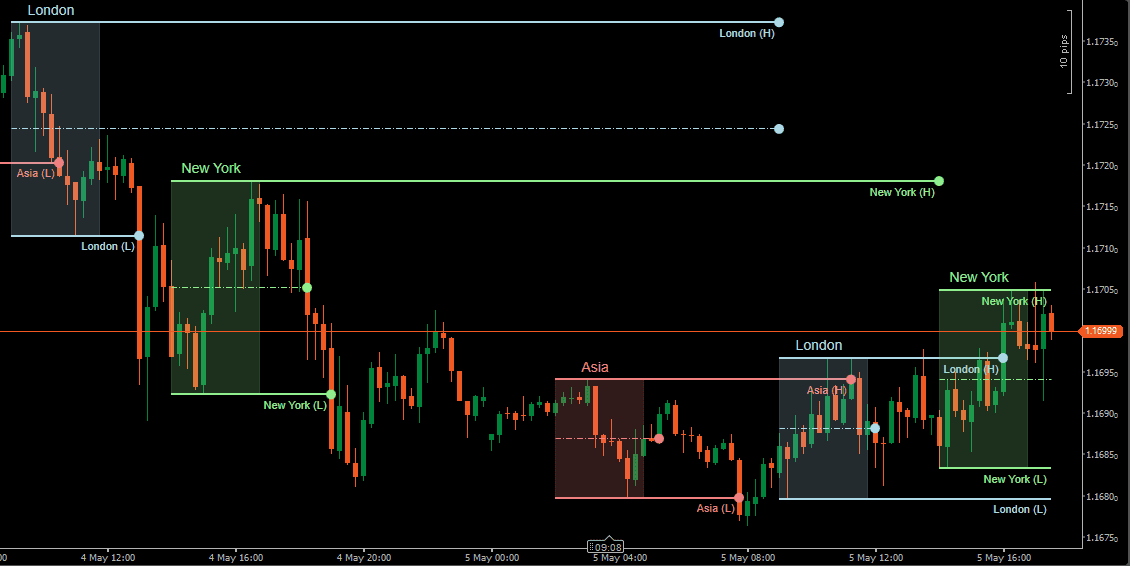
The High Pivot, Low Pivot, and optional Middle Pivot mark the boundaries and midpoint of the session range and remain available as price reference points during subsequent activity.
A pivot is considered broken only when a candle closes beyond it — not just touches it. This close-based breakout logic prevents wicks from prematurely ending pivot lines, keeping levels active until price genuinely commits beyond the boundary.
When Pivot Extension is enabled, unbroken pivot levels continue forward until the next session of the same type begins. For example, London pivots remain active until the next London session opens — unless price closes through them first. This keeps relevant reference levels on the chart without requiring manual management.
Session breakout alerts and middle pivot cross alerts can be enabled independently to notify when these key levels are reached.
Custom Pivot Engine
Beyond standard session highs and lows, the indicator includes up to 10 independent Custom Pivots.
Each one captures the open price at a defined start time and projects that level as a horizontal line until the configured end time.
This is useful for building a personalized set of intraday reference prices that go beyond what session zones cover. Common applications include:
- Day Open Price — the price at which a specific session or market officially opens
- NYSE Open / New York Open — the 9:30 AM EST open, commonly used as a reference in index CFDs, futures-style instruments, and US session forex analysis
- True Day Open — midnight or 00:00 EST open, used in some ICT frameworks as the daily reference price
- London Open / Frankfurt Open — European session reference prices for forex traders
Each custom pivot has its own label, color, line style (solid, dashed, dotted), and width settings, making it easy to distinguish levels visually on a busy chart.
Alert System
The indicator includes alerts for two structural events: session boundary breakouts and middle pivot crosses.
Session boundary breakouts trigger when price closes beyond a High or Low pivot. Middle pivot crosses trigger when price crosses the session midpoint.
Notifications can be delivered as popup messages, sound alerts, or email — and each alert type can be enabled or disabled independently.
Run it quietly as a visual reference tool, or use it as an active session-monitoring system.
How to Interpret and Use the Kill Zones Indicator
Reading Session Zones on the Chart
Each active Kill Zone appears as a shaded rectangle covering the configured time window. The zone builds in real time as the session progresses — its high and low boundaries update with each new bar until the session closes.
The Asia session is often treated as an initial range reference. London and New York activity is then evaluated relative to whether price respects, expands beyond, or retraces into that earlier boundary. Session transitions — particularly the London-New York overlap — are commonly watched for stronger directional moves.
Using Pivot Levels After Session Close
Once a session ends, the High and Low pivots mark the boundaries of that session’s range. These levels often remain relevant when price returns to them during later activity — whether holding, breaking, or reacting around the prior session’s boundaries.
The Middle Pivot adds an internal reference at the midpoint of the session range. Some traders use it to evaluate whether price is accepting above or below the center of a completed session, which can provide additional context for directional analysis.
Because breakouts are confirmed only on candle close — not on wicks — pivot levels stay active longer and are less likely to be ended by brief price spikes that do not represent genuine commitment.
Working with Custom Pivots
Custom pivots add a second layer of time-based reference to the chart. Where session zones show ranges, custom pivots show specific price levels captured at a chosen moment in time.
A Day Open Price pivot, for example, marks where price was at the start of the trading day and holds that level visible throughout the session. A True Day Open or NYSE Open adds additional structural context that some traders cross-reference with session behavior or order flow observations.
Because up to 10 custom pivots can be active simultaneously, it is possible to build a complete intraday reference framework — one that combines session structure with specific price anchors — directly on the chart without additional tools.
Practical Chart Application
Kill Zones work best as organizational context, not as signals in themselves. The value comes from knowing when and where price is trading relative to session structure.
A few common observations traders make using this framework:
- Whether New York price action respects or breaks London session highs and lows
- Whether price accepts above or below the Asia session range at the London open
- How price reacts around the middle pivot of a completed session
- Whether price reacts around a custom pivot level such as Day Open
The goal is not to treat these levels as automatic signals, but to organize price behavior around time and location — and let that context inform broader analysis.
Indicator Settings & Parameters
Full parameter reference, grouped by configuration area.
| Parameter | Description |
|---|---|
| Kill Zones Settings | |
| Session Enable Controls | Each session can be enabled or disabled independently. Disabling a session removes it from the chart without affecting other sessions.
|
| Session Name | Each session can be renamed. The label appears on the chart inside the session zone and is also used in alert messages. |
| Session Start Time / End Time (EST) | Defines the opening and closing time of each session window. All times are configured in EST. Sessions can be adjusted to match any broker feed, instrument, or personal trading schedule. |
| Session Color / Opacity | Sets the fill color and transparency of each session rectangle. Lower opacity keeps candles readable while preserving session visibility. Higher opacity emphasizes the session window more prominently. |
| Kill Zone Pivot Settings | |
| Enable Kill Zone Pivot | Displays the session High Pivot and Low Pivot after a Kill Zone is completed. These levels mark the high and low boundaries of the closed session range. |
| Enable Kill Zone Middle Pivot | Displays the midpoint of the completed session range as an additional reference level. Uses a distinct line style to differentiate it from the outer pivots. |
| Extend Kill Zone Pivot | When enabled, pivot levels continue forward beyond the session close until the next session of the same type begins — provided price has not closed through the pivot first. For example, London pivots remain visible until the next London session, unless they are broken on a candle close. When disabled, pivots end at the start of any new session, regardless of type. |
| Show Pivot Labels | Displays text labels at the end of each pivot line. Useful when multiple session levels are visible at the same time and quick identification is needed. |
| Enable Session Breakout Alerts | Triggers an alert when price closes beyond a session High or Low pivot. Breakout confirmation is based on candle close, not price extremes. |
| Enable Midline Cross Alert | Triggers an alert when price crosses the session Middle Pivot. Fires when consecutive closes move from one side of the midpoint to the other. |
| Outer Pivot Width / Middle Pivot Width | Controls line thickness for High/Low pivots and the middle pivot independently. Useful for visual hierarchy — thicker outer pivots, thinner middle line. |
| Additional Pivots Settings | |
| Enable Custom Pivot 01–10 | Enables up to ten independent custom pivot levels. Each pivot captures the open price at its configured start time and projects it as a horizontal line until the end time. Commonly used for levels such as Day Open Price, True Day Open (00:00 EST), NYSE Open / New York Open (09:30 EST), London Open, or any other time-based price reference relevant to the trading workflow. |
| Label / Start Time / End Time | Each custom pivot has its own name displayed on the chart, and its own time window defined in EST. The pivot captures the open price at the start time and holds that level until the end time. |
| Color / Line Style / Width | Each custom pivot has independent appearance controls. Line style options are useful for separating custom pivots visually from session pivot lines.
|
| General | |
| Session Drawing Limit | Defines how many historical session zones and custom pivots remain visible on the chart. Lower values keep the chart clean, higher values preserve more historical context. |
| Label Font | Controls font size for session zone labels and pivot labels. |
| Alerts | |
| Enable Pop Up Alert | Displays an on-screen popup when a selected alert event occurs. |
| Enable Sound Alert | Plays a sound notification when an alert is triggered. |
| Alert Sound File | Selects the sound file used for audio alerts. |
| Enable Email Alert | Sends an email notification when supported alert events occur. Requires email settings to be configured in cTrader. |
| Email To | Defines the destination email address for notifications. |
Frequently Asked Questions
Sessions & Usage
A Kill Zone is a defined time window associated with increased market participation and directional activity. The concept is used in ICT and Smart Money Concepts (SMC) methodologies to separate high-activity periods from quieter hours — most commonly the London open and New York open sessions.
The indicator supports four independent session zones: Asia, London, New York, and a fully Custom session. Each can be enabled, renamed, recolored, and set to custom start and end times. All times are configured in EST.
Kill Zone analysis is most relevant on markets that respond to session transitions — primarily Forex pairs, Gold (XAUUSD), indices, and CFDs. It is commonly applied where London and New York session opens have a visible effect on price behavior and volatility.
Session zones and pivot levels are time-based, so they appear consistently across all chart timeframes. Lower timeframes show more detailed price behavior within the zones, while higher timeframes provide a broader view of how sessions relate to each other. The preferred timeframe depends on trading style and how the session levels are being used in analysis.
Yes. Kill Zones are commonly used as structural context alongside other price action tools. The session framework helps answer the question of when and where — other tools can then be used to evaluate what price is doing within that context.
Pivots, Alerts & Features
When Pivot Extension is enabled, a session’s High and Low pivot levels continue forward after the session closes and remain visible until the next session of the same type begins — or until price closes through the pivot first.
For example, London pivots stay active until the next London session opens. If price closes beyond a pivot before that, the pivot ends at that bar. This keeps levels on the chart as long as they remain structurally relevant.
A pivot is considered broken only when a candle closes beyond it — not when price wicks through it during the bar. This close-based confirmation prevents brief price spikes from prematurely ending pivot lines, and also determines when a session boundary breakout alert fires.
Custom Pivots capture the open price at a specified time and project it as a horizontal reference level until a chosen end time. Up to 10 can be active simultaneously.
Common uses include:
- Day Open Price — price at the start of the trading day
- True Day Open — 00:00 EST, used as a daily reference in some ICT frameworks
- NYSE Open / New York Open — 9:30 AM EST open, used as a reference in index CFDs, futures-style instruments, and US session forex analysis
- London Open or Frankfurt Open — European session reference prices for forex
Yes. Available alerts include session boundary breakouts (when price closes beyond a High or Low pivot) and middle pivot crosses. Notifications can be delivered as popup messages, sound alerts, or email. Each alert type can be enabled independently.
Beyond shading session windows, the indicator adds a structured layer on top: session pivot levels, middle pivot reference, pivot extension logic, close-based breakout confirmation, 10 custom time-based pivots, and alert integration — making it a broader session structure tool rather than simple chart shading.
System Requirements & Installation
What you need to run the indicator, how to download and install it in cTrader, and how the license works.
System Requirements
- Platform
- cTrader for Windows
- Operating system
- Windows 10 or Windows 11
- Instruments
- Forex pairs, indices, metals, CFDs and other symbols available from your broker in cTrader
- Data
- Your broker’s price feed in cTrader
Not available on cTrader Web or Mobile. cTrader runs custom indicators only in its desktop applications; Web and Mobile support built-in indicators only.
License Terms
- Lifetime License
- This indicator only, 1 live and 1 demo account, one-time payment, free updates included.
- All-Access Subscription
- All indicators and trade copiers, billed monthly, cancel anytime, updates included while the subscription is active.
- Free trial
- 5 days on the subscription plan. If not cancelled, the subscription starts automatically.
- License binding
- Linked to your email and to your cTrader trading accounts: one live account and one demo account.
- Computers
- Not restricted. The license is linked to your trading accounts, not to a specific computer.
Installation
- Get access
Start the free trial, subscribe, or buy a lifetime license on this page.
- Download
The indicator is not sent by email. Open (top right of this page) and enter the email you used for your trial, subscription or purchase. The indicator file (.algo) downloads to your computer.
- Install in cTrader
With cTrader installed, double-click the downloaded .algo file, or right-click it and choose
Open with → cTrader. cTrader installs the indicator and adds it to the Indicators tab of cTrader Algo. - Add to a chart
Open a chart, click the Indicators icon, type the indicator name and select it. Set the parameters and click OK.
- Activate the license
In the indicator parameters, enter the same email. On first activation, the license is linked to that email and to the trading account cTrader is logged into.
Updating: When a new version is released, download it again through and double-click the new .algo file to replace the installed version.
Installation questions? Contact support, Monday to Friday.
Related Products
"Best Seller" and "Trending" reflect Nordman Algorithms sales and usage data, January–September 2026.
Disclaimer — Software Use & Risk Disclosure
Nordman Algorithms is a trade name of Nordman Algorithms OÜ (Reg. No. 14435535), registered in Tallinn, Estonia.
Software Use
Software Nature & User Responsibility — Nordman Algorithms provides algorithmic software tools for technical analysis. Nordman Algorithms is not a financial advisor and is not liable for any losses. All trades conducted based on the software’s output are executed at the user’s sole discretion and risk.
Visual Markers & Signal Disclosure — This software may display visual markers (such as arrows, dots, or alerts) when predefined mathematical conditions are met. These markers are provided for educational and analytical purposes only, must not be interpreted as financial guidance, and do not constitute a recommendation to buy, sell, or hold any financial instrument. Users must independently validate all visual cues within their own trading methodology.
No Financial Advice — Nordman Algorithms does not provide discretionary trading signals, investment advice, or managed signal services. Our software represents a mathematical visualization of historical and real-time data. The appearance of a visual marker does not guarantee a profitable trade or predict future market behavior.
Read the full Terms of Service →Risk Disclosure
Trading Risk Warning — Forex, CFDs, futures, options, and other leveraged financial instruments involve significant risk. Risk capital is money that can be lost without jeopardizing financial security. Only risk capital should be used for trading. Past performance is not indicative of future results. An investor could potentially lose all or more than the initial amount committed.
ESMA Risk Warning — Financial instruments, especially those involving leverage such as CFDs and Forex, are complex and carry a high risk of rapid financial loss. Our software provides analytical outputs and visual markers based on predefined mathematical conditions and does not mitigate or reduce inherent market risks. You should carefully consider whether you understand how leveraged financial instruments work and whether you can afford the high risk of losing your capital.
CFTC Rule 4.41 — Hypothetical or simulated performance results have inherent limitations. Unlike actual performance records, simulated results do not represent real trading. Because trades have not actually been executed, these results may under- or over-compensate for the impact of market factors such as liquidity. Simulated results are also subject to the benefit of hindsight. No representation is being made that any account will achieve profits or losses similar to those shown.
Read the full Risk Disclosure →Trademark Notice — cTrader is a registered trademark of Spotware Systems Ltd. Nordman Algorithms is an independent software developer and is not affiliated with, sponsored by, or endorsed by Spotware Systems Ltd. References to cTrader are used to indicate software compatibility.
Need a different setup?
We can customize this indicator to your specifications: add new functions, modify the logic, refine visuals, or integrate it with other cTrader tools. We also convert indicators into cBots with trailing stops, position parameter controls, execution filters and rule-based automation built to your technical specifications.