Nordman Algorithms · Technical review by Alexei Kuntysh, founder
The most useful warning about copying NinjaTrader trades to MetaTrader 5 that we’ve found didn’t come from a vendor. It came from the administrator of NexusFi, who had built a prototype of exactly this kind of copier and stopped short of trusting it with money. The problem the post described was price. Because price data differs slightly between the two platforms, copying “may cause different entries prices and funny things (positions not synchronized)” (sam028, NexusFi, Apr 2023).
Sending the order across is the easy part, and a copier running on the same computer does it quickly. The hard part is what the MT5 account does with the order once it arrives. How many lots does it buy, which tickets does it close when you scale out, and what price does it get at your broker? We’ll work through those, and through the question every user of this setup should ask early on: what protects the MT5 position if your computer goes down mid-trade?
Most people who ask for this already have a futures strategy running in NinjaTrader 8, either as NinjaScript or as their own manual routine. They want the same decisions on one or more MetaTrader 5 accounts at forex or CFD brokers. The reasons vary: access to CFD and forex accounts, spreading one strategy across several brokers, or running a funded strategy on a personal account as well.
If your strategy is an Expert Advisor in MT5 and the account you care about is in NinjaTrader, you need the opposite tool. We covered it in How to Copy Trades from MT5 to NinjaTrader 8. Here NinjaTrader leads and MT5 follows. Every trade on the NinjaTrader chart is sent across, whether you click it or a strategy places it. Nothing you do in MT5 travels back, so manage positions on the NinjaTrader side and let MT5 follow.
Futures contracts have one size for everyone. A Micro E-mini S&P 500 contract, MES, is worth $5 for every point the index moves, as CME’s contract specification states. A lot of a US500 CFD has no such standard. One broker may define it as $1 per point and another as $10, so “one lot” means very different money depending on where your MT5 account sits.
A copier therefore can’t map one contract to one lot and leave it there. Ours uses a Lot Multiplier on the MT5 Receiver. At 1.0 the MT5 size equals the NinjaTrader size, and any other value scales it, so 0.5 halves the position and 2.0 doubles it. Because every MT5 terminal runs its own Receiver, every account gets its own multiplier.
The simplest way to set it is to match dollars per point rather than contract counts. With the two example brokers from the diagram above:
| Your MT5 broker quotes US500 at | To match 1 MES ($5 per point) | Lot Multiplier |
|---|---|---|
| $1 per point per lot | 5 lots | 5 |
| $10 per point per lot | 0.5 lots | 0.5 |
| Your broker’s value per lot = V | 5 ÷ V lots | 5 ÷ V |
What usually trips people up is the broker’s minimum lot and volume step, which sit in the same symbol specification in MT5. The copier rounds every order to the nearest step, and anything below the minimum is raised to the minimum lot. A multiplier that works out to 0.25 lots per contract is exact on a symbol that trades in steps of 0.01. On one that only accepts 0.1 it becomes 0.3, which is 20% more than you meant. A very small multiplier never skips a trade, it sends the minimum lot instead. Partial fills are rounded one by one, so three one-contract fills at that multiplier give 0.9 lots rather than 0.75. Look up the step and the minimum before you settle on the number.
One setting decides which MT5 positions the copier treats as its own. By default the Receiver manages every position on its chart’s symbol, so when NinjaTrader goes flat, MT5 goes flat too, including any trade you opened by hand or another Expert Advisor opened there. If the account is shared with anything else, give the Receiver its own magic number. It will then manage only the positions it opened.
It also pays to decide deliberately how much of the NinjaTrader risk the MT5 side should carry. Copying a funded futures strategy at full size onto a personal account at another broker doubles your exposure to one strategy. A quarter or a half of the size is worth considering.
NinjaTrader keeps one net position per instrument in an account, so if you buy two contracts and then sell one, the account simply shows long 1. MetaTrader 5 can work the same way on a netting account. Many brokers, though, open MT5 accounts in hedging mode, where every trade becomes a separate position with its own ticket number.
On a netting account each NinjaTrader change is applied as an update to the single MT5 position. On a hedging account the copier keeps the total MT5 volume matched to NinjaTrader’s net. When NinjaTrader reduces the position, it has to choose which MT5 tickets to close. Ours closes the oldest volume first, FIFO (first in, first out), and closes part of a ticket when the reduction doesn’t line up with a whole one.
If your broker lets you choose, we’d pick a netting MT5 account for a copied futures strategy. You compare one position with NinjaTrader instead of a list of tickets, and the MT5 history reads the same way as the NinjaTrader one. Hedging accounts work fine as well, they just leave more to reconcile at the end of the day.
Your NinjaTrader order fills on the exchange at the futures price, while the MT5 order fills a moment later at whatever your broker quotes for its CFD, spread included. The futures price also sits above or below the cash index by an amount called the basis, which can run to tens of index points and shrinks as expiry approaches. Some US500 CFDs are priced from the cash index and some from the futures, so check which one your broker uses. Either way the MT5 entry will rarely match the NinjaTrader entry, and the two accounts will show different results for the same trade. The same gap applies to stop and target prices, which is why the copier can transfer them as distances rather than prices. More on that below.
Pending orders are where that gap would do the most damage, and a trader in the same thread put the trade-off in one line. “Copy pending orders can be a problem though, since they become market orders when executed” (TheSwede, NexusFi, Apr 2023). Our copier takes that route on purpose for entries. A limit or stop entry waiting in NinjaTrader isn’t copied when you place it. It reaches MT5 as a market order once it has filled on the NinjaTrader side. An entry stop resting on both platforms could trigger on the CFD quote and not on the futures price, leaving one account in a trade and the other flat. Copying entries on fill rules that out, at the cost of a slightly worse entry. Protective stops are handled differently, as covered below.
Trading hours are the other half of the price question. CME Globex trades the index futures almost around the clock, while many brokers pause their US500 CFD for a daily break that may not line up with the futures schedule. If NinjaTrader trades during a window when the CFD is closed, MT5 will refuse the order with a market-closed error. Compare the two schedules in the MT5 symbol specification before you let a strategy trade near the break. The copier doesn’t retry a rejected order. It shows the reason on the MT5 panel and raises an alert. Once the CFD reopens, the Sync button on the NinjaTrader side brings MT5 back to the NinjaTrader position.
A stop loss in NinjaTrader is a pending order, so you might expect it to reach MT5 only as a market order once it fills. Ours doesn’t wait for that. With SL/TP Sync on, which is the default, the copier finds the stop loss and profit target working in NinjaTrader and sets a matching SL and TP on the MT5 position at your broker. It recognises them by order name, and the default names cover NinjaTrader’s ATM strategies: Stop Loss and Profit Target. When you move the stop in NinjaTrader, the MT5 stop moves with it.
Two details decide whether this protects you. First, a strategy that names its stop something else won’t be picked up until you add that name to the Receiver’s list. Check that the stop appears on the MT5 position before you trust it. Second, a futures stop price copied as-is would sit at the wrong level on a CFD, for the basis reasons above. That’s why the default mode copies the stop as a percentage distance from the price rather than as a price. A Distance mode in points and a Price mode for matching instruments are also available.
Resting stops on both platforms have one side effect. Because the MT5 stop triggers on your broker’s quote, it can fill while NinjaTrader is still in the trade, or the other way round. If MT5 closes first, the later NinjaTrader exit finds nothing to close and no new trade is opened. If NinjaTrader closes first, MT5 closes at market.
A VPS is still the better home for this setup. Market exits from a strategy, and stop moves made while the machine is down, depend on NinjaTrader, the copier and the computer all being up. The broker-side stop covers the worst case, not every case.
With SL/TP Sync on and the stop names matched, the MT5 position has its own stop at the broker. Confirm it’s there before you trust it.
Copying one NinjaTrader account to several MT5 accounts works by running one MT5 terminal per account on the same computer or VPS. Each connection is a pair: one Sender on the NinjaTrader chart and one Receiver Expert Advisor on the matching MT5 chart, linked by a Sender ID you choose. For three MT5 accounts, add the Sender to the NinjaTrader chart three times, each with its own ID, and give each Receiver the matching ID. Since each Receiver has its own multiplier, each account can be sized to its own broker’s contract. The terminals can belong to different brokers.
The receiver trades the instrument of the MT5 chart it’s attached to. It makes no difference that NinjaTrader calls the market ES or MES and your broker calls it US500 or SPX500. The same logic means each market needs its own pairs: a Sender for every MT5 account on every NinjaTrader chart you trade, and a Receiver on the matching chart in every MT5 terminal. We go into naming differences in What Is Symbol Mapping.
Plan for the load on the machine as well. Several MT5 terminals plus NinjaTrader take real memory and processor time, and a NexusFi member explained a few years ago why MetaTrader copiers tend to be hungry. Checking only once a second would keep the load low, but it “would add a minimum 1 second extra to the trade copying time” (ycomp, NexusFi, Jun 2019). Test with every terminal open before you rely on the setup.
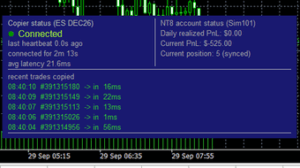
On speed, our product page lists local copying at under 0.1 seconds. In our own testing the copier’s part, from the NinjaTrader fill to MT5 receiving the order, takes about 5 to 15 milliseconds on one machine. Your broker’s execution time comes on top, and it is usually the larger share.
Everything here runs locally, with both platforms on one machine and no server in between. If NinjaTrader and MT5 have to live on different computers, there’s a separate server-based version that we set up on request rather than through the subscription.
The copier reconnects by itself. Trades placed in NinjaTrader while the link was down reach MT5 once it’s back, at the current price, so the entry can be worse. Two cases work differently. If NinjaTrader or the Sender indicator itself was restarted, trades made while it wasn’t running never reach MT5. If MT5 loses its connection to the broker, new entries are blocked while closes still go through. After any restart or long gap, compare the two positions, and if they differ, the Sync button in NinjaTrader brings MT5 to the NinjaTrader position in two clicks.
A reversal from long to short closes every MT5 position in the old direction and opens one in the new direction, sized from NinjaTrader’s net position, so no opposite positions are left behind on a hedging account.
The quarterly roll needs one habit. The Sender follows the contract on its chart, for example ES 12-26, and doesn’t track the switch to the next one. Move the position while the chart is still on the old contract, and MT5 closes without reopening. Switch the chart first, and MT5 misses the close but sees the new entry, so its position doubles. The safe way is to roll when you’re flat. If you have to carry a position across, switch the chart to the new contract after the move and press Sync. Most CFDs have no expiry and the broker rolls them, so the MT5 side usually needs nothing.
Prop firms set their own rules on copying. Some don’t allow trades from a funded or evaluation account to be mirrored elsewhere, and others only care about what happens inside their own account. The rules also change over time. Read your firm’s current terms before you connect a funded account as the source. On the MT5 side the Receiver can enforce limits of its own, such as a daily loss limit or a minimum balance, and closes positions when one is broken. It checks them itself, so they work only while MT5 is running. We look at how firms treat automation in Automated Trading on Prop Firm Accounts.
Run a week on demo before anything else, with NinjaTrader on a simulation account and MT5 on a demo account at the broker you plan to use. Let your strategy do everything it normally does, including scaling out and trading near the CFD’s daily break, then compare the two trade logs line by line. Check that every stop and target you place in NinjaTrader appears on the MT5 position, at a sensible distance from the MT5 price. Most of the surprises described above show up in that comparison long before they cost money.
The NinjaTrader to MT5 Trade Copier comes with the €25 a month subscription, the first five days are free, and it can be cancelled at any time.
See the NinjaTrader to MT5 Trade Copier →
Need something custom built? We develop automation to order → NinjaTrader developers
Yes. A sender on the NinjaTrader chart picks up every trade on that instrument, manual or from a strategy, and a receiver Expert Advisor in MT5 places it. With a local copier both platforms run on the same computer or VPS.
Match the dollar value per point. One MES contract is $5 per point, so at a broker where one US500 lot is $1 per point you need 5 lots, and at $10 per point you need 0.5. Set that as the Lot Multiplier and check the broker’s volume step.
Yes, with SL/TP Sync on, which is the default. The stop loss and profit target working in NinjaTrader are set as SL and TP on the MT5 position at your broker and follow them as they move. They’re matched by order name, so a custom-named stop needs its name added to the Receiver’s settings.
The Sender follows only the contract on its chart. Roll when you’re flat, or after moving the position switch the chart to the new contract and press Sync. Otherwise MT5 can end up without a position or with a doubled one.
Nordman Algorithms provides software infrastructure for trade automation and does not offer financial advice, trading signals, or managed trading services. The copier replicates trades you or your software place. It does not decide, predict or manage trades. This article is for informational and educational purposes only. Diagrams are illustrations with example values. Contract sizes, lot steps, trading hours and account types depend on your broker. Forum quotations are reproduced verbatim from public threads for illustration and do not constitute endorsement. Prop firm rules differ between firms and change over time. Trading leveraged instruments such as Forex, CFDs and futures carries a high level of risk and may not be suitable for all investors. Only risk capital should be used. Full Risk Disclosure: https://www.nordman-algorithms.com/risk-disclosure/