MT5 Advanced Opening Range Breakout Indicator
MT5 Advanced Opening Range Breakout Indicator builds the opening range from your session times as a full, body or ATR-based range, marks Long and Short breakouts in the trade entry window and draws TP and SL levels from the trigger price. Alerts and Expert Advisor buffers included.
For subscribers and customers
Member AccessDownload your productOpening Range Breakout Explained
The opening range is the high and low that price sets in the first minutes of a session. An opening range breakout is a move beyond that range. This indicator builds the range from the times you set, looks for breakouts in a trade entry window after it, and draws take-profit and stop-loss levels from each breakout.
The MT5 Advanced Opening Range Breakout Indicator builds the opening range from the bars between two times you set, 09:30 and 10:00 by default. The range can span the full highs and lows of those bars, only their candle bodies, or an ATR-based distance around the opening price. Once the range is complete, OR High, OR Low, OR Open and OR Mid lines and a trade entry zone run to the end of the trade entry window.
Within that window, a green arrow marks a Long breakout above OR High and a red arrow a Short breakout below OR Low. A breakout is confirmed by the bar’s high or low or by its close, with an optional minimum distance beyond the level. Three signal modes show only the first breakout of the session, one breakout per direction, or every breakout.
After each signal, TP and SL zones are drawn from the trigger price, and dots can mark the bars where price reaches them. Breakouts and TP and SL hits can send pop-up, sound and email alerts, the previous day’s range can be shown alongside the current one, and every level and signal is written to buffers that an Expert Advisor can read.
Advanced Opening Range Breakout Indicator — Key Features
Opening Range and Trade Entry Window
Two time windows set in the chart’s server time.
The opening range is built from the bars between Opening Range Start Time and Opening Range End Time, 09:30 and 10:00 by default. Breakouts are looked for only in the trade entry window that follows, 10:00 to 16:00 by default. All times are the chart’s server time, the time shown on your broker’s MetaTrader 5 charts, and a session that crosses midnight is supported.
A session starts on the first bar at or after the start time, so the range is made of whole bars: on M15, a 09:00–09:45 range uses three bars. While the range forms it is drawn as a light zone. After it closes, the OR High, OR Low, OR Open and OR Mid lines and the trade entry zone run to the end of the window.
Range 09:00–09:45, Window 09:45–14:00
Range 09:00–10:15, Window 10:15–17:00
Three Range Types
Full, body or ATR-based range.
- Full Range, the default: OR High and OR Low are the highest high and the lowest low of the range bars, wicks included.
- Body Range: the highest and lowest candle body, open or close, so wicks are left out.
- ATR-based Range: OR Open plus and minus ATR × multiplier, ATR(14) × 1.5 by default. With ATR Source set to High / Low, the offset is added to the high and subtracted from the low of the range bars instead.
OR Open is the open of the first range bar, and OR Mid lies halfway between OR High and OR Low.
Full Range
Body Range
ATR-based Range
Breakout Confirmation
High / Low or Close.
High / Low, the default, registers a breakout as soon as the bar’s high goes above OR High or its low goes below OR Low. Close requires the bar to close beyond the level. With Close, the arrow appears on the forming bar while price is beyond the level, is removed if the bar closes back inside, and is fixed when the bar closes.
A breakout has to start from the range: the breakout bar or the bar before it must open inside the opening range, or beyond its opposite edge. Price that is already beyond the level, for example after a gap, gives no signal until a bar opens back inside the range.
Signal Modes
First breakout, one per direction, or every breakout.
- First Breakout Only: one signal per session, in whichever direction comes first.
- One Breakout Per Direction: at most one Long and one Short signal per session.
- All Breakouts (Continuous), the default: a signal on each new breakout. After a Long signal, the next Long signal needs a bar that stays fully inside the range first, or a Short signal in between. Short signals work the same way.
First Breakout Only
One Breakout Per Direction
All Breakouts
Breakout Threshold
A minimum move beyond the level, with a confirmation window.
With Enable Threshold on, price has to move beyond OR High or OR Low by a set distance: 5 ticks by default, or a percentage of the level, 0.05% by default. The Long trigger is then OR High plus the threshold, and the Short trigger OR Low minus it. On a five-digit EURUSD quote one tick is 0.00001, so 30 ticks is 3 pips.
The confirmation window, on by default, gives price 3 bars after it first crosses the level to reach the threshold. If it does not, that crossing gives no signal. With the window off, any later bar that reaches the trigger inside the trade entry window gives the signal.
Threshold Off
Threshold 30 Ticks
TP and SL Levels
Projected from the trigger price after each signal.
After a signal, take-profit and stop-loss zones are drawn from the trigger price, which is the OR level or the level plus the threshold, to the end of the trade entry window.
- TP: Range Multiplier, the default, places the TP one range height (× 1.0) from the trigger price. ATR Based uses ATR(14) × multiplier, and Fixed uses ticks, a price distance or a percentage. A TP (50%) level halfway to the TP is on by default.
- SL: Range Percent Level, the default, places the SL 50% of the range height from the trigger price, which is OR Mid when no threshold is used. ATR Based and Fixed work as for the TP. A 50% SL halfway to the SL can be added.
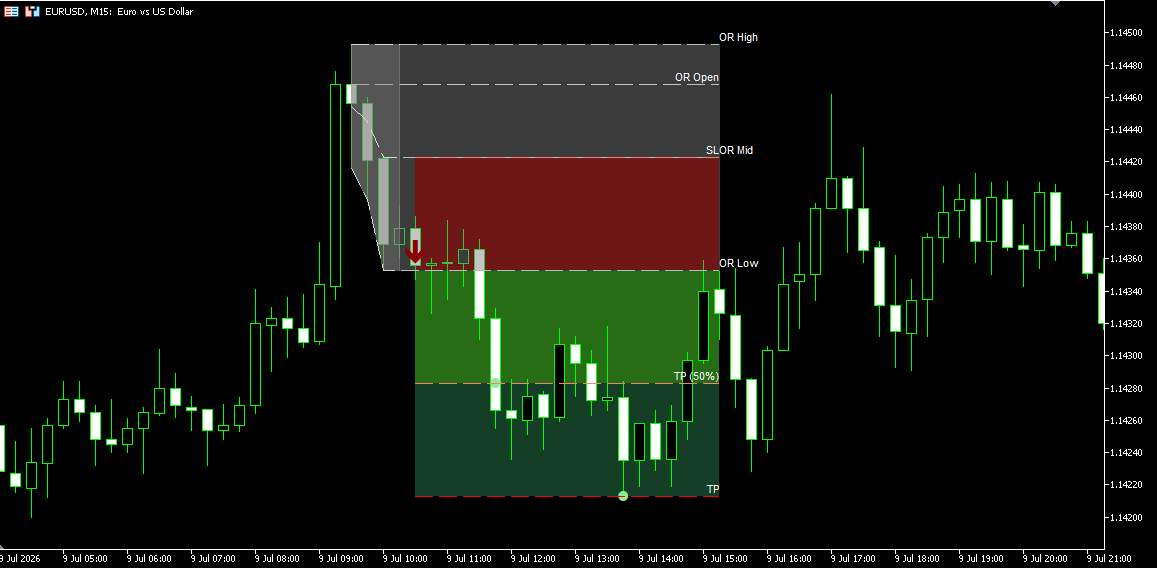
With TP Alert & Signals or SL Alert & Signals enabled, a dot marks the bar where price reaches the level and an alert can be sent. Tracking of a signal ends at its TP or SL, and a signal in the opposite direction starts new zones.
TP (50%) and TP Reached
Stop-Loss Reached
Previous Day Opening Range
Yesterday’s range levels carried into today.
With Show Previous Day Opening Range on, the previous session’s OR High, OR Low, OR Open and OR Mid are drawn as dashed lines into the current session and labelled Prev OR High, Prev OR Low, Prev OR Open and Prev OR Mid. The same values are written to buffers 22–25.
Previous Day Opening Range
Display Options
Lines, labels, zones and arrow size.
The OR Open and OR Mid lines can be hidden. Labels for the current range, the previous day’s range and the TP and SL levels are off by default and are switched on separately. The opening range, trade entry, TP, TP (50%), SL and 50% SL zones each have their own colour, and all zones except the opening range can be turned off. Signal Arrow Size sets the size of the Long and Short arrows, 3 by default.
Alerts
Pop-up, sound and email on breakouts, TP and SL.
Each Long and Short signal sends an alert in real time as a pop-up, a sound and an email, each switched on or off separately. TP (50%), TP, 50% SL and SL alerts are added with their own Alert & Signals settings. With Close confirmation, the breakout alert is sent once per bar, when the arrow first appears on the forming bar. Emails go to the address set in MetaTrader 5 under Tools → Options → Email.
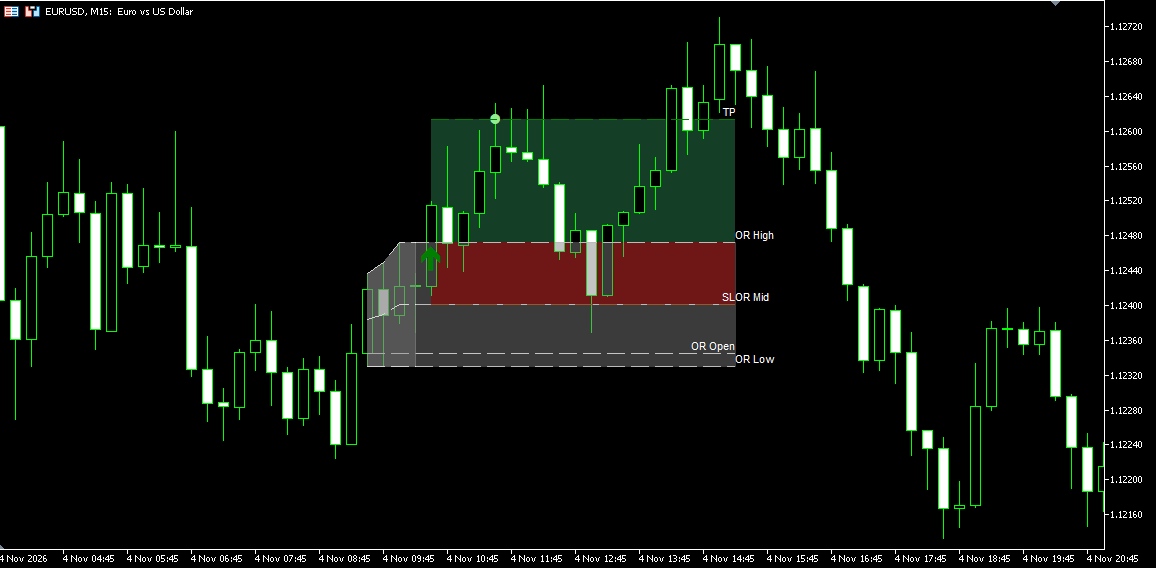
Example message: 2026.11.04 10:30:00: EURUSD: Long signal at 1.12468.
Signals Readable by Expert Advisors
Levels, signals and time windows stored in indicator buffers.
All levels and events are available to an Expert Advisor through iCustom() and CopyBuffer():
- 0–3: OR Open, OR High, OR Low and OR Mid.
- 4–7: Long and Short TP (50%) and TP levels.
- 8–9: Long and Short signals, at the trigger price.
- 10–13: Long and Short TP (50%) and TP hits.
- 14–17: Long and Short 50% SL and SL levels.
- 18–21: Long and Short 50% SL and SL hits.
- 22–25: previous day’s OR Open, OR High, OR Low and OR Mid.
- 26–27: 1 inside the opening range time and inside the trade entry window, 0 outside.
Bars without a value hold EMPTY_VALUE.
Buffer Values in the Data Window
How to Read and Use the Opening Range Breakout Indicator
Reading the Chart
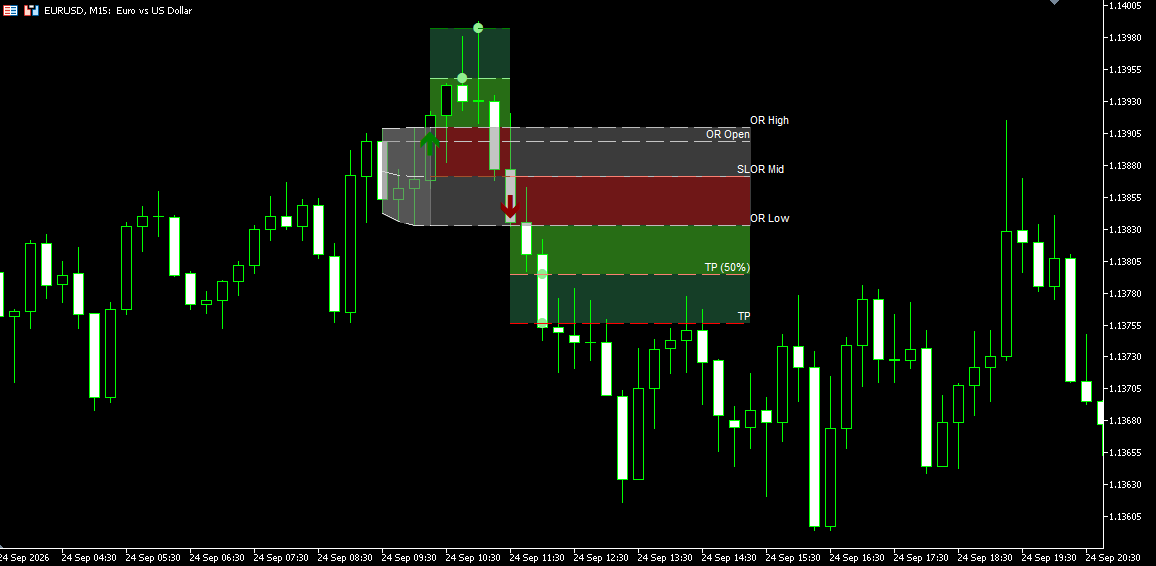
The light zone is the opening range while it forms. The grey zone that follows is the trade entry window, with the OR High, OR Low, OR Open and OR Mid lines across it. A green arrow below the price marks a Long breakout and a red arrow above it a Short breakout. After a signal, green zones show the distance to TP (50%) and TP, and the red zone the distance to the SL. Dots mark the bars where price reached those levels, when TP or SL signals are enabled.
Setting the Session Times
Enter the times in the chart’s server time, not your local time. Many brokers run their servers on GMT+2 in winter and GMT+3 in summer, which puts the New York open at 09:30 ET at 16:30 server time. Compare the time of the last quote in Market Watch with your own clock to find the offset.
Use a timeframe whose bars start at your range times. For a 09:30–10:00 range that is M1, M5, M15 or M30; on H1 the bars start on the full hour and the range would not match.
Choosing the Range Type
Full Range includes every wick, so a single spike in the first minutes widens the range. Body Range leaves wicks out and gives a narrower range. ATR-based Range sets the width from recent volatility, so it does not depend on how far price travelled in the first bars.
Choosing the Signal Mode
First Breakout Only gives one reading per session. One Breakout Per Direction also shows a later break to the other side, for example a Long breakout that fails and a Short breakout that follows.
Long and Short Breakouts in One Session
All Breakouts (Continuous) also marks a new breakout in the same direction after price has returned into the range.
Repeated Long Breakouts
High / Low, Close and the Threshold
High / Low reacts to the first wick beyond the level. Close ignores wicks that close back inside the range and confirms the signal at the bar close. A threshold leaves out small moves just beyond the level. A threshold in ticks is easy to keep consistent on one symbol; a percentage scales with the price level.
Reading the TP and SL Levels
With the defaults, the TP is one range height from the trigger price and the SL half a range height, so both scale with the size of the opening range. A wide range gives distant levels, a narrow range close ones. The levels are drawn on the chart and written to buffers; the indicator does not place or manage orders.
Limitations
- The range uses whole bars of the chart timeframe, so the range times must match the bar boundaries.
- Times are server time. If your broker’s server and the market you trade change to daylight saving time on different dates, the session can be an hour off for a few weeks.
- With Close confirmation, an arrow on the forming bar is removed if the bar closes back inside the range.
- Alerts are sent only in real time, not for signals found on history.
- On history, when one bar reaches both the TP and the SL, the order is decided from the bar’s open and close.
- The indicator does not place or manage orders.
Indicator Settings & Parameters
Inputs as they appear in the indicator’s Inputs tab.
| Parameter | Description |
|---|---|
| License | |
| License Email | The email used for your trial, subscription or purchase. The license is verified with this email. |
| Alerts | |
| Enable pop up alert | Shows a pop-up alert. Default: true. |
| Enable sound alert | Plays a sound when an alert is triggered. Default: true. |
| Alert sound file | Sound file played for alerts. Default: Alert1.wav. |
| Enable email alert | Sends an email. Default: true. |
| Email to | Emails are sent to the address set in MetaTrader 5 under Tools → Options → Email. |
| ORB | |
| Opening Range Start Time | Start of the opening range in chart server time, HH:MM:SS. Default: 09:30:00. |
| Opening Range End Time | End of the opening range. Default: 10:00:00. |
| Trade Entry Start Time | Start of the window in which breakouts are detected. Default: 10:00:00. |
| Trade Entry End Time | End of that window; lines and zones stop here. Default: 16:00:00. |
| Range Type | Full Range, Body Range or ATR-based Range. Default: Full Range. |
| ATR Period | ATR period for the ATR-based range. Default: 14. |
| ATR Source | Open sets the range around OR Open; High / Low adds the offset to the high and subtracts it from the low of the range bars. Default: Open. |
| ATR Multiplier | Default: 1.5. |
| Show Previous Day Opening Range | Draws the previous session’s OR levels into the current session. Default: false. |
| Signals | |
| Breakout Confirmation Mode | High / Low or Close. Default: High / Low. |
| Signal Mode | First Breakout Only, One Breakout Per Direction or All Breakouts (Continuous). Default: All Breakouts (Continuous). |
| Enable Threshold | Requires price to move a minimum distance beyond the OR level. Default: false. |
| Threshold Mode | Ticks or Percent. Default: Ticks. |
| Threshold (%) | Percentage of the OR level. Default: 0.05. |
| Threshold (Ticks) | Default: 5. |
| Enable Threshold Confirmation Window | Limits the number of bars in which price must reach the threshold after it first crosses the level. Default: true. |
| Threshold Confirmation Window (Bars) | Default: 3. |
| Target & Stop Levels | |
| Enable TP | Draws the take-profit level and zone after each signal. Default: true. |
| TP Calculation Mode | Fixed, ATR Based or Range Multiplier. Default: Range Multiplier. |
| TP Range Multiplier | TP distance from the trigger price as a multiple of the range height. Default: 1.0. |
| TP Fixed Unit | Ticks, Points or Percent. Default: Ticks. |
| TP Fixed Ticks | Default: 5. |
| TP Fixed Points | Distance in price units, not MetaTrader points. Default: 5. |
| TP Fixed Percent | Percentage of the trigger price. Default: 0.1. |
| TP ATR Period | Default: 14. |
| TP ATR Multiplier | Default: 1.0. |
| Enable TP Alert & Signals | Marks the bar where price reaches the TP and sends an alert. Default: false. |
| Enable 50% TP | Draws a level halfway to the TP. Default: true. |
| Enable 50% TP Alert & Signals | Marks and alerts when price reaches the 50% TP. Default: false. |
| TP Alert Color | Colour of the TP hit markers. Default: light green. |
| Enable SL | Draws the stop-loss level and zone after each signal. Default: true. |
| SL Calculation Mode | Fixed, ATR Based or Range Percent Level. Default: Range Percent Level. |
| SL Fixed Unit | Ticks, Points or Percent. Default: Ticks. |
| SL Fixed Ticks | Default: 5. |
| SL Fixed Points | Distance in price units, not MetaTrader points. Default: 5. |
| SL Fixed Percent | Percentage of the trigger price. Default: 0.1. |
| SL ATR Period | Default: 14. |
| SL ATR Multiplier | Default: 1.0. |
| SL Range % Level | SL distance from the trigger price as a percentage of the range height. Default: 50. |
| Enable SL Alert & Signals | Marks the bar where price reaches the SL and sends an alert. Default: false. |
| Enable 50% SL | Draws a level halfway to the SL. Default: false. |
| Enable 50% SL Alert & Signals | Marks and alerts when price reaches the 50% SL. Default: false. |
| SL Alert Color | Colour of the SL hit markers. Default: indian red. |
| Visual Parameters | |
| Signal Arrow Size | Size of the Long and Short arrows. Default: 3. |
| Enable Open Lines | Draws the OR Open line. Default: true. |
| Enable Mid Lines | Draws the OR Mid line. Default: true. |
| Show Current Day OR Labels | OR High, OR Low, OR Open and OR Mid labels. Default: false. |
| Show Previous Day OR Labels | Prev OR High, Prev OR Low, Prev OR Open and Prev OR Mid labels. Default: false. |
| Show Trade Entry Labels | TP, TP (50%) and SL labels. Default: false. |
| Color Main Opening Range | Colour of the opening range zone. Default: white smoke. |
| Enable Main Cloud Trade Entry / Color Main Trade Entry | Trade entry zone. Default: true, dark grey. |
| Enable Main Cloud TP Half / Color Main Cloud TP Half | Zone up to the TP (50%). Default: true, light green. |
| Enable Main Cloud TP Full / Color Main Cloud TP Full | Zone from the TP (50%) to the TP. Default: true, medium sea green. |
| Enable Main Cloud SL Half / Color Main Cloud SL Half | Zone up to the 50% SL. Default: true, misty rose. |
| Enable Main Cloud SL Full / Color Main Cloud SL Full | Zone up to the SL. Default: true, light coral. |
Frequently Asked Questions
Opening Range Basics
From the bars between Opening Range Start Time and Opening Range End Time. With Full Range, OR High and OR Low are the highest high and lowest low of those bars; Body Range uses candle bodies only; ATR-based Range sets them at ATR × multiplier around OR Open. OR Open is the open of the first range bar and OR Mid lies halfway between OR High and OR Low.
The chart’s server time, the time your broker’s MetaTrader 5 charts show. With many brokers on GMT+2 in winter and GMT+3 in summer, the New York open at 09:30 ET is 16:30 server time. Sessions that cross midnight are supported.
One whose bars start at your range times, because the range is built from whole bars. For a 09:30–10:00 range that is M1, M5, M15 or M30. On H1 the bars start on the full hour and the range would not match the times you set.
The period after the opening range in which breakouts are detected, 10:00 to 16:00 by default. No signals are given outside it, and the lines and TP and SL zones end at Trade Entry End Time.
The most common reasons: the break happened outside the trade entry window; the signal mode allows no further signal in that session or direction; the threshold was not reached within the confirmation window; or the bar opened beyond the level, for example after a gap, instead of breaking out from the range. In All Breakouts mode, a second signal in the same direction needs a bar that stays fully inside the range first.
Setup & Use
With High / Low confirmation, an arrow is fixed as soon as price reaches the trigger. With Close, the arrow on the forming bar is removed if the bar closes back inside the range; the alert for it has already been sent. Once the bar closes, the signal does not change. OR High and OR Low move only while the range is still forming.
From the trigger price of the signal, which is the OR level or the level plus the threshold. By default the TP is one range height away and the SL half a range height, which places the SL at OR Mid when no threshold is used. Both can instead use ATR × multiplier or a fixed distance in ticks, price units or percent.
Hit markers and their alerts are off by default. Turn on Enable TP Alert & Signals, Enable 50% TP Alert & Signals, Enable SL Alert & Signals or Enable 50% SL Alert & Signals as needed.
A pop-up, a sound and an email for each Long and Short signal, and for TP and SL hits when they are enabled. Alerts are sent only in real time. Emails go to the address set in MetaTrader 5 under Tools → Options → Email.
Yes. Signal Arrow Size in the Visual Parameters sets the size of the Long and Short arrows; the default is 3.
Yes. OR levels are in buffers 0–3, TP levels in 4–7, Long and Short signals in 8 and 9, TP hits in 10–13, SL levels in 14–17, SL hits in 18–21, the previous day’s range in 22–25, and the opening range and trade entry time flags in 26 and 27. Bars without a value hold EMPTY_VALUE.
System Requirements & Installation
What you need to run the indicator, how to download and install it in MetaTrader 5, and how the license works.
System Requirements
- Platform
- MetaTrader 5 (Desktop)
- Operating system
- Windows 10 or Windows 11
- Instruments
- Forex pairs, metals, indices, CFDs and other symbols available from your broker in MetaTrader 5
- Data
- Your broker’s price feed in MetaTrader 5
Not available on MetaTrader 5 Web or Mobile. Custom indicators run in the MetaTrader 5 desktop terminal only.
License Terms
- Lifetime License
- This indicator only, 1 live and 1 demo account, one-time payment, free updates included.
- All-Access Subscription
- All indicators and trade copiers, billed monthly, cancel anytime, updates included while the subscription is active.
- Free trial
- 5 days on the subscription plan. If not cancelled, the subscription starts automatically.
- License binding
- Linked to your email and to your MetaTrader 5 trading accounts: one live account and one demo account.
- Computers
- Not restricted. The license is linked to your trading accounts, not to a specific computer.
Installation
- Get access
Start the free trial, subscribe, or buy a lifetime license on this page.
- Download
The indicator is not sent by email. Open (top right of this page) and enter the email you used for your trial, subscription or purchase. The indicator file (.ex5) downloads to your computer.
- Copy to the MetaTrader 5 data folder
In MetaTrader 5, go to
File → Open Data Folder, openMQL5 → Indicatorsand copy the downloaded .ex5 file there. - Add to a chart
Restart MetaTrader 5 or right-click Indicators in the Navigator window and select Refresh. Then drag the indicator from the Navigator onto a chart.
- Activate the license
In the indicator inputs, enter the same email. On first activation, the license is linked to that email and to the trading account the terminal is logged into.
The license check needs DLL imports. Allow them in the indicator’s Common tab or under
Tools → Options → Expert Advisors. Without them, or without a valid email, the indicator shows a message and does not load.
Updating: When a new version is released, download it again through and replace the existing .ex5 file in the same folder.
Installation questions? Contact support, Monday to Friday.
Related Products
"Best Seller" and "Trending" reflect Nordman Algorithms sales and usage data, January–September 2026.
Disclaimer — Software Use & Risk Disclosure
Nordman Algorithms is a trade name of Nordman Algorithms OÜ (Reg. No. 14435535), registered in Tallinn, Estonia.
Software Use
Software Nature & User Responsibility — Nordman Algorithms provides algorithmic software tools for technical analysis. Nordman Algorithms is not a financial advisor and is not liable for any losses. All trades conducted based on the software’s output are executed at the user’s sole discretion and risk.
Visual Markers & Signal Disclosure — This software may display visual markers (such as arrows, dots, or alerts) when predefined mathematical conditions are met. These markers are provided for educational and analytical purposes only, must not be interpreted as financial guidance, and do not constitute a recommendation to buy, sell, or hold any financial instrument. Users must independently validate all visual cues within their own trading methodology.
No Financial Advice — Nordman Algorithms does not provide discretionary trading signals, investment advice, or managed signal services. Our software represents a mathematical visualization of historical and real-time data. The appearance of a visual marker does not guarantee a profitable trade or predict future market behavior.
Read the full Terms of Service →Risk Disclosure
Trading Risk Warning — Futures, Forex, and options trading involve significant risk. Risk capital is money that can be lost without jeopardizing financial security. Only risk capital should be used for trading. Past performance is not indicative of future results. An investor could potentially lose all or more than the initial amount committed.
ESMA Risk Warning — Financial instruments, especially those involving leverage such as CFDs and Forex, are complex and carry a high risk of rapid financial loss. Our software provides analytical outputs and visual markers based on predefined mathematical conditions and does not mitigate or reduce inherent market risks. You should carefully consider whether you understand how leveraged financial instruments work and whether you can afford the high risk of losing your capital.
CFTC Rule 4.41 — Hypothetical or simulated performance results have inherent limitations. Unlike actual performance records, simulated results do not represent real trading. Because trades have not actually been executed, these results may under- or over-compensate for the impact of market factors such as liquidity. Simulated results are also subject to the benefit of hindsight. No representation is being made that any account will achieve profits or losses similar to those shown.
Read the full Risk Disclosure →Trademark Notice — MetaTrader 5 and MT5 are trademarks of MetaQuotes Ltd. Nordman Algorithms is an independent software developer and is not affiliated with, sponsored by, or endorsed by MetaQuotes Ltd. References to MetaTrader 5 identify software compatibility.
Need a different setup?
We can customize this indicator to your specifications: add new functions, modify the logic, refine visuals, or integrate it with other MetaTrader 5 tools. We also convert indicators into Expert Advisors with trailing stops, position parameter controls, execution filters and rule-based automation built to your technical specifications.
Every project is delivered with full source code and post-delivery support. Fixed-price quote before development begins.