MT5 News Indicator
MT5 News Indicator shows an economic calendar for the currencies of the chart: a table of recent and upcoming events, vertical lines at upcoming releases, and markers showing whether each release was positive or negative for the pair. Pre-alerts and release alerts are included.
Already a subscriber or have purchased a product?
Economic News on the Chart
Scheduled economic releases such as interest rate decisions, inflation and employment data can move currencies sharply. Knowing when they are due, and whether the result came in better or worse than expected, is part of trading around them.
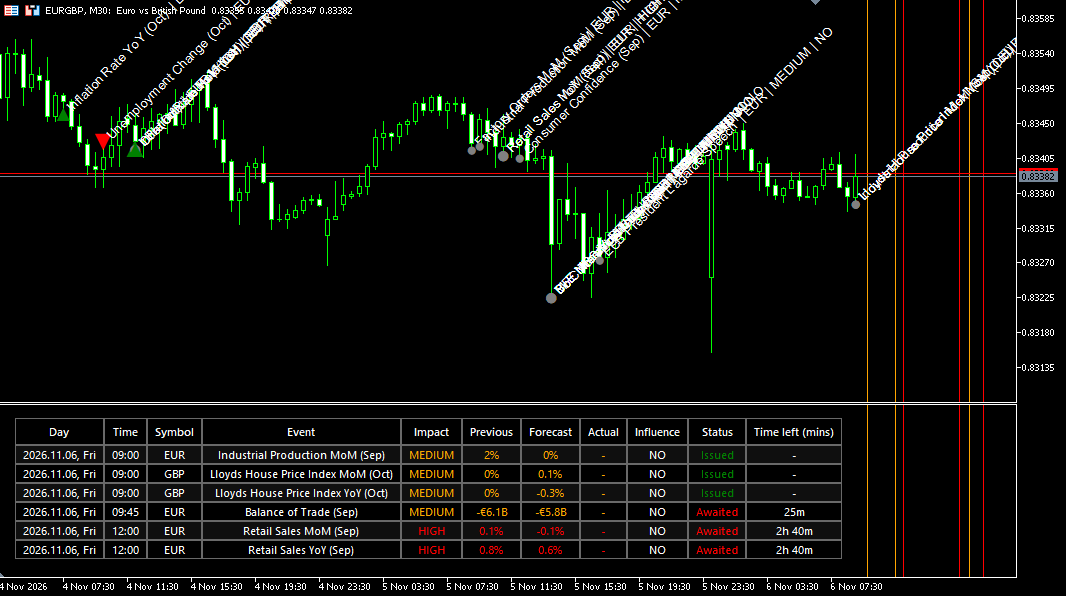
The MT5 News Indicator brings an economic calendar into MetaTrader 5 and shows only the events for the currencies of the chart. A table in the indicator window lists the latest released and the next upcoming events with their impact, previous, forecast and actual values, and a countdown to each release.
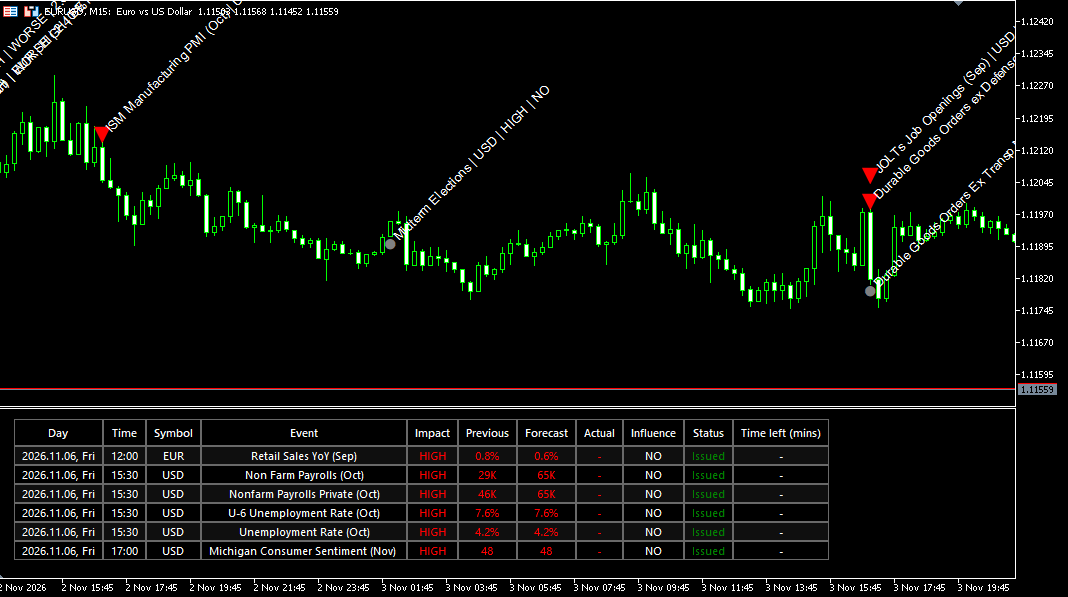
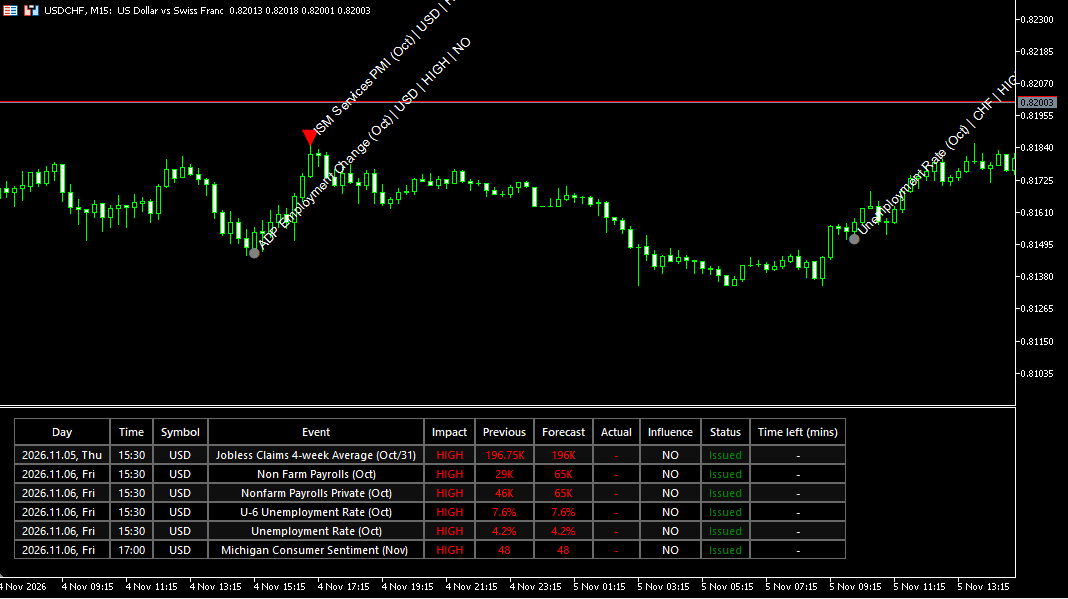
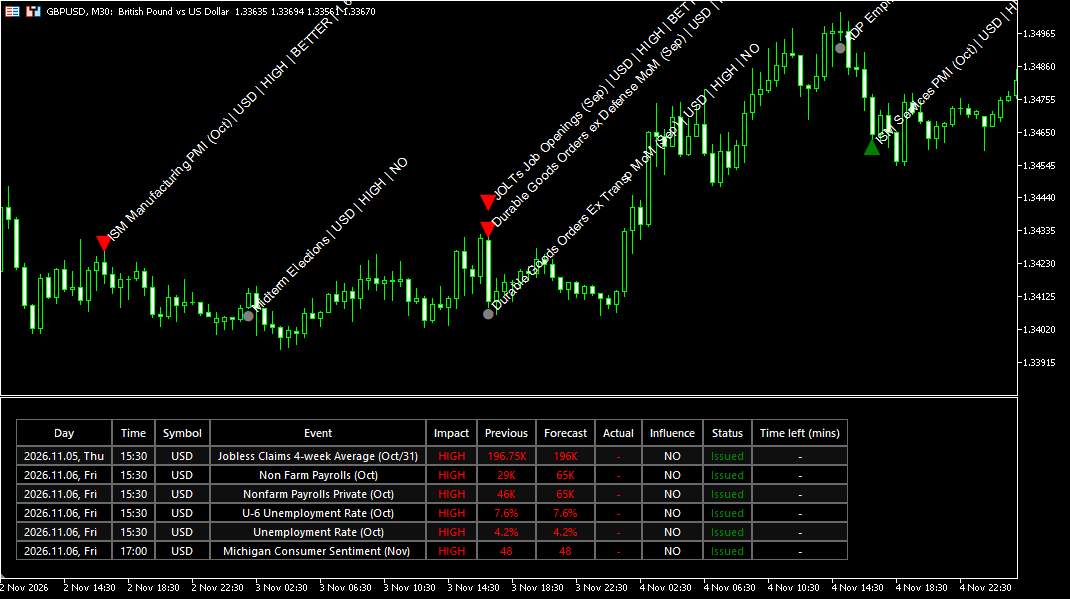
On the chart, upcoming events are marked by vertical lines coloured by impact. After a release, the indicator compares the actual value with the forecast, shows whether the result was better or worse for the currency and by how much, and places a marker on the bar of the release: positive for the pair, negative for the pair or without influence.
Alerts can be sent a few minutes before an event and at the time of its release. The calendar data comes from Myfxbook and is updated every minute, and every few seconds right after a release.
News Indicator — Key Features
Economic Calendar for the Chart
News events for the currencies of the symbol on the chart.
The indicator loads an economic calendar from the Nordman Algorithms news server. The calendar data is provided by Myfxbook.
Only events that matter for the chart are shown. On a currency pair, these are the events of both its currencies. On other symbols, they are the events of the symbol’s quote currency when it is one of the eight major currencies: USD, EUR, GBP, JPY, CHF, AUD, CAD and NZD. Low, medium and high impact events can be shown or hidden separately, and event times are converted to your broker’s server time.
News Table
Past and upcoming events in one table.
A table in the indicator window lists the last 3 released and the next 5 upcoming events by default. For each event it shows the day, time, currency, event name, impact, previous, forecast and actual values, the influence on the currency, the status, Issued or Awaited, and the time left until the release. An actual value that differs from the forecast is highlighted.
The previous, forecast and actual columns can be hidden for a more compact table.
News Table
Upcoming Events on the Chart
Vertical lines at the times of upcoming releases.
Each upcoming event is marked by a vertical line coloured by impact: red for high, orange for medium and green for low. The event name, currency and impact are written along the line. When several events share the same minute, the line takes the colour of the most important one and its label ends with “(and others)”.
Upcoming Events on the Chart
Released Events and Their Influence
Markers on the bar where each event was released.
After a release, the indicator compares the actual value with the forecast, or with the previous value when there is no forecast, and shows whether the result is better or worse for the currency and by how much in percent. For each event, the calendar defines whether a higher value is better or worse for the currency.
On the chart, a green triangle marks a result that is positive for the pair, a red triangle one that is negative, and a grey dot an event without influence, such as a speech or a release equal to the forecast. A result that is better for the quote currency is negative for the pair: stronger US data is marked with a red triangle on EURUSD. Marker size follows the impact, and each marker is labelled with the event, currency, impact, influence and deviation.
Released Events and Their Influence
Live Updates
Actual values appear shortly after the release.
The calendar reloads every minute. For five minutes after a release it is checked every 5 seconds, so actual values, influence and markers appear soon after the data is published.
Alerts and Pre-Alerts
A reminder before the release and an alert when it happens.
A pre-alert is sent a set number of minutes before an event, 5 by default, and an alert at the time of the release. When several events fall in the same minute, the alert names the first and counts the rest. Alerts are sent as a pop-up, a sound and an email, each switched on or off separately.
Full History
Load past events for the whole chart history.
By default, the indicator loads the events of the current week. Load Full History loads past events as well, so markers and influence appear on older bars.
Signals Readable by Expert Advisors
Event and influence data stored in indicator buffers.
An Expert Advisor can read the indicator through iCustom() and CopyBuffer(): whether a low, medium or high impact event was released in a bar, buffers 0–2; how many minutes remain until the next event of each impact, buffers 3–5; and whether a released event of each impact was positive or negative for the pair, buffers 6–11.
How to Read and Use the News Indicator
Seeing What Is Coming
The table and the vertical lines show which events are due for the chart’s currencies and how much time is left. Many traders check them before opening a position, so that a high-impact release does not arrive unnoticed in the middle of a trade.
Choosing Which Events to Show
Impact filters hide the events you do not follow. Some traders keep only high-impact events on the chart to reduce clutter; others keep medium-impact events as well on pairs where they matter.
Reading the Influence of a Release
Better or Worse in the table refers to the currency: whether the actual value came in on the favourable or the unfavourable side of the forecast for that currency. The marker on the chart refers to the pair. If the currency is the first in the pair, a better result is marked as positive; if it is the second, a better result is marked as negative.
The deviation in percent shows how far the actual value was from the forecast. It describes the surprise in the data, not the size of the price move that followed.
Using Alerts and Pre-Alerts
A pre-alert a few minutes before a release is time to check open positions and pending orders. The alert at the release, and the marker that follows, show when the data is out and how it compared with the forecast.
Reviewing Past Releases
With Load Full History enabled, markers appear on older bars as well. Scrolling back shows how price behaved around earlier releases of the same event.
Limitations
- The influence compares the actual value with the forecast. It does not predict how price will react: the market can move against a better or worse result.
- Calendar data comes from a third-party source and can be revised after publication.
- Events without numeric values, such as speeches, have no influence and are marked with a grey dot.
- The indicator needs an internet connection to load the calendar.
Indicator Settings & Parameters
Inputs as they appear in the indicator’s Inputs tab.
| Parameter | Description |
|---|---|
| License | |
| License Email | The email used for your trial, subscription or purchase. The license is verified with this email. |
| Alerts | |
| Enable pop up alert | Shows a pop-up alert. Default: true. |
| Enable sound alert | Plays a sound when an alert is triggered. Default: true. |
| Alert sound file | Sound file played for alerts. Default: Alert1.wav. |
| Enable email alert | Sends an email. Default: true. |
| Email to | Emails are sent to the address set in MetaTrader 5 under Tools → Options → Email. |
| Enable Event Alert | Alert at the time of a release. Default: true. |
| Enable Event Pre-Alert | Alert before a release. Default: true. |
| Pre-Alert Minutes | How many minutes before a release the pre-alert is sent. Default: 5. |
| Impact Filter | |
| Show Low | Shows low-impact events. Default: true. |
| Show Medium | Shows medium-impact events. Default: true. |
| Show High | Shows high-impact events. Default: true. |
| General Settings | |
| History Bars To Process | Number of chart bars for which markers and buffers are calculated. Default: 1,500. |
| Show Metrics | Shows the previous, forecast and actual columns in the table. Default: true. |
| Load Full History | Loads past events beyond the current week. Default: false. |
| Events Display Settings | |
| Past Events To Display | Number of released events in the table. Default: 3. |
| Future Events To Display | Number of upcoming events in the table. Default: 5. |
| Table Settings | |
| Table Width (%) | Width of the table as a share of the indicator window. Default: 55. |
| Font Size | Font size of the table. Default: 10. |
Frequently Asked Questions
News Data
The economic calendar data is provided by Myfxbook and delivered to the indicator through the Nordman Algorithms news server.
The events of the chart’s currencies: both currencies on a currency pair, or the quote currency on other symbols when it is one of USD, EUR, GBP, JPY, CHF, AUD, CAD and NZD. Low, medium and high impact events can be filtered separately.
In your broker’s server time, the same time as the chart.
The calendar is checked every 5 seconds for five minutes after a release, so actual values appear soon after they are published.
Yes. Load Full History loads past events, so markers appear on older bars. By default only the current week is loaded.
Influence & Signals
They show whether the actual value came in on the favourable or the unfavourable side of the forecast for the currency. For each event, the calendar defines whether a higher value is better or worse.
The marker refers to the pair. USD is the second currency in EURUSD, so a result that is better for USD is negative for the pair.
Events without numeric values, such as speeches, and releases equal to the forecast have no influence and are marked with a grey dot.
Yes. Released events by impact are in buffers 0–2, minutes to the next event of each impact in buffers 3–5, and positive or negative releases for the pair in buffers 6–11.
No. It shows the economic calendar, the influence of released events and alerts. Trade decisions and order execution are up to you.
System Requirements & Installation
What you need to run the indicator, how to download and install it in MetaTrader 5, and how the license works.
System Requirements
- Platform
- MetaTrader 5 (Desktop)
- Operating system
- Windows 10 or Windows 11
- Instruments
- Forex pairs, and other symbols quoted in USD, EUR, GBP, JPY, CHF, AUD, CAD or NZD
- Data
- Internet connection for the economic calendar, and your broker’s price feed in MetaTrader 5
Not available on MetaTrader 5 Web or Mobile. Custom indicators run in the MetaTrader 5 desktop terminal only.
License Terms
- Lifetime License
- This indicator only, 1 live and 1 demo account, one-time payment, free updates included.
- All-Access Subscription
- All indicators and trade copiers, billed monthly, cancel anytime, updates included while the subscription is active.
- Free trial
- 5 days on the subscription plan. If not cancelled, the subscription starts automatically.
- License binding
- Linked to your email and to your MetaTrader 5 trading accounts: one live account and one demo account.
- Computers
- Not restricted. The license is linked to your trading accounts, not to a specific computer.
Installation
- Get access
Start the free trial, subscribe, or buy a lifetime license on this page.
- Download
The indicator is not sent by email. Open (top right of this page) and enter the email you used for your trial, subscription or purchase. The indicator file (.ex5) downloads to your computer.
- Copy to the MetaTrader 5 data folder
In MetaTrader 5, go to
File → Open Data Folder, openMQL5 → Indicatorsand copy the downloaded .ex5 file there. - Add to a chart
Restart MetaTrader 5 or right-click Indicators in the Navigator window and select Refresh. Then drag the indicator from the Navigator onto a chart.
- Activate the license
In the indicator inputs, enter the same email. On first activation, the license is linked to that email and to the trading account the terminal is logged into.
The license check needs DLL imports. Allow them in the indicator’s Common tab or under
Tools → Options → Expert Advisors. Without them, or without a valid email, the indicator shows a message and does not load.
Updating: When a new version is released, download it again through and replace the existing .ex5 file in the same folder.
Installation questions? Contact support, Monday to Friday.
Related Products
"Best Seller" and "Trending" reflect Nordman Algorithms sales and usage data, January–September 2026.
Disclaimer — Software Use & Risk Disclosure
Nordman Algorithms is a trade name of Nordman Algorithms OÜ (Reg. No. 14435535), registered in Tallinn, Estonia.
Software Use
Software Nature & User Responsibility — Nordman Algorithms provides algorithmic software tools for technical analysis. Nordman Algorithms is not a financial advisor and is not liable for any losses. All trades conducted based on the software’s output are executed at the user’s sole discretion and risk.
Visual Markers & Signal Disclosure — This software may display visual markers (such as arrows, dots, or alerts) when predefined mathematical conditions are met. These markers are provided for educational and analytical purposes only, must not be interpreted as financial guidance, and do not constitute a recommendation to buy, sell, or hold any financial instrument. Users must independently validate all visual cues within their own trading methodology.
No Financial Advice — Nordman Algorithms does not provide discretionary trading signals, investment advice, or managed signal services. Our software represents a mathematical visualization of historical and real-time data. The appearance of a visual marker does not guarantee a profitable trade or predict future market behavior.
Read the full Terms of Service →Risk Disclosure
Trading Risk Warning — Futures, Forex, and options trading involve significant risk. Risk capital is money that can be lost without jeopardizing financial security. Only risk capital should be used for trading. Past performance is not indicative of future results. An investor could potentially lose all or more than the initial amount committed.
ESMA Risk Warning — Financial instruments, especially those involving leverage such as CFDs and Forex, are complex and carry a high risk of rapid financial loss. Our software provides analytical outputs and visual markers based on predefined mathematical conditions and does not mitigate or reduce inherent market risks. You should carefully consider whether you understand how leveraged financial instruments work and whether you can afford the high risk of losing your capital.
CFTC Rule 4.41 — Hypothetical or simulated performance results have inherent limitations. Unlike actual performance records, simulated results do not represent real trading. Because trades have not actually been executed, these results may under- or over-compensate for the impact of market factors such as liquidity. Simulated results are also subject to the benefit of hindsight. No representation is being made that any account will achieve profits or losses similar to those shown.
Read the full Risk Disclosure →Trademark Notice — MetaTrader 5 and MT5 are trademarks of MetaQuotes Ltd. Nordman Algorithms is an independent software developer and is not affiliated with, sponsored by, or endorsed by MetaQuotes Ltd. References to MetaTrader 5 identify software compatibility. Myfxbook is a trademark of its respective owner; Nordman Algorithms is not affiliated with, sponsored by, or endorsed by Myfxbook.
Need a different setup?
We can customize this indicator to your specifications: add new functions, modify the logic, refine visuals, or integrate it with other MetaTrader 5 tools. We also convert indicators into Expert Advisors with trailing stops, position parameter controls, execution filters and rule-based automation built to your technical specifications.
Every project is delivered with full source code and post-delivery support. Fixed-price quote before development begins.