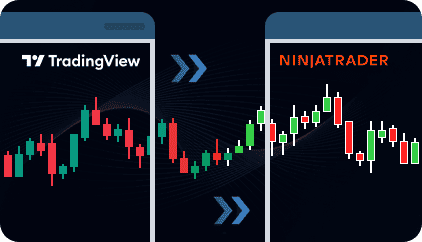
Set up an entry or exit alert in your TradingView strategy or indicator by pasting the provided alert code into the script and entering the webhook URL in the alert settings. When the alert triggers, TradingView sends a signal containing the trade parameters.
The cloud server receives the signal, assigns a unique identifier, and records it in the Alerts tab of the dashboard. This allows you to monitor incoming signals and view the history of all alerts received from TradingView.
A dedicated NinjaTrader Strategy (Receiver) maintains a persistent connection with the cloud server. The Strategy listens for new signals and retrieves them as they arrive. Simply attach the Receiver to the chart of the symbol where trades should be executed.
Once the signal is received, the NinjaTrader Strategy opens the corresponding market order in the NinjaTrader terminal. Execution details are recorded in the dashboard, allowing you to track both the original alert and the resulting trade from a single control panel.

You don’t need to be a programmer or install browser extensions. Simply copy the provided alert code into your TradingView script and enter the webhook URL in the alert settings.

Trades are executed on the symbol where the NinjaTrader Receiver Strategy is attached, eliminating symbol-mapping issues between TradingView instruments and broker-specific symbols.

Track every alert and executed order through a dedicated admin panel. Incoming signals appear in the Alerts tab, while executed trades are recorded with full execution details.

Trades are executed as market orders in NinjaTrader based on TradingView alerts. Take Profit and Stop Loss levels can either be passed from the TradingView signal or overridden with your own fixed values in ticks, configured directly in the NinjaTrader Receiver Strategy settings.
Choose between fixed, risk-based, or balance-based lot sizing. Apply multipliers to incoming signals or fully override lot size based on your account configuration.

Stay informed about your system status even when you are away from your terminal. If the NinjaTrader Receiver Strategy loses its connection to the cloud server, an instant notification is sent via Telegram.

Monitor incoming alerts, executed trades, and connected receivers through a centralized admin panel. Alerts and executions are recorded with timestamps and unique signal IDs.

A single signal source can be connected to multiple NinjaTrader installations across different machines. Each Machine ID must have its own separate license.

Define when trades are allowed to be executed based on broker server time. Restrict trading to specific sessions or allow execution at any time.
The Receiver Strategy requires your NinjaTrader 8 terminal to be running and connected to the internet to execute trades. Signals will only be processed if the terminal is active at the moment the alert is triggered.
Signal processing and trade execution typically occur within approximately one second. Please note that actual speed depends on the quality of your internet connection and broker server response times.
If your NinjaTrader terminal is closed or disconnected when an alert arrives, the signal will not be queued or executed later once you reconnect. The system only processes live signals in real-time.
A 5-day free trial is available so you can test the trade copier before continuing with a paid subscription. The trial is activated as a subscription, but no payment is charged during the first 5 days. If the trial is not cancelled within 5 days, the monthly subscription will start automatically. You can cancel the subscription at any time through your PayPal account. If you cannot cancel the subscription yourself, please contact us and we will assist you.
Each license is locked to one NinjaTrader 8 Machine ID. This allows you to run the Receiver Strategy on the machine where your NinjaTrader terminal is installed.
Each NinjaTrader installation that receives and executes signals must have its own license tied to its Machine ID. If additional users want to receive the same signals on their own NinjaTrader machines, they must purchase their own license.
Your subscription provides access to all products available on the Nordman Algorithms website. You can use other Nordman Algorithms tools under the same subscription without purchasing additional licenses.
We strongly recommend testing the system on a demo account before using it on a live account. Make sure you fully understand how the system works and how it behaves under different market conditions. Only after you are confident in its operation should you consider using it on a live account.
If you have questions, encounter errors, or experience any issues while using the system, please contact our support team.
Nordman Algorithms is a trade name of Nordman Algorithms OÜ (Reg. No. 14435535), registered in Tallinn, Estonia.
Software Nature & User Responsibility — Nordman Algorithms provides software tools only and is not liable for risks associated with trading activities conducted using the software. All trading actions, configurations, and trade copying processes are initiated and controlled solely by the user.
No Financial Advice or Regulated Services — Nordman Algorithms does not provide financial advice, trading signals, investment recommendations, managed copy trading services, or any other regulated financial products or services.
Software Function & Signal Execution — The software is a technical utility that automates the execution or replication of user-defined trading signals between supported platforms and trading accounts. Signals may originate from user-configured alerts, trading algorithms, indicators, strategies, expert advisors, or other automated systems defined by the user. The software solely transmits or executes these user-originated signals and does not generate, modify, analyze, or manage trading decisions independently.
Accuracy & Performance Disclaimer — Nordman Algorithms does not guarantee the accuracy, completeness, reliability, or trading performance of any software outputs, signals, or execution results.
Third-Party Platforms & Connectivity — Nordman Algorithms is not responsible for failures or delays caused by third-party platforms, user-side hardware or terminal availability, broker execution conditions, server availability, or external services used in conjunction with the software. Execution prices, spreads, slippage, and order fills may differ from the originating signal due to broker-specific market conditions and liquidity.
Trading Risk Warning — Futures, Forex, and options trading involve significant risk. Risk capital is money that can be lost without jeopardizing financial security. Only risk capital should be used for trading. Past performance is not indicative of future results. View Full Risk Disclosure: https://www.nordman-algorithms.com/risk-disclosure/
ESMA Risk Warning — Financial instruments, especially those involving leverage such as CFDs and Forex, are complex and carry a high risk of rapid financial loss. Our software provides technical automation based on user-defined conditions and does not mitigate or reduce inherent market risks. You should carefully consider whether you understand how leveraged financial instruments work and whether you can afford the high risk of losing your capital.
CFTC Rule 4.41 — Hypothetical or simulated performance results have inherent limitations. Unlike actual performance records, simulated results do not represent real trading. Because trades have not actually been executed, these results may under- or over-compensate for the impact of market factors such as liquidity. No representation is being made that any account will achieve profits or losses similar to those shown.
Trademark Notice — NinjaTrader® is a registered trademark of NinjaTrader Group, LLC. No NinjaTrader company has any affiliation with the owner, developer, or provider of the products or services described herein, or any interest, ownership or otherwise, in any such product or service, or endorses, recommends or approves any such product or service.