INSTRUCTION SECTIONS OVERVIEW:
1. INTRODUCTION TO THE NINJATRADER TO MT5 TRADE COPIER
3.1 Installing and Configuring the NinjaTrader Indicator as a Sender
3.2 Installing and Configuring the MT5 Expert Advisor as the Receiver
3.3 Establishing and Verifying the Connection Between Sender and Receiver
4.2 Sender Parameters and Their Description
4.3 Receiver Parameters and Their Description
5.1 Types of Orders Copied and their processing
5.2 Partial Execution and Order Modification
5.3 Order Execution Specifics for MT5 Hedging Accounts
6. SUPPORT AND CONTACT INFORMATION
The NinjaTrader to MT5 Trade Copier is a local trade copying solution that replicates trades from NinjaTrader 8 to MetaTrader 5 in real time. It supports both manual and automated strategies, multi-symbol trading, and adjustable lot scaling.
This version of the copier is designed for local operation, meaning both NinjaTrader and MT5 must be running on the same computer. All trade replication takes place locally without the use of external servers.
The NinjaTrader to MT5 Trade Copier operates as an integrated solution that connects NinjaTrader 8 with MetaTrader 5 through two core components:
Copying trades is only possible in one direction: from NinjaTrader to MetaTrader 5. Due to technical limitations of the platforms, simultaneous two-way trade copying is not supported. If you need to copy trades from MT5 to NinjaTrader, please visit the MT5 to NinjaTrader Trade Copier product page.
Do not start using this product on a live account. First, thoroughly test all features on a demo account to ensure you fully understand its capabilities and limitations. Only after you are fully confident in its operation should you consider using it on a live account.
To ensure the Trade Copier works correctly, make sure your MT5 terminal is updated to the latest available version before installation.
To start using the NinjaTrader to MT5 Trade Copier, you will need a licensed email address. A 5-day free trial is available — you can test the copier before committing to a paid subscription. If you don’t cancel within 5 days, the monthly subscription will start automatically.
To subscribe, click the “Get Access” button on the product page, then select “Subscribe” in the window that appears. After completing the payment, return to the product page, click “Get Access” again, and in the “Subscriber Access” section, enter the email address you used during the subscription process. Then click “Submit” and “Download” — a zip file containing all the necessary components will automatically be downloaded to your device.
You may cancel your subscription at any time through your PayPal account. To avoid unintended charges, please remember to cancel if you no longer require the service.
Currently, all of our products are available under a single subscription. In addition to the NinjaTrader to MT5 Trade Copier, you will also gain access to all our indicators and other trade copiers.
The ZIP file downloaded from the product page contains two components:
Step 1: Import the “NordmanNT8MT5Sender” ZIP File into NinjaTrader
1. Open your NinjaTrader terminal. In the Control Center window, click the Tools menu, then select Import → NinjaScript Add-On.
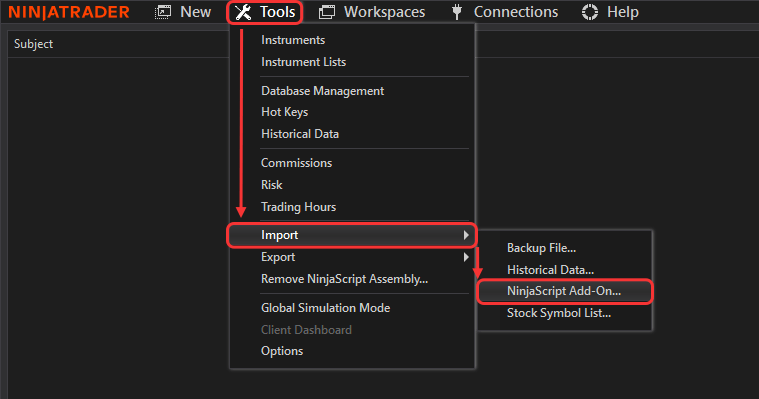
2. When prompted, navigate to the folder where you saved the downloaded ZIP file. Select NordmanNT8MT5Sender — do not extract the file — and click Open to begin the installation.
3. Once the import is complete, NinjaTrader will display the following confirmation message: “NinjaTrader has successfully imported all scripts contained in the NinjaScript Archive File.”
Step 2: Attach the Sender Indicator to a Chart
1. Right-click on the chart area in NinjaTrader and select Indicators from the context menu.
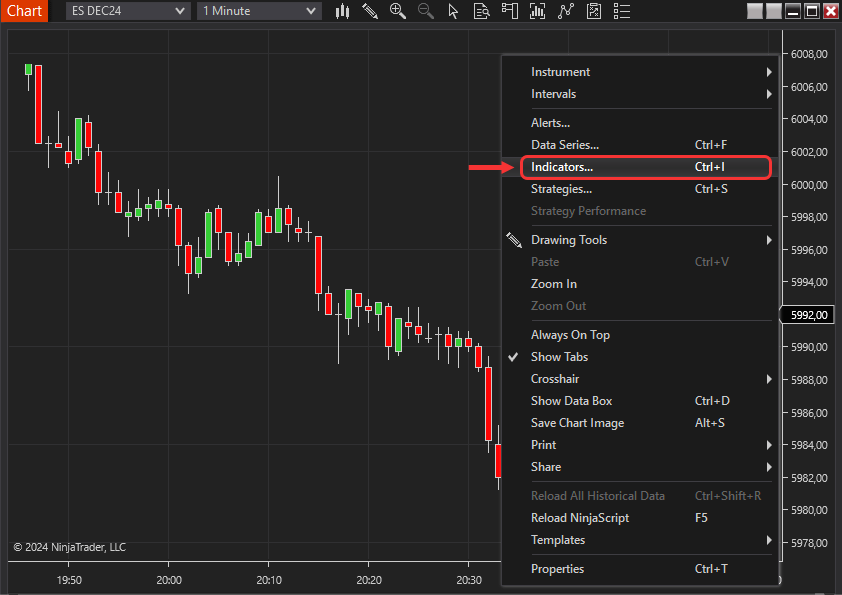
2. In the Indicators window, locate the installed indicator, select it, and click Add.
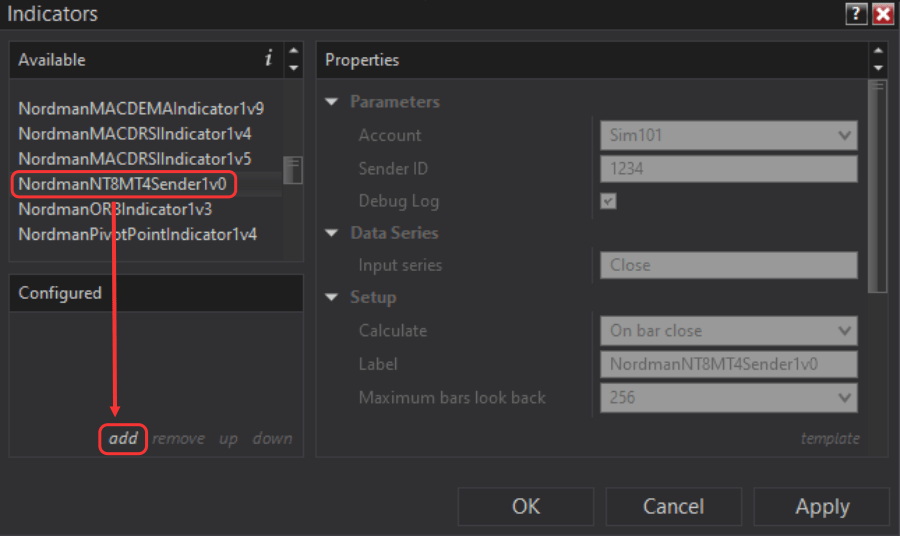
You can now proceed to configure the indicator parameters.
Step 3: Configure the Indicator Parameters
Refer to section 4.2, “Sender Parameters and Their Description”, for a full explanation of all available settings.
Step 1: Copy the “Nordman_NT8MT5_Receiver_EA.ex5” File into MetaTrader 5
1. Extract the file Nordman_NT8MT5_Receiver_EA.ex5 from the ZIP archive Nordman_NT8_to_MT5_Trade_Copier.
2. Open or launch your MetaTrader 5 terminal.
3. In the terminal’s main menu, click File → Open Data Folder.
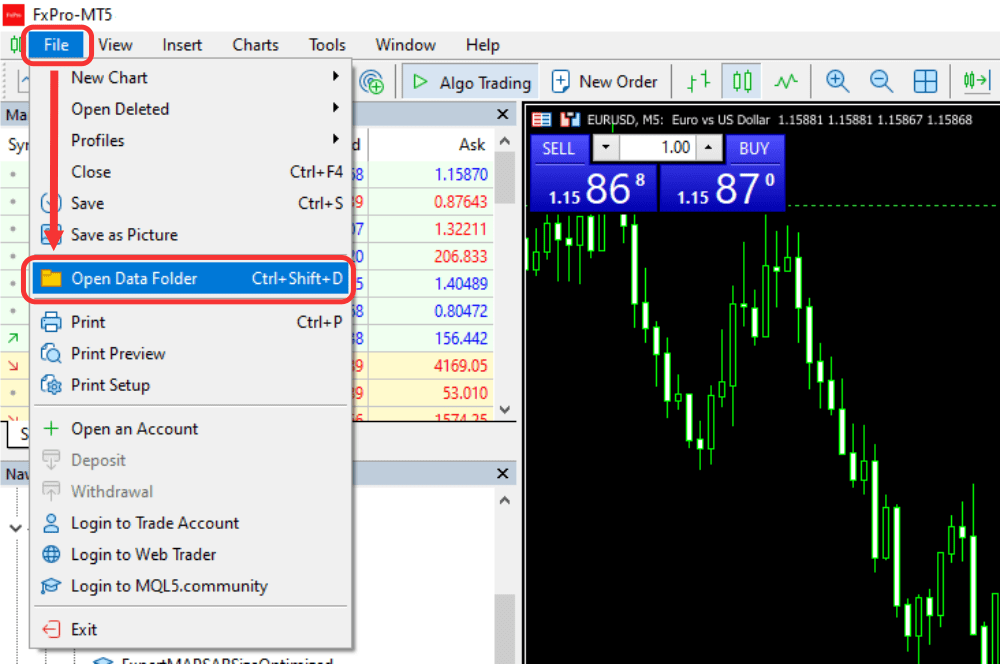
4. In the folder that opens, navigate to MQL5 → Experts and paste the Nordman_NT8MT5_Receiver_EA.ex5 file into the Experts folder.
Step 2: Verify File Import
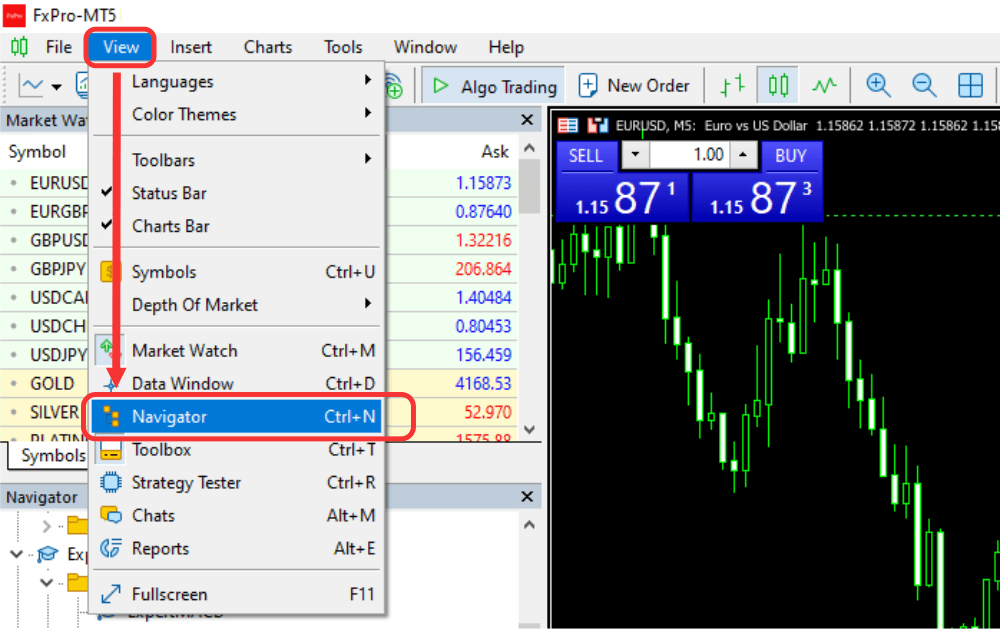
1. Open the Navigator panel. If it is not visible, go to View → Navigator, or press Ctrl + N.
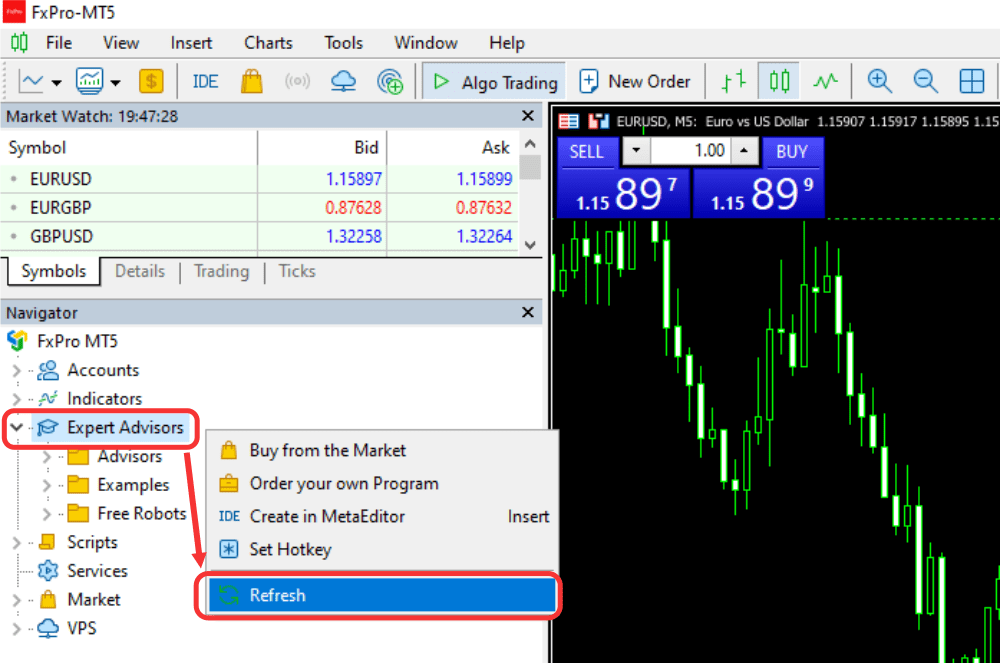
2. In the Navigator, expand the Expert Advisors section, right-click it, and select Refresh.
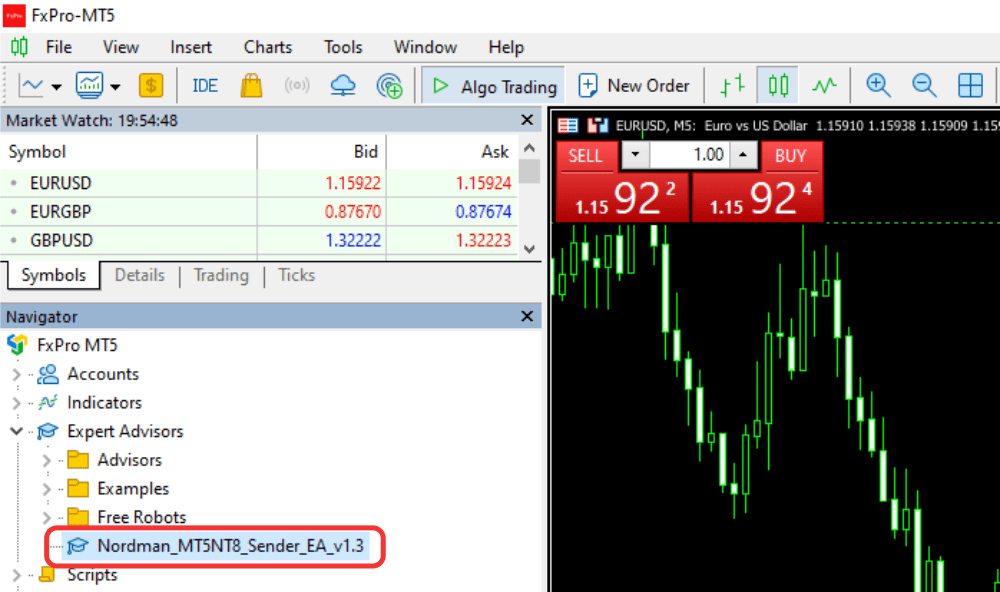
3. Confirm that Nordman_NT8MT5_Receiver_EA appears in the list. This confirms the file has been successfully imported into the terminal.
Step 3: Configure Terminal Settings
Before running the EA, ensure that the following terminal settings are configured correctly:
1. Open the Options window: Click “Tools” in the top navigation menu and select “Options”.
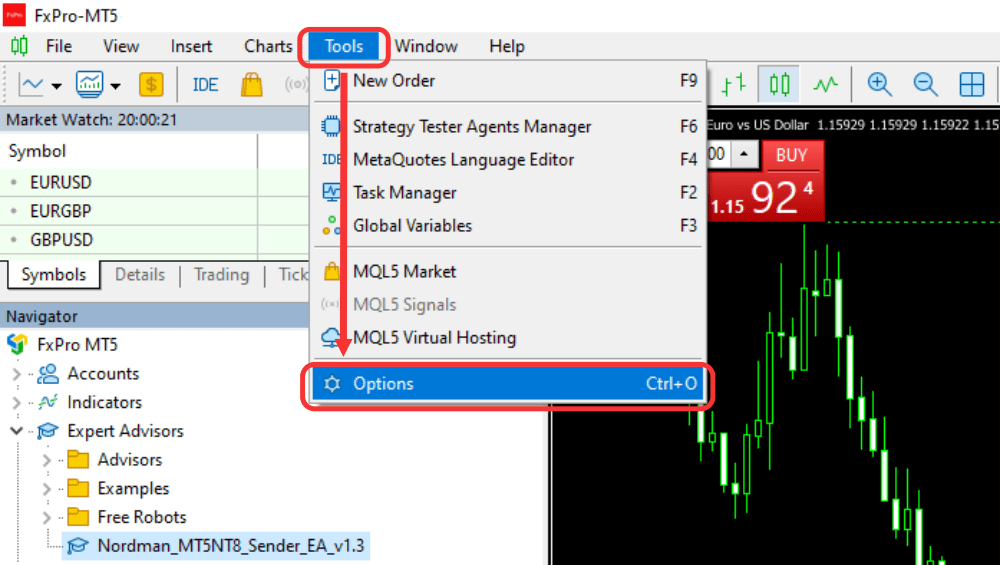
2. Go to Tools → Options and open the Expert Advisors tab. Verify that the following options are enabled:
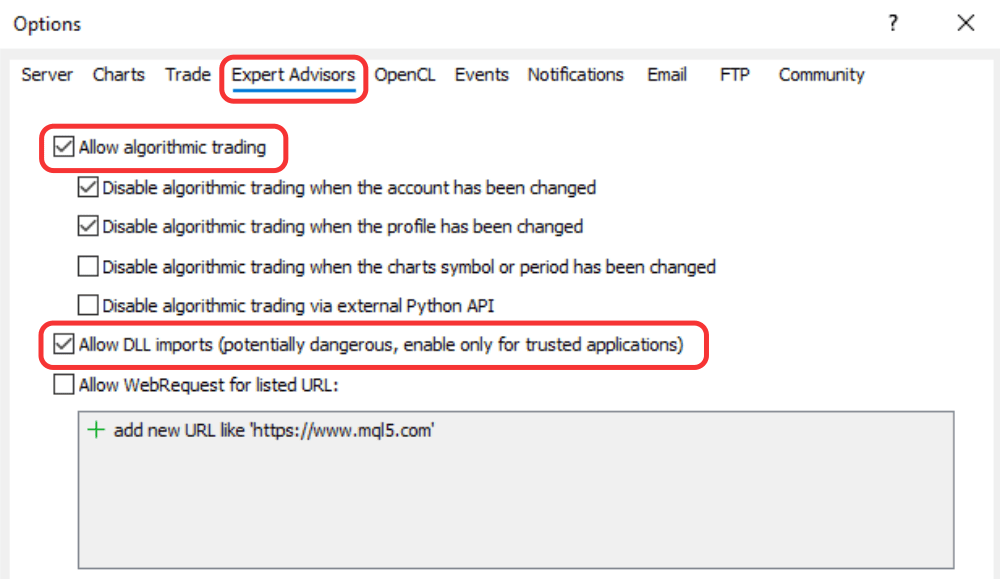
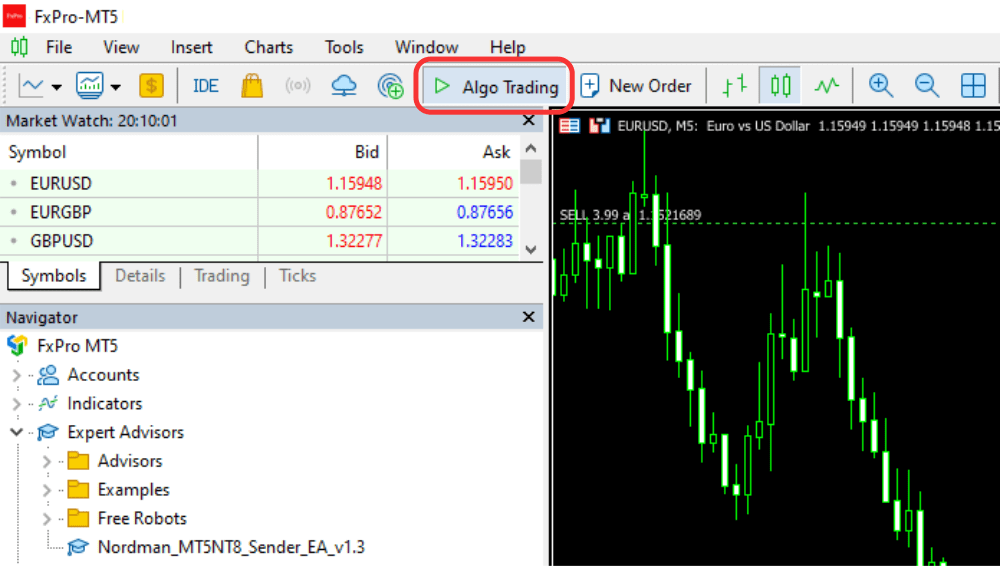
3. Ensure the Algo Trading function is enabled in the MetaTrader 5 control panel:
Check that the Algo Trading button is active in the MetaTrader 5 toolbar. When enabled, it displays a green play icon. This must be activated for the EA to execute trades automatically.
Step 4: Attach the Expert Advisor to a Chart and Configure It
1. Open the Navigator panel (View → Navigator or Ctrl + N).
2. In the Expert Advisors section, locate Nordman_NT8MT5_Receiver_EA. Drag it onto the chart, or right-click it and select Attach to a Chart.
3. In the EA settings window, go to the Common tab and confirm that Allow Algo Trading is enabled. Then open the Dependencies tab and confirm that Allow DLL imports is enabled.
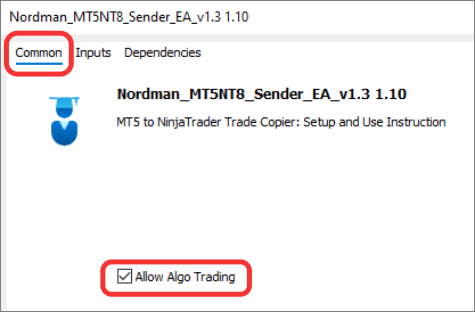

4. Open the Inputs tab and configure the EA parameters as described in section 4.3, “Receiver Parameters and Their Description”.
To establish a proper connection, it is important to follow the correct setup order. The Sender must always be configured first.
1. Setting Up the Sender:
2. Setting Up the Receiver:
Verifying the Connection
After attaching both components to their respective charts, confirm that the connection has been successfully established. Both the Sender and Receiver display a connection status indicator.
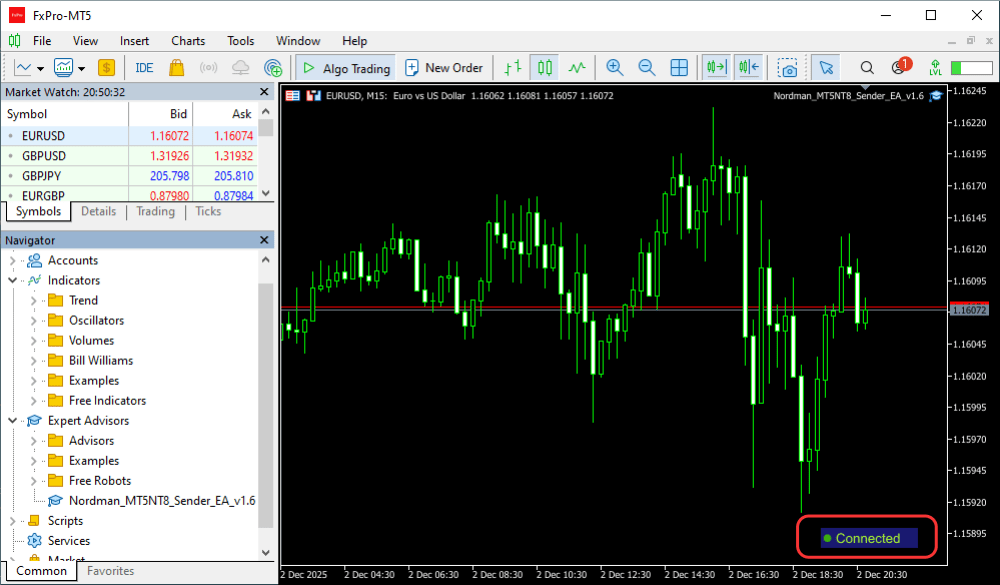
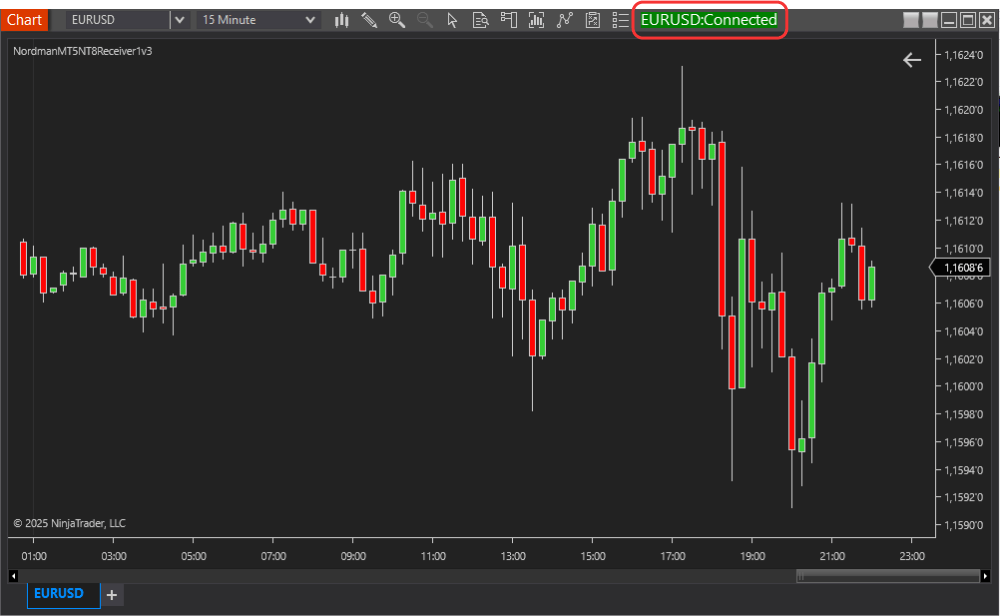
Verify that the Sender ID is correctly specified on both sides. If the issue persists and you are confident it is not caused by the above, refer to Section 6: “Support and Contact Information” before contacting technical support.
The Sender is implemented as a NinjaTrader 8 indicator, designed to track position entry and exit events for a specified symbol. It monitors all trading actions on the chart where it is installed and transmits the relevant data in real time to the Receiver via a locally established connection.
The Receiver is an Expert Advisor (EA) for MetaTrader 5, responsible for processing and executing orders sent by the Sender. It uses the Sender ID parameter as an identifier to link signals from the Sender to the corresponding Receiver instance. As a result, all positions are continuously synchronized from NinjaTrader 8 to the chart where the Receiver EA is applied.
The Sender only tracks orders placed on the symbol to which it is attached. For example, if the Sender is attached to a NAS100 chart, it will not track or copy orders from ES or any other symbol.
If multiple charts are open for the same symbol and the Sender is attached to one of them, it will track executions across all charts for that symbol. To copy trades for multiple symbols, you must use separate Sender instances with unique Sender ID values for each symbol.
Example:
| Symbol to be Copied |
Trade Copier Connection Channel | Sender ID in the Sender (NinjaTrader Indicator) | Sender ID in the Receiver (MT5 Expert Advisor) |
|---|---|---|---|
| EURUSD | Sender #1 ➜ Receiver #1 | MyWordMyNumbers | MyWordMyNumbers |
| GBPUSD | Sender #2 ➜ Receiver #2 | Nordman001 | Nordman001 |
#License Email
Field for entering the license email address. Enter the email address used during subscription. Specifying a valid email address is mandatory for the Trade Copier to function — without it, trade copying will not work. For more information, refer to section 2, “Product License”.
#Sender ID
Sender ID The Sender ID serves as a unique identifier that links the Sender (NinjaTrader Indicator) to the corresponding Receiver (MT5 Expert Advisor). Only one Sender with a given ID can be active at a time. If multiple Sender instances with the same Sender ID are running simultaneously, a warning message will appear. Use only letters and numbers when setting the Sender ID — avoid special characters.
#Debug Log
When enabled, logs all trading events to the relevant log file. Useful for troubleshooting connection or execution issues.
#License Email
Field for entering the license email address. Enter the email address used during subscription. Specifying a valid email address is mandatory for the Trade Copier to function — without it, trade copying will not work. For more information, refer to section 2, “Product License”.
#Sender ID
The Sender ID parameter serves as a unique identifier to connect to the Sender. To establish a connection between the Sender and Receiver, you must specify the same value set on the NinjaTrader 8 Sender side.
#Lot Multiplier
This parameter adjusts the lot size of trades copied to the Receiver side. The lot size of the original trade will be multiplied by this value before being executed in MetaTrader 5.
Formula: NinjaTrader lot size × Lot Multiplier.
This parameter is essential when lot specifications for the same instrument differ between brokers. For example, if 1 lot of NAS100 equals 10 units at the NinjaTrader broker, but 1 unit at the MT5 broker, set Lot Multiplier = 10 to ensure the correct position size is replicated. Conversely, if the ratio is reversed, set Lot Multiplier = 0.1. This ensures your position size remains consistent across both platforms.
#Magic Number
The Magic Number parameter determines which types of trades the Receiver EA will process:
| Magic Number Value | Description |
|---|---|
| Magic Number = -1 | The EA captures all market trades on the instrument where it is attached. |
| Magic Number = 0 | The EA captures only manually opened market trades. |
| Magic Number > 0 | The EA captures only market trades with this specific magic number. |
Ensure your Magic Number settings are configured correctly to achieve the desired trade execution behavior.
#Debug Log
When enabled, logs all trading events and execution details to the relevant log file. Useful for troubleshooting connection or trade execution issues.
| Market Orders | Pending (Limit) Orders |
|---|---|
| Market orders are copied immediately upon execution. The typical copying speed is under 1 second, although actual timing may vary depending on the quality of your internet connection. | Pending orders are not copied at the time they are placed. They are replicated on the Receiver side only when the order is triggered and executed on the Sender side. Why Are Pending (Limit) Orders Not Copied Immediately? Since Bid/Ask prices may differ between platforms and brokers, copying a limit order at placement could result in a situation where the price reaches and executes the order on one side but not the other — leading to desynchronized positions between NinjaTrader and MT5. |
Partial Execution: Orders are processed according to the market execution principle.
Order Modification: Orders are not copied at the moment they are placed or modified. Instead, they are copied to the Receiver only when they are actually executed, in accordance with the market execution principle.
NinjaTrader uses a netting model, while MetaTrader 5 supports both netting and hedging account types. The Trade Copier continuously synchronizes the position on the target symbol — matching the direction and volume from NinjaTrader. On MT5 hedging accounts, positions may be partially closed to reach the required net volume. On MT5 netting accounts, trades are applied as a net position update.
We have prepared detailed instructions and hope they will address most of your questions. If you have any further inquiries or encounter any technical issues, please contact us using the form on the Contact Us page.
Troubleshooting
The Sender (NinjaTrader Indicator) and Receiver (MT5 Expert Advisor) generate detailed activity records in their logs. These logs are essential for diagnosing and resolving issues. If you encounter an error, please send us the relevant log files along with a screenshot of the chart to help us process your support request efficiently.
How to Access Logs in Terminals
| MetaTrader 5 | NinjaTrader 8 |
|---|---|
| Logs can be viewed in the Experts tab of the Terminal panel. To save the log files, right-click in the Expert Advisor log, select Open from the pop-up menu, and save the files. | Logs can be viewed in the Log tab of the Control Center’s bottom panel. To save the log files, right-click on the logs, select Export from the pop-up menu, and save them to your preferred folder. Log File Locations The related log files can also be found in the following folders: C:Users{YourUserName}DocumentsNinjaTrader 8_LogCustNordmanNT8MT5Sender C:Users{YourUserName}DocumentsNinjaTrader 8log |
We are committed to the ongoing improvement of our NinjaTrader to MT5 Trade Copier. If you encounter an issue, feel that an important feature is missing, or have suggestions that could make the copier more efficient or user-friendly, please send us a message. Your feedback helps us refine the tool and better serve the traders who rely on it every day.


